Elementor Review: Most Powerful WordPress Page Builder
When I first started creating WordPress websites, it didn’t take long for me to realize how limited its customization options are. I couldn’t make multiple column layouts, couldn’t change the headers and footers of any theme I used, and every single tiny change took minutes longer than it should.
Page builders were supposed to help without the need to hire expensive developers, but most of them are clunky, hard to use, have messy codes, and negatively affected my site performance.
Until Elementor came along.
Elementor is hands down one of the best WordPress page builders that I’ve tried. It’s intuitive, rich in features, easy to use, and doesn’t slow down my website – everything I could have asked for.
In this review we’re going to talk about:
1. Elementor Overview
2. Key Features of Elementor
3. Should You Upgrade to PRO Version?
4. Elementor: Pricing and Licensing Scheme
5. Elementor: What I Like About It
6. Elementor: What I Don’t Like About It
7. Elementor Review: Final Thoughts
Summary:
Elementor is a powerful WordPress page builder that helps you create beautiful websites in just a few minutes. I honestly enjoy using Elementor every time as it provides flexibility and functionality to help me achieve my creative vision for every page I make.
Elementor: Overview
Elementor was built in 2016 by a group of web professionals who, like me, were frustrated with the extremely slow process of designing websites using WordPress.
Since then, the number of users of Elementor has grown to 2 million people worldwide, including content writers, marketers, businesses, and developers. It just goes to show how easy it is to use.
Elementor has a free and paid version. Unlike the free versions of most other page builders, the Elementor free version packs enough powerful features to help you transform your boring website to a professional-looking one.
So if you’re just starting out and don’t have the budget to spice up your website, the Elementor free version is a great tool for you. But if you’re looking for more advanced features and an all-in-one solution for your website design needs, you might find more value in the Pro version, which we’ll talk about later.
Key Features of Elementor
1. Front-End Page Builder
Elementor is a front-end page builder which is a LOT better than a back-end builder.
If you’re not familiar, a back-end page builder looks like this:
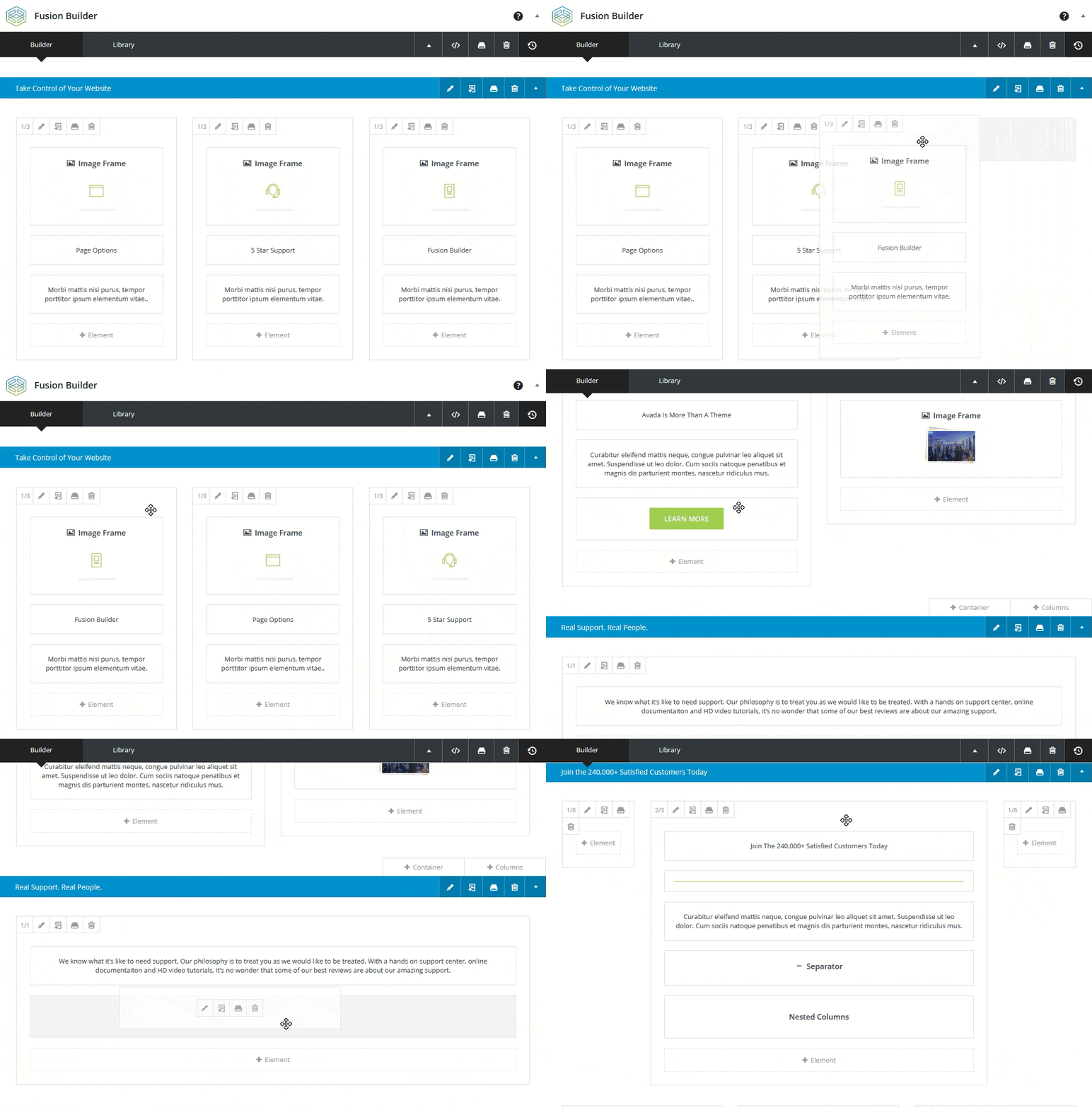
With a backend page builder, you won’t be able to instantaneously see what the changes you just made look like.
So for every little change you make, like changing the color of a heading, you need to hit “Update,” wait a few seconds, and then view your website. For every. Single. Change.
This extremely slow process makes creating WordPress websites so tedious, and this is why I prefer front-end page builders like Elementor.
As a front-end builder, Elementor gives you a real-time preview of the changes you make. Whether you need to add a button and tweak it to get it just right or shift from a single to multi-column layout, you can immediately see the changes you make. For me, it’s way more fun this way and lets me use my time more efficiently.
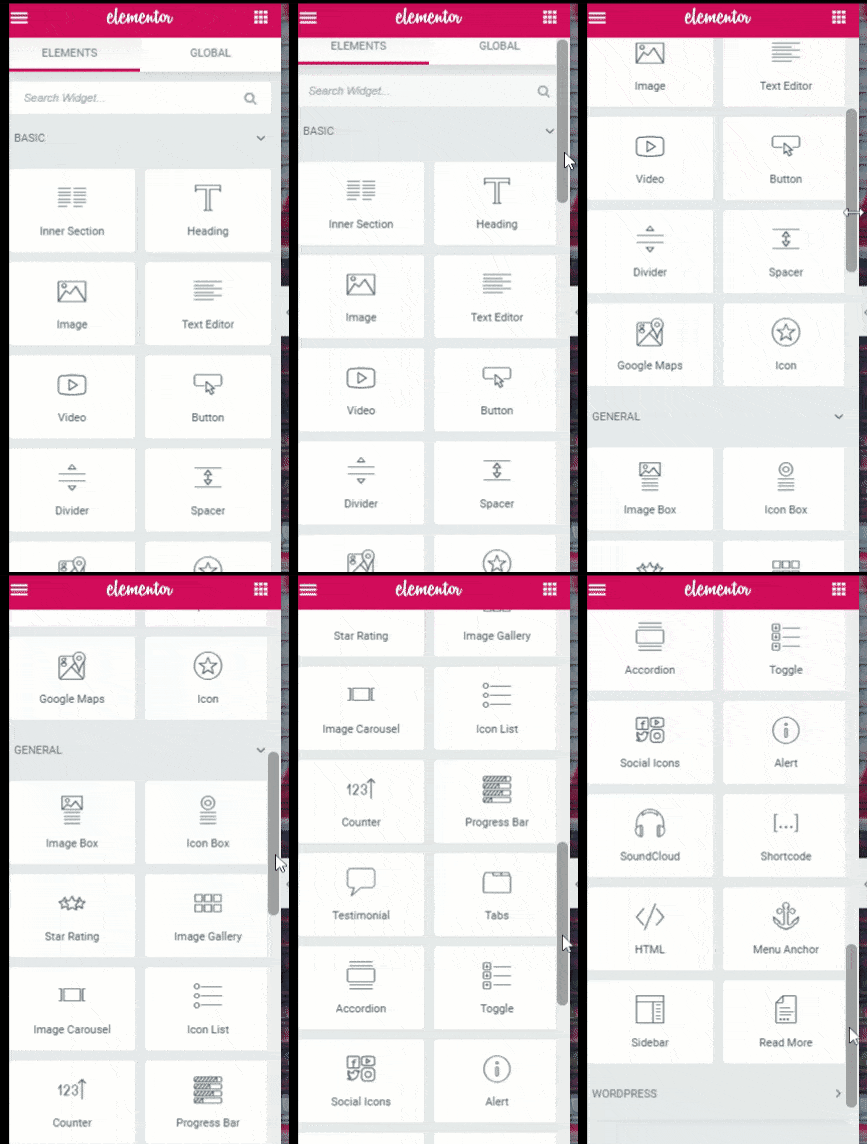
Here’s how the interface of Elementor, a frontend page builder, looks like:

On the left side of the screen, you’ll see a list of modules or things you can add to your website like headings, images, texts, videos, buttons, spacer, and more. All you have to do is literally drag and drop the module on your preferred area on the website, edit it, and you’re good to go.
2. Templates and Blocks
A. Page Templates
Page templates are a huge time saver. It lets you create a specific type of page in just a few clicks. For example, if you want to quickly make a landing page for a tech brand, there’s a landing page template that you can load into your website in just a few seconds.
Templates can be found by clicking the Folder icon at the bottom of the page. Once you click the Folder icon, a new window will open showing a list of page templates that you can use.
When you’ve found the template you want to use, hover your mouse over it and click “Insert”. Wait a few seconds, and you’ll see the template fully loaded into your page.
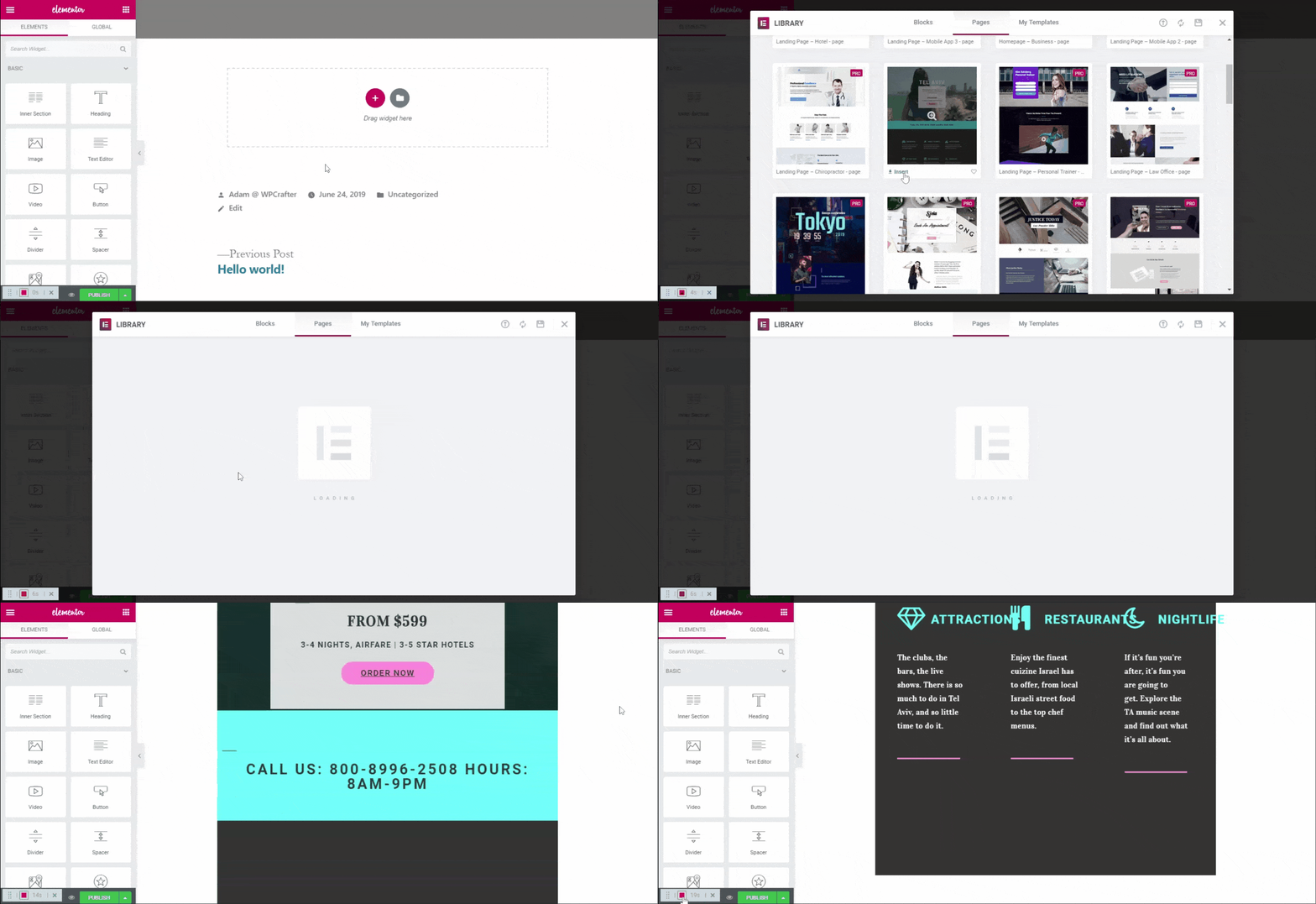
These templates are fully editable, and you can do a number of things to improve them. For one, you can set it to full-width:
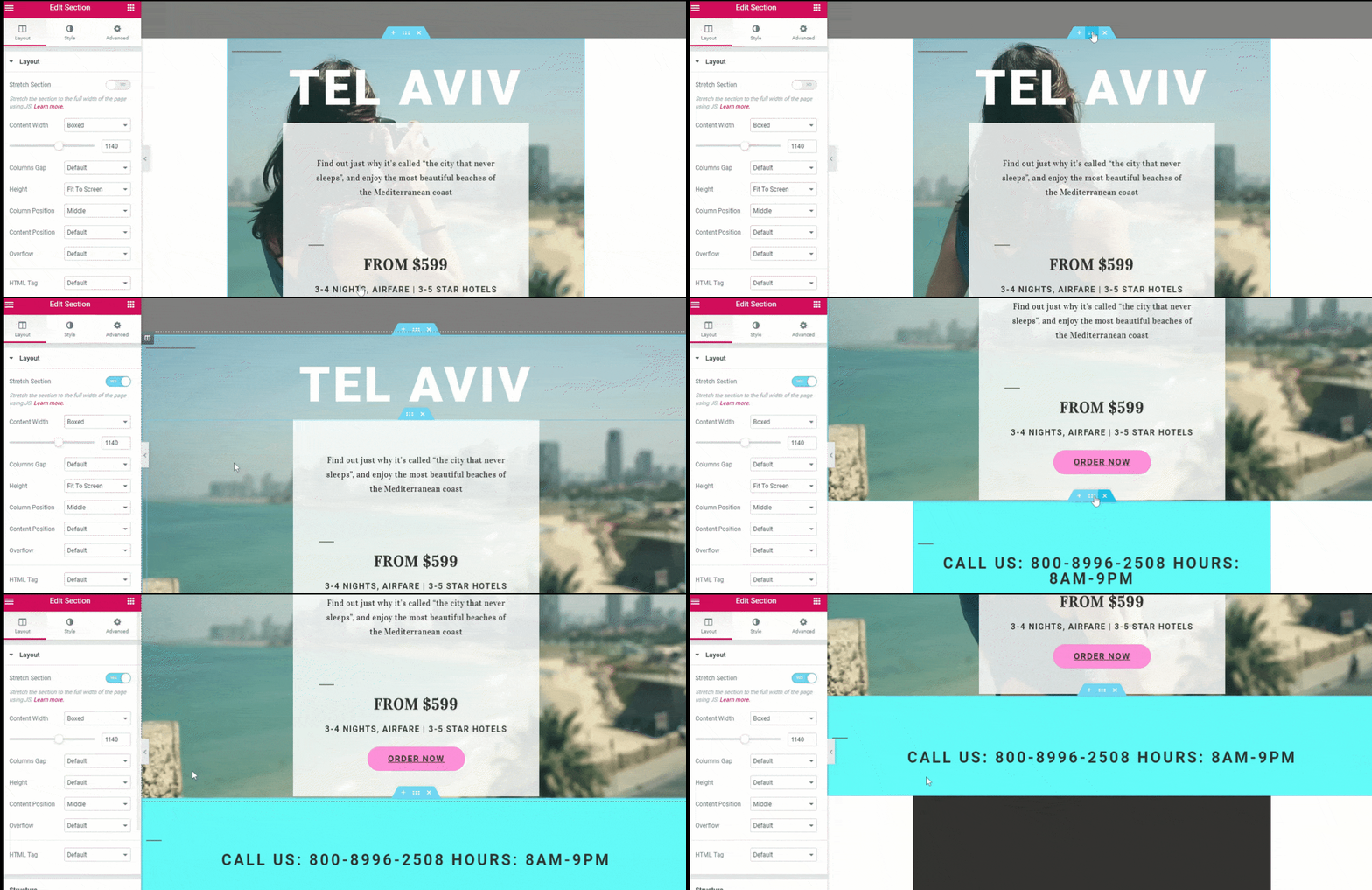
Or change the section background:
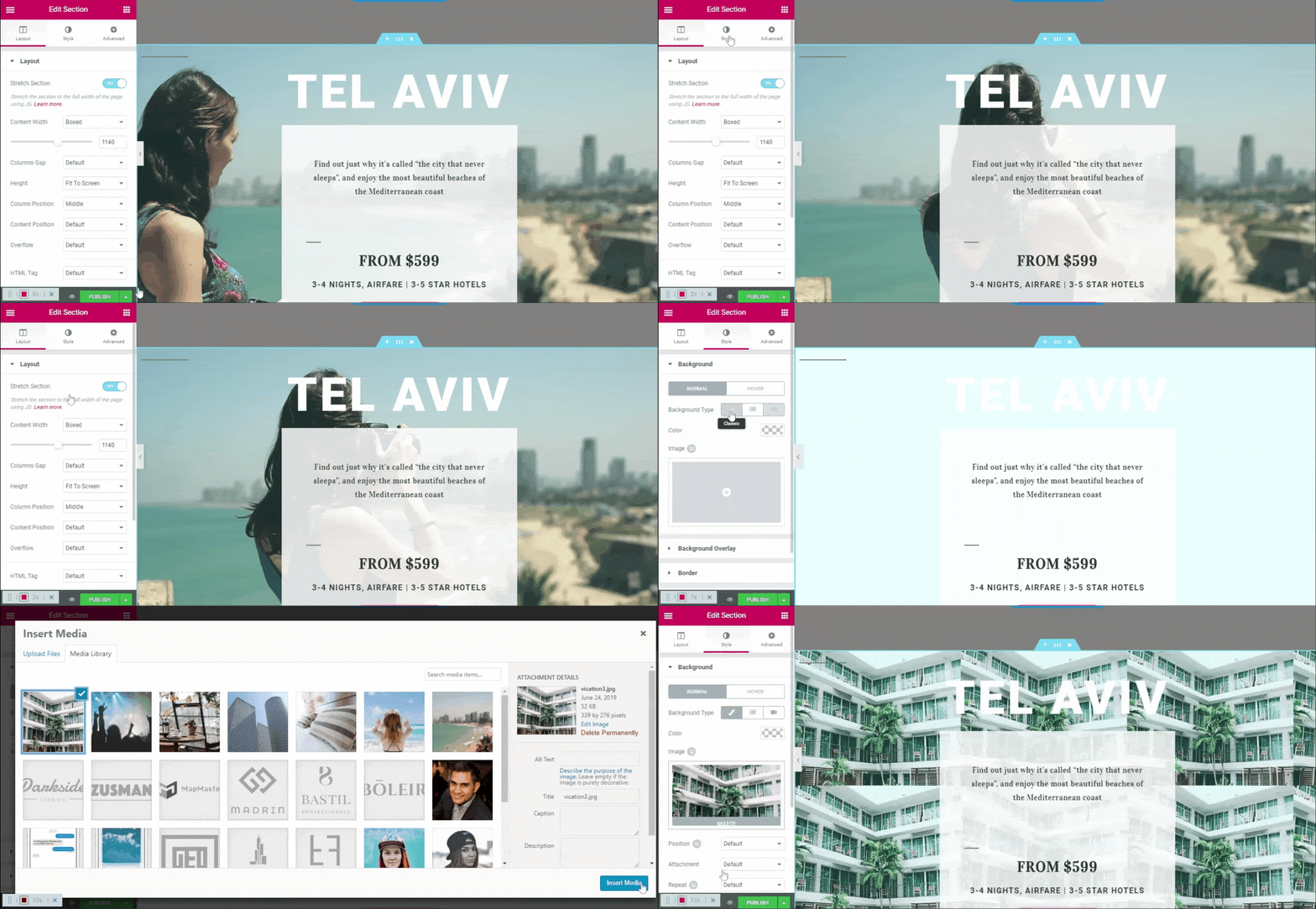
B. Blocks
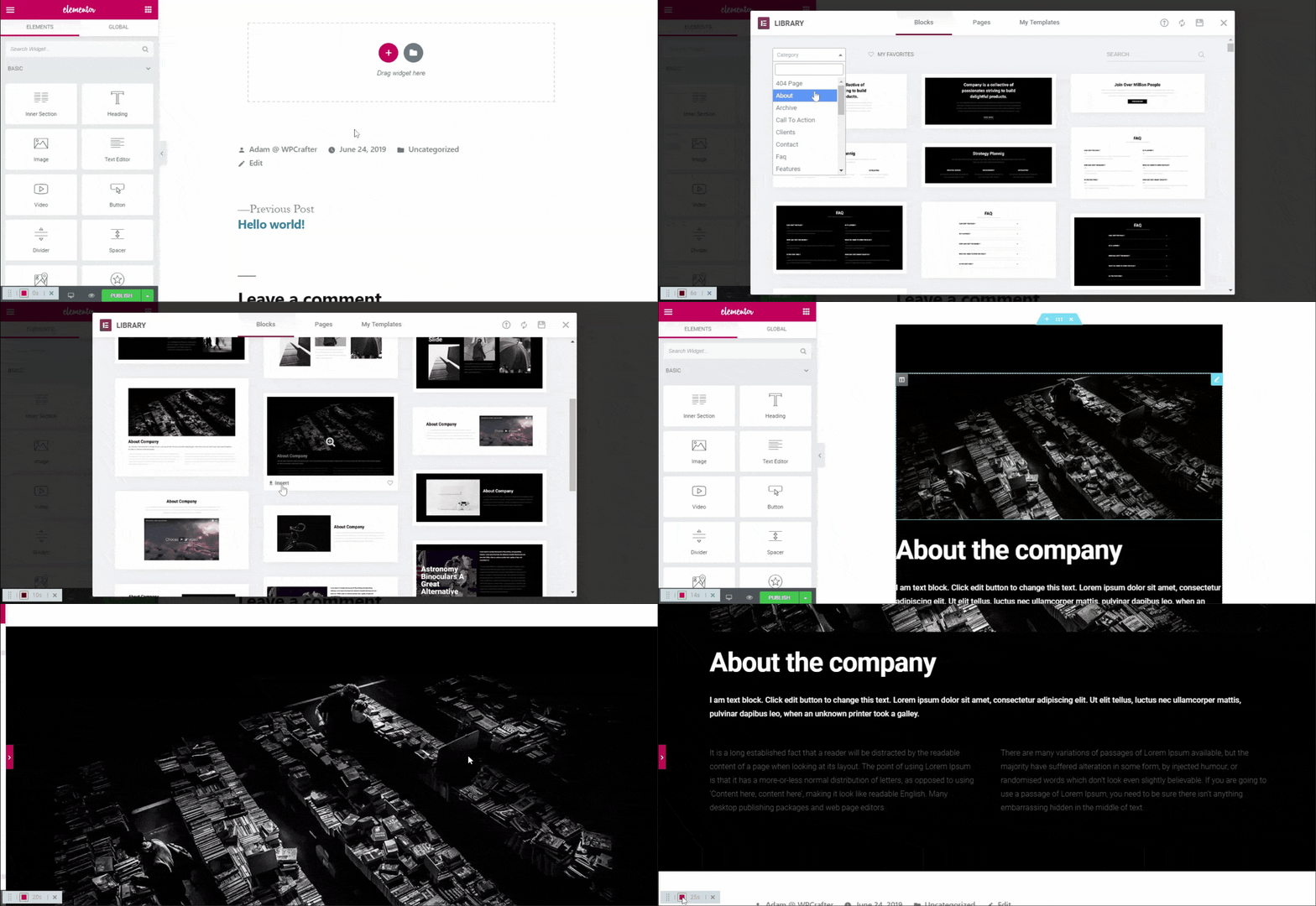
Blocks are preset sections that, like page templates, you can quickly load into your page. There are blocks for all sorts of sections like About Us, call-to-actions, testimonials, FAQs, list of features, and more.
To add blocks, just click the same Folder icon as before and click “Blocks”. If you’re looking for a specific type of block, just click “Category” and you should see a dropdown list of available categories.
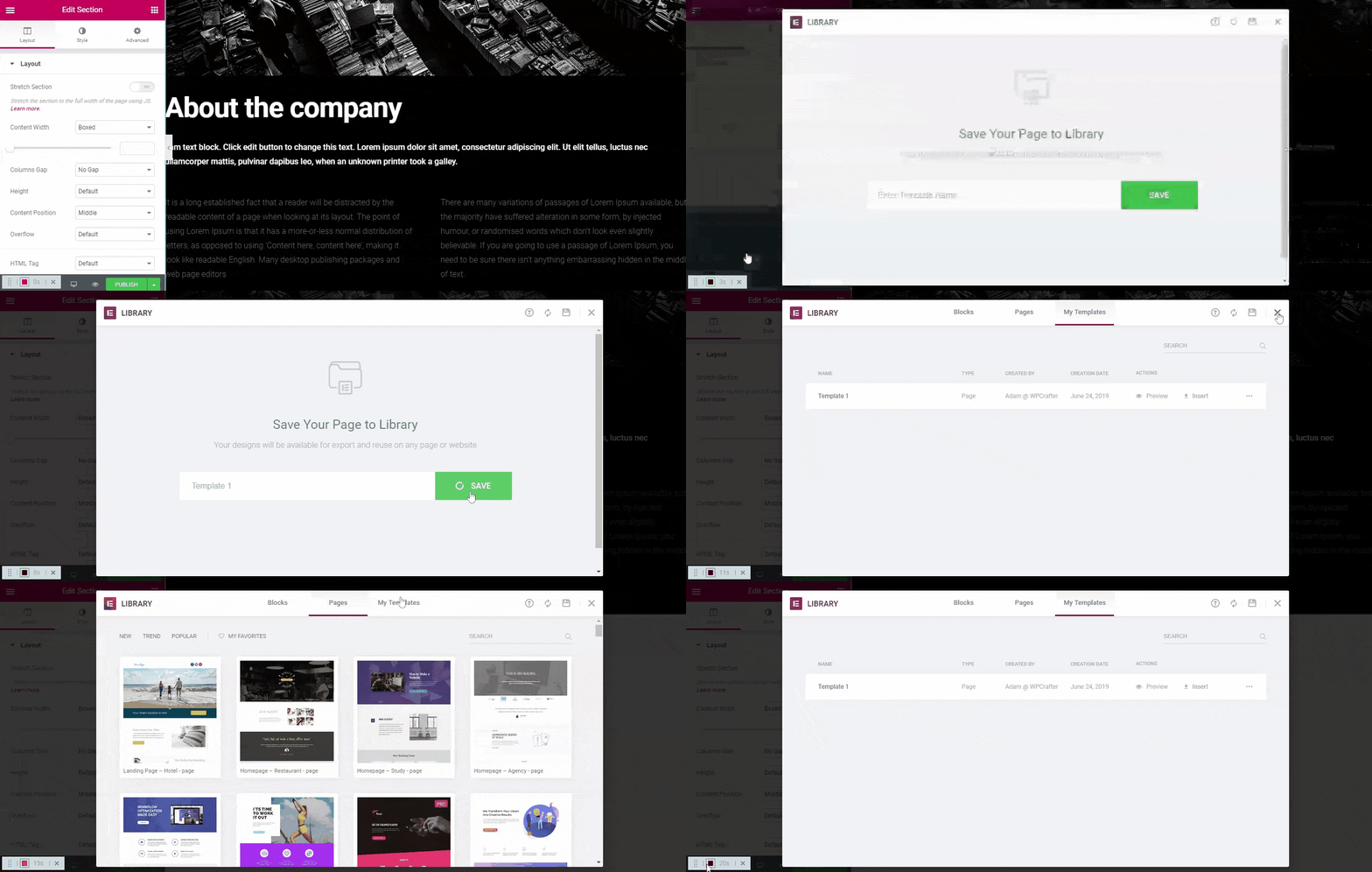
Once you’re done layouting your page, you can also save it as your template that you can reuse for similar pages that you’ll create. To do that, just click on the arrow beside the green “Publish” button and click “Save as Template”.
A new window will pop up where you have to name your template. Type the name, and click “Save”.
When time comes that you want to use this template, you can access it by clicking the Folder icon and clicking “My Templates”.
3. Mobile-Friendly
As more website visitors use their mobile devices to access the Internet, it’s now more important to have a mobile-friendly website.
Once you start customizing your website in Elementor, it’s easy to get carried away and do all sorts of things like add margins or paddings to your sections. That’s all good, but you have to be sure to check if the layout still looks good on mobile.
You can quickly do this by clicking the Desktop icon beside the “Publish” button and clicking “Mobile” and “Tablet”.
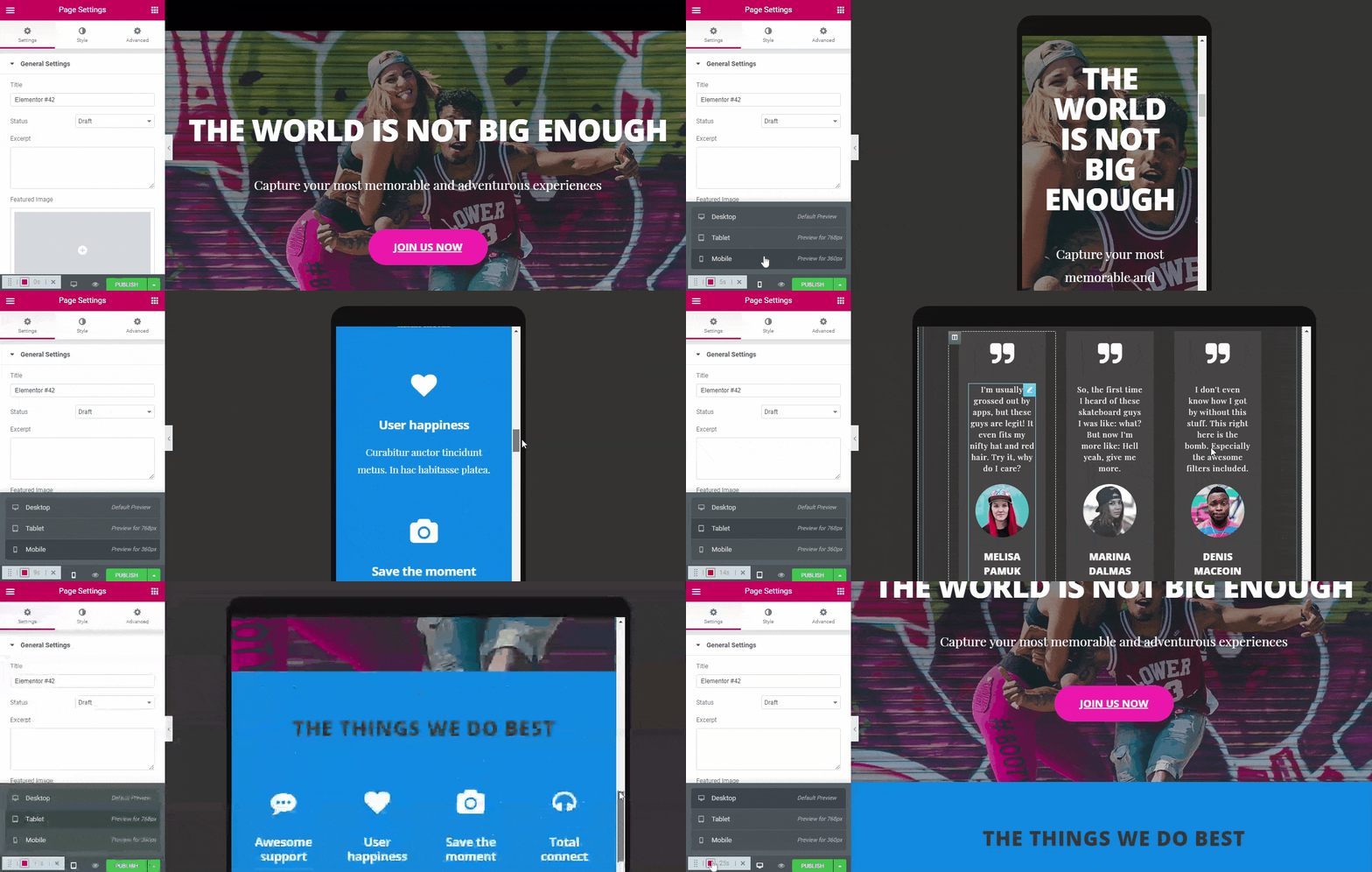
Note that the changes you do in one mode do not affect the other modes. For instance, if you change the spacing in the Mobile mode, it will not affect the spacing in the Desktop mode, so your original desktop formatting gets preserved.
4. In-Line Text Editing
You can also edit texts on the preview area itself. This is an added extra touch that makes the experience simpler and faster.
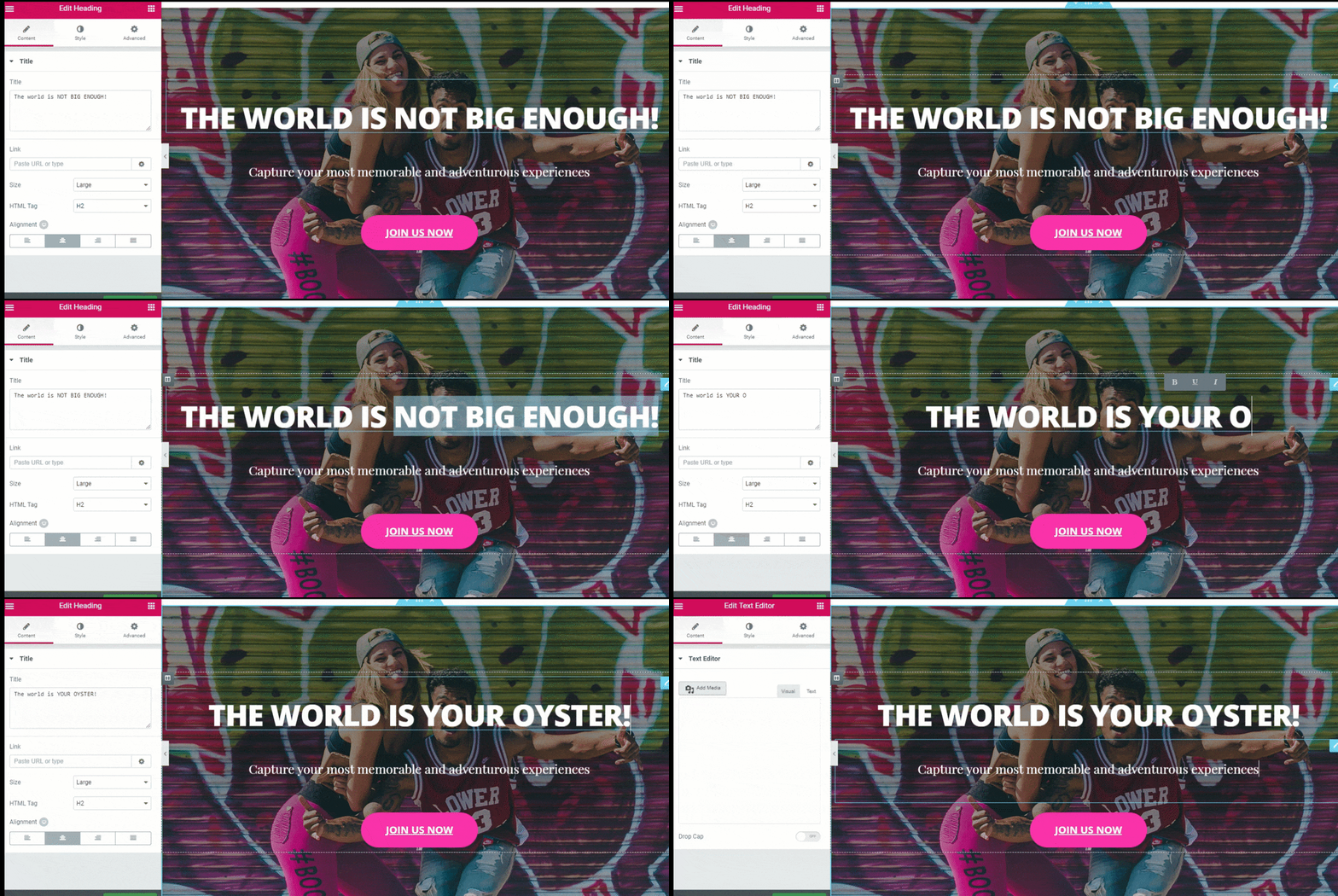
There are so many customization options for texts including changing font family, enabling text shadows, changing the color and size, enabling drop cap, and more.
5. Works With Any WordPress Theme
Elementor is flexible enough to work with any WordPress theme, but there 4 WordPress themes that people generally agree with are the most compatible themes with Elementor. These are:
- Astra
- Generate Press
- Ocean WP
- Page Builder Framework Theme
These themes have free and paid versions.
For a full list of Elementor themes, please click here.
Elementor: Pricing and Licensing Scheme
Elementor’s PRO version comes in three packages: Personal, Plus, and Expert. Each package offers the same features, so the difference really lies on how many websites you need to create.
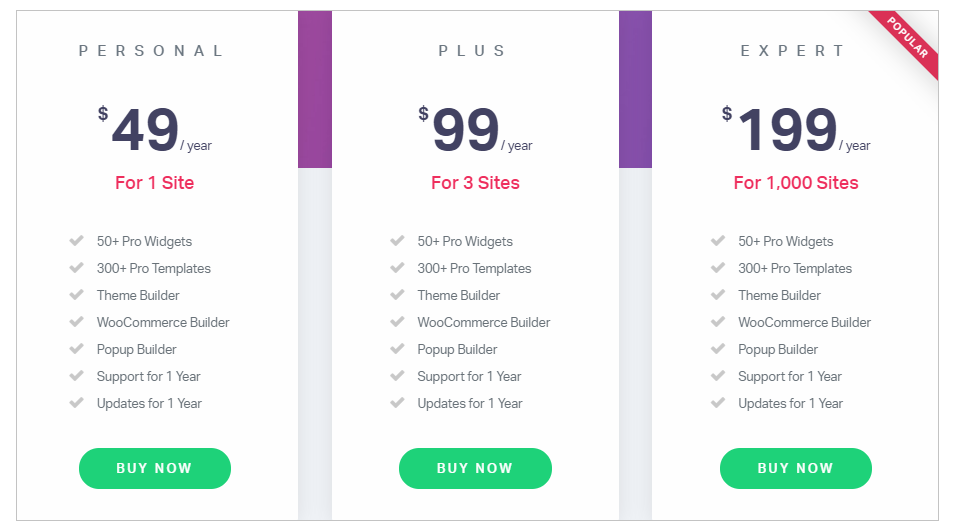
If you’re a small bakery business owner and you want a website for your bakery business, the Personal package should do.
But if you’re a web design freelancer and you’re creating a lot of websites for your clients, the Expert package is the best option.
As for its licensing, there’s a lot of confusion going around, but really it’s quite simple. Once the license expires because you decided not to renew, you will lose access to future updates, support, and pro templates and blocks.
But you will still be able to use Elementor Pro’s modules, pop-up features, theme builder features and so on. You can also install the latest version you have on any new websites you’ll create.
They offer a 25% renewal discount to active members and a 30-day money back guarantee for new purchases.
Should You Upgrade to PRO Version?
All of the features mentioned above are what I think are the bare minimum for someone to create a decent website. But if you want to take it a step further, you might need to get the Pro version.
Although the free version of Elementor packs a powerful set of features, the Pro version is more suited for those who want to do more with their websites.
Here are the top reasons why you might want to consider upgrading to the pro version:
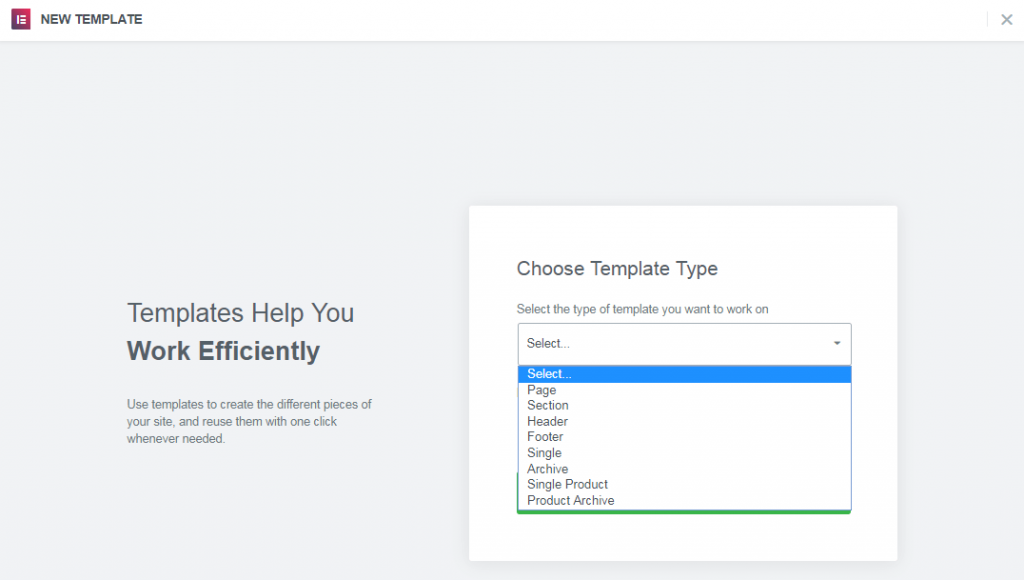
1. The Pro version lets you customize every part of your theme.
With any free page builders and any theme, you will be limited to editing only the content area of your page.
Specific areas like headers, footers, archives, and search results pages are almost always off limits and would need coding to edit. This is extremely limiting if you want your website to stand out but don’t know how to code.
The Elementor Pro version lets you create your own:
- Header (you can create more than one Headers and assign them to different pages on your site)
- Footers
- Archive page
- Single blog post page (create a blog post template and use it for different categories, pages, or taxonomies)
- 404 page
- Search results page
2. Additional modules will make your life easier.
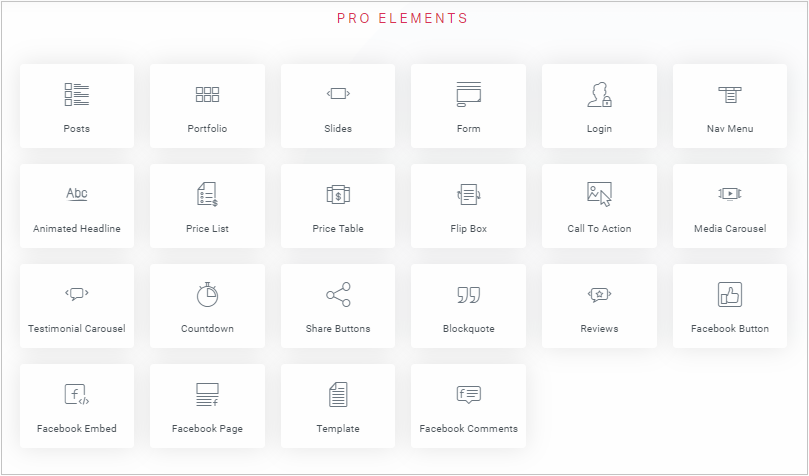
Elementor Pro has an additional 30 modules that will help you quickly create important parts of a website such as:
- Forms (opt-in, contact, and login forms)
- Pricing tables
- Grid blog posts
- Price list
- Countdown
- Woocommerce features (products, categories, add to cart)
- Flip box
- Form integrations
- Blockquote
- Media carousel
- Share buttons
- Reviews
3. You’ll get access to pro templates and blocks.
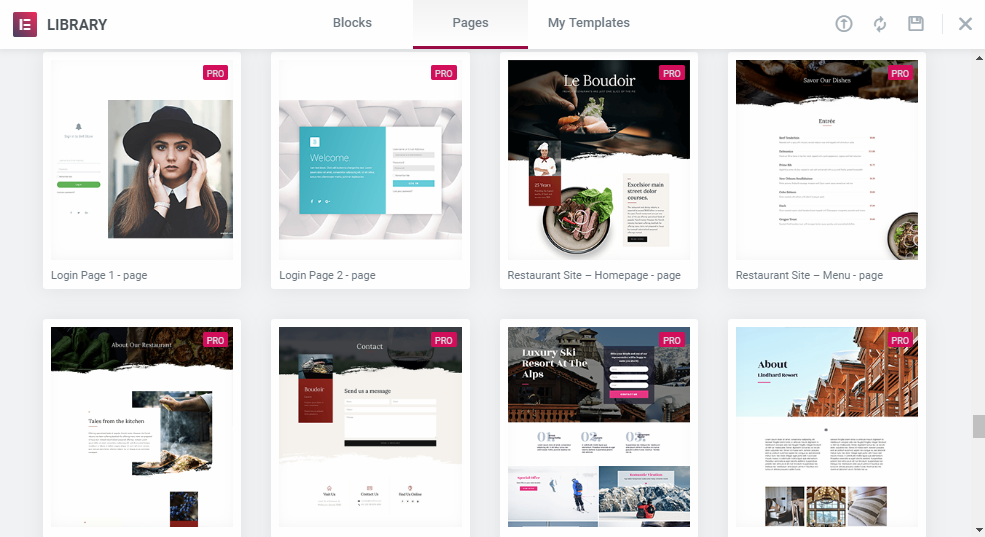
Elementor Pro also offers more professionally-made templates and blocks that will help you create stunning websites in no time.
These templates and blocks will allow you to create websites featuring animated headlines, slides, gorgeous-looking forms, and more advanced website features.
4. Lets you change role access.
A common issue for developers is when clients take matters into their own hands and start changing the design or moving around modules here and there. This messes up the website and adds to the developer’s workload.
This issue is also experienced by web masters who hire content developers like writers and editors. You wouldn’t want them moving stuff around without your permission!
So a quick workaround here is to change what each roles can edit in your website. To do this, click “Elementor” on the left side panel and select “Role Manager”.
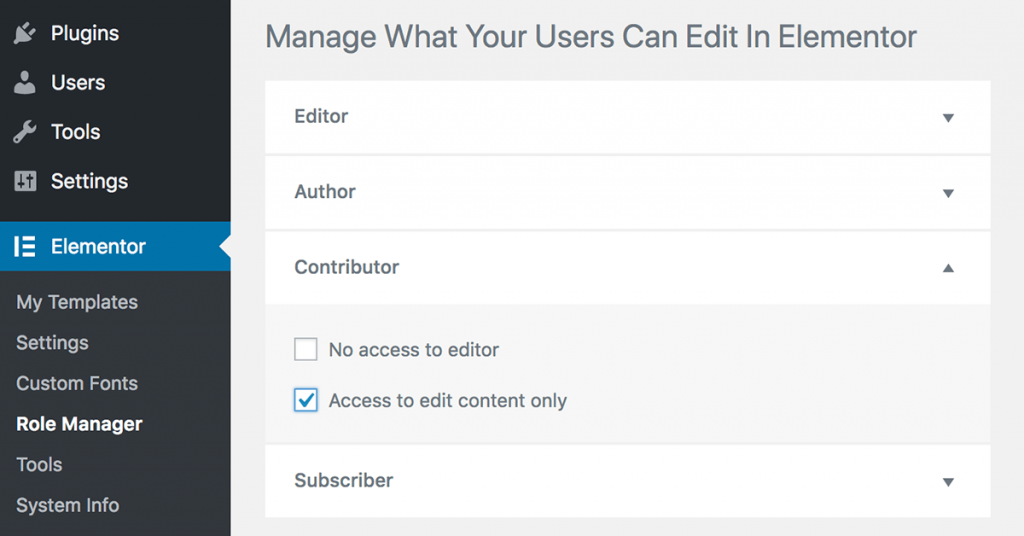
For each role, you have the option to give them full access to everything or limit their access to edit content or nothing at all.
5. Access to pro updates and 24/7 support.
The Elementor team updates it frequently to fix issues and add more features. Their 24/7 support is also available only to Pro subscribers. Although they have a comprehensive knowledge base on their website, getting support from their team can save you invaluable time and money.
6. Elementor Pro integrations makes marketing easier.
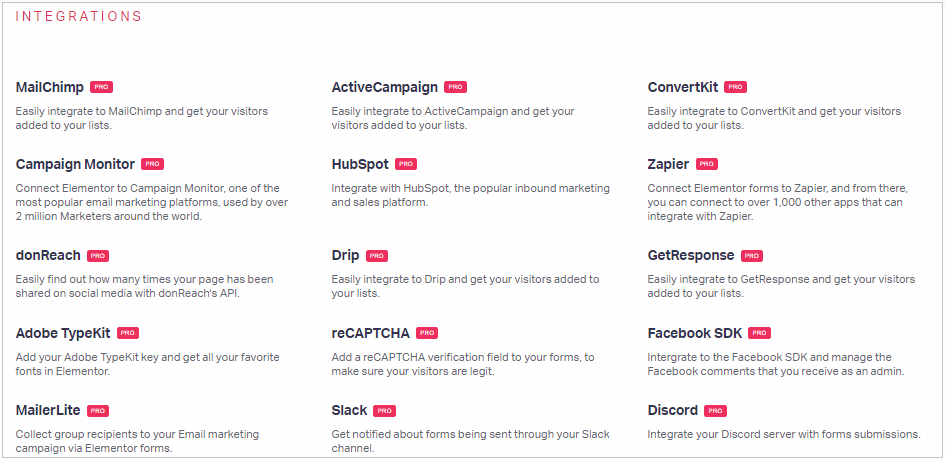
If you’re looking to implement an aggressive marketing strategy with your website as a central tool, integrations with other apps such as Zapier, MailChimp, HubSpot, ConvertKit and GetResponse will come in handy.
These apps will help you build your email list and increase your conversion rates without ever leaving the Elementor interface.
To see the full comparison of Elementor Free vs. Pro version, please click here.
Elementor: What I Like About It
I literally love almost everything about Elementor. It completely changed the way I create websites. It’s very easy to learn and use. Once you install it, you can use it right away to create new posts or pages.
The editor is user-friendly as it’s easy to find where things are located. The drag-and-drop frontend page building experience is so easy that even a 9-year-old can create a stunning website.
They also have a Help Center where you can find a comprehensive knowledge base, tutorials, and a list of FAQs. This is available to both free and paid users.
You also have a chance to join their huge community on Facebook and GitHub and possibly get help or new tips from other Elementor users.
Elementor: What I Don’t Like About It
With that said, there are a few things that Elementor can improve on to make their users’ lives even easier.
The free and Pro templates and blocks are displayed together, with no way to filter the results to only display free or pro. Life’s just going to be a tad simpler if this option was made available.
There have also been instances where users couldn’t open their Elementor builder after upgrading, although this is often not caused by Elementor itself. The usual culprits are outdated PHP version, incompatible Cloudflare settings, outdated hosting, or an incompatible caching or performance plugin. If Elementor could detect incompatibility and give some kind of warning to users, it would make things easier.
Elementor Review: Final Thoughts
I can only think of less than a handful of things I don’t like about Elementor because it’s honestly the best WordPress page builder I’ve ever used. It’s rare to find a page builder that lets you create gorgeous websites in minutes and still manage to maintain your website performance. The free version should be enough if you’re just starting out, and you can always upgrade to Pro if you want.
Elementor is a powerful freemium WordPress page builder that does its job and lets you run wild with your imaginations without learning how to write a single code.
Elementor is the strongest page builder currently available.
They consistently release new features that are in line with current design trends. This means you will be able to keep your website relevant.
Elementor Pro is an incredible value considering all the additional modules and power features that it includes.
Elementor FAQs
How much does Elementor Pro cost?
The Essential plan is $60 a year for 1 site. Advanced Solo is $84 a year for 1 site, Advanced is $108 a year for 3 sites, and Elementor One, which adds AI credits and extra services, is $228 a year for 1 site. Plans renew at the regular rate, so treat any sale price as a first-year discount.
Is there a free version of Elementor?
Yes. The free Elementor plugin on WordPress.org has the drag and drop editor and the core widgets. It's enough to build a basic site, and you upgrade when you need the Pro features.
Does the cheapest Pro plan include the popup builder?
No. The Essential plan includes the theme builder and dynamic content, but the popup builder, custom code and CSS, and the WooCommerce features start on the Advanced plans.
Is there a money-back guarantee?
Yes. Elementor has a 30-day money-back guarantee, and it applies to annual plans.
What's the main alternative to Elementor?
Beaver Builder is the one I'd compare it to if stability and clean code matter most to you. If you'd rather build right in the WordPress editor instead of a separate builder, Spectra adds the blocks and design controls, and it has a free version.

I've been teaching people to build and grow their businesses online since 2014. I test the tools myself and tell you what I'd actually use, and why.