If you’re looking for an easy way to increase your WooCommerce conversion rate, look no further!
The more steps you put your buyer through during checkout, the less likely they are to complete the purchase.
However, there’s always a solution to any challenge.
This tutorial will show you how to skip the shopping cart altogether and send your buyers straight to the checkout page.
This simple trick should help you improve the checkout experience for customers, reduce cart abandonment and increase sales on your website.
How Does Having Multiple Checkout Steps Impact Conversion?
To answer this, you need to visualize the customer’s journey throughout the transaction.
Here’s what a customer’s journey typically looks like in an eCommerce website after they land on a product page:
- Customer adds product to the cart
- Goes to the cart to access checkout
- Fills in billing and shipping information
- Picks shipping method
- Picks the payment method
- Adds payment information
- Completes the payment to buy the product
Phew, that’s a lot of steps!
With every action, you give your customer a chance to abandon the process.
A study by Baymard Institute found that the average cart abandonment rate is 69.82%.
The average conversion rate for eCommerce websites is only around two percent already. Losing customers to a difficult checkout is the last thing you need.
If you want to increase sales on your WooCommerce website, it’s essential to make the checkout process as streamlined as possible.
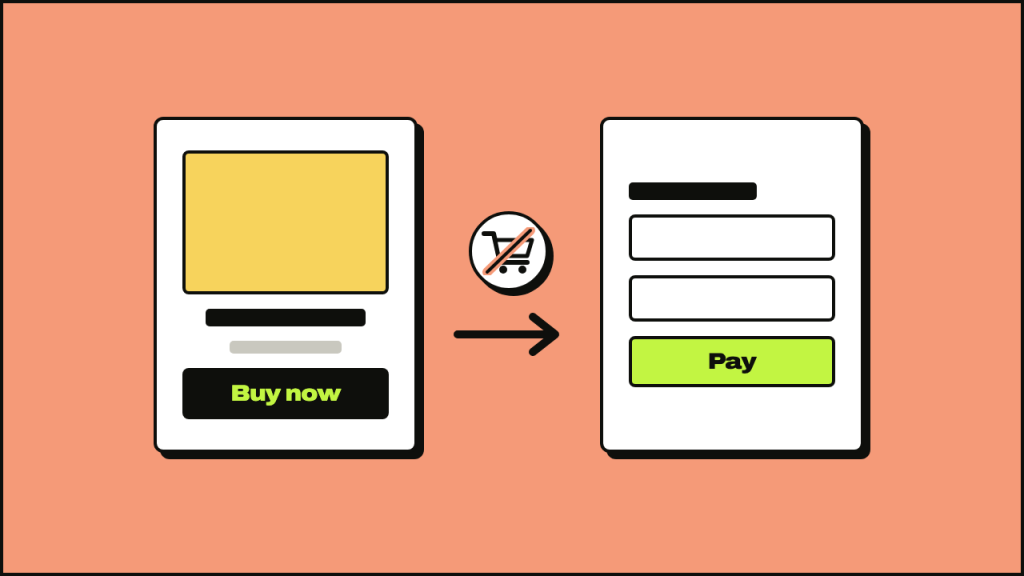
One way is to eliminate the cart page and take the customer directly to the checkout page. This way, you are making it easier for the customer to buy and reducing those opportunities to abandon
One way to do that is with a direct checkout link.
How to Create WooCommerce Direct Checkout Links
A direct checkout link takes the customer straight to checkout rather than making them follow all those steps we outlined above.
You can create a redirection to your checkout page manually using a few snippets of code and a code plugin or do it through a dedicated checkout link plugin.
We’ll show you how to do both.
Manually Create a Direct Checkout Link
You can use a manual method to add some direct checkout links to your website.
For this, you can use a code inserter plugin called Code Snippets.
This plugin allows you to paste any code you want to your website.
This way, you don’t have to worry about storing your snippets separately while changing your website, such as changing a theme or migrating a website.
Install the plugin and inject the two snippets of code I added below to add the redirect.
- Go to Plugins > Add New from your WordPress dashboard
- Search for the ‘Code Snippets’ plugin
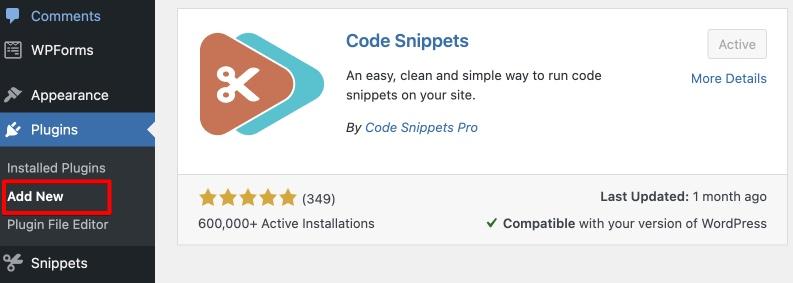
- Install and activate the plugin
- Next go to Snippets > Add New
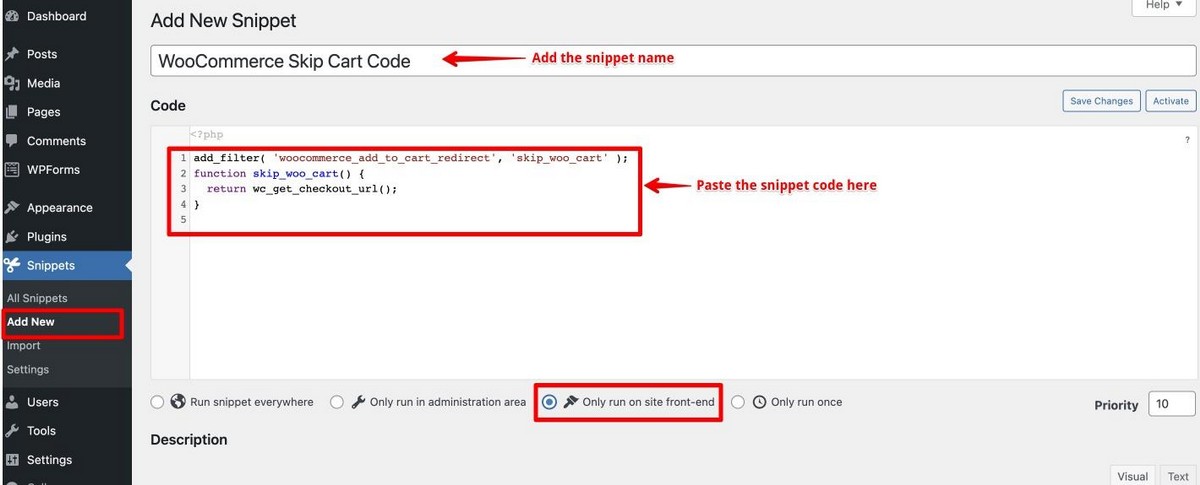
- Add the Snippet Title from the code below and paste the snippet code in the Code area.
- Select Only run on the site front-end because that’s the only time we need this snippet to work
- Save and activate the code snippet.
- Do this for both the snippets.
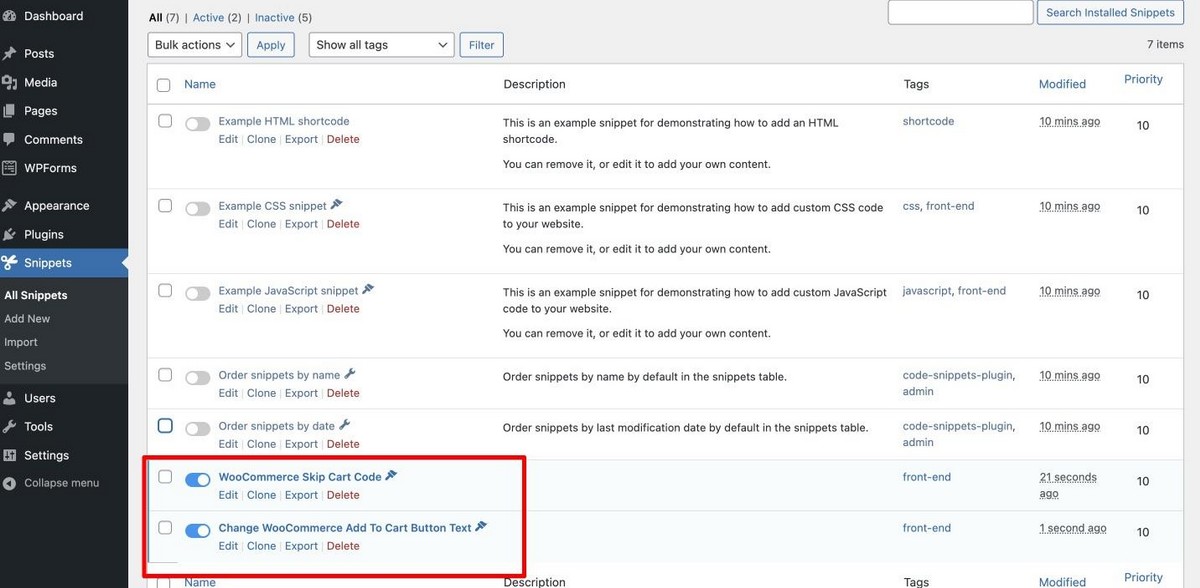
Once they are active, you should see the toggle button next to them turned on in the All Snippets section.
Don’t worry about the rest of the snippets. They are added by default, and you can choose to delete them.
WooCommerce Skip Cart Code
This snippet allows the user to skip to the cart directly.
add_filter( 'woocommerce_add_to_cart_redirect', 'skip_woo_cart' );
function skip_woo_cart() {
  return wc_get_checkout_url();
}
Change WooCommerce Add to Cart Button Text
This snippet changes the button text from Add to Cart to Go To Checkout.
This is just so that your customer should not wonder why they did not land in the cart.
add_filter( 'woocommerce_product_single_add_to_cart_text', 'cw_btntext_cart' );
add_filter( 'woocommerce_product_add_to_cart_text', 'cw_btntext_cart' );
function cw_btntext_cart() {
  return __( 'Go To Checkout', 'woocommerce' );
}
Both snippet will work on WooCommerce 4 and newer.
Once you add these codes to your WooCommerce store, you’ll see that your customers will be redirected to the checkout once they click on the Go to Checkout button.
Create a Direct Checkout Link With a Plugin
Here are a few plugins that you can install to redirect your customers to the checkout.
1. CartFlows
CartFlows is our very own plugin that helps you build a sales funnel and also allows your customers to check out seamlessly.
It allows you to select the exact fields you want to show your customers while checking out.
CartFlows works well for eCommerce funnels when you dedicate one landing page to your product. All you need to do is import a readymade template and start designing your sales funnel.
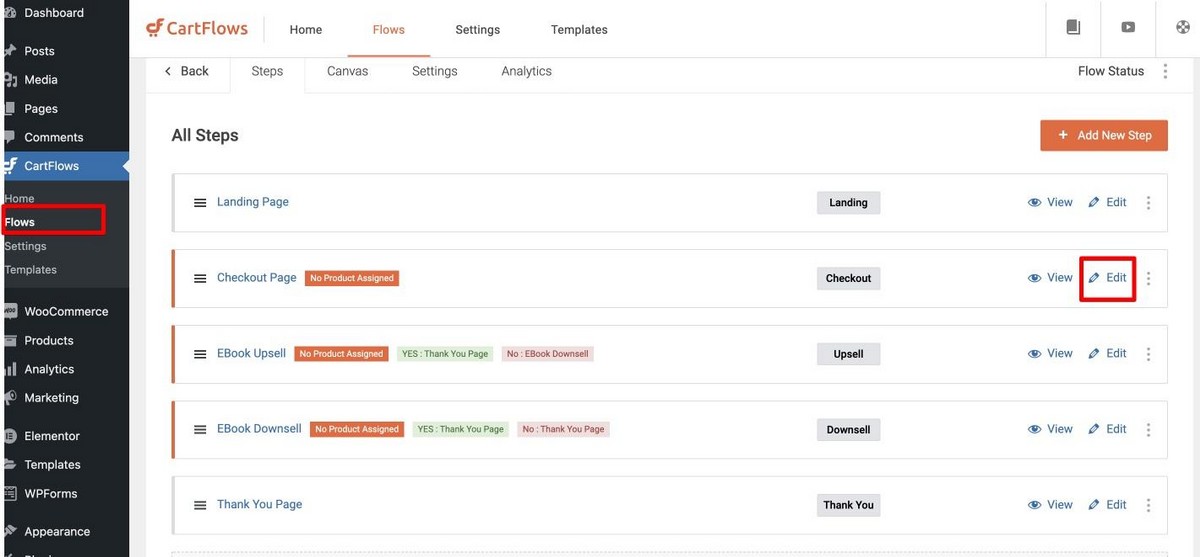
Go to CartFlows > Flows
Then select the flow, and edit the checkout page.
2. Cashier
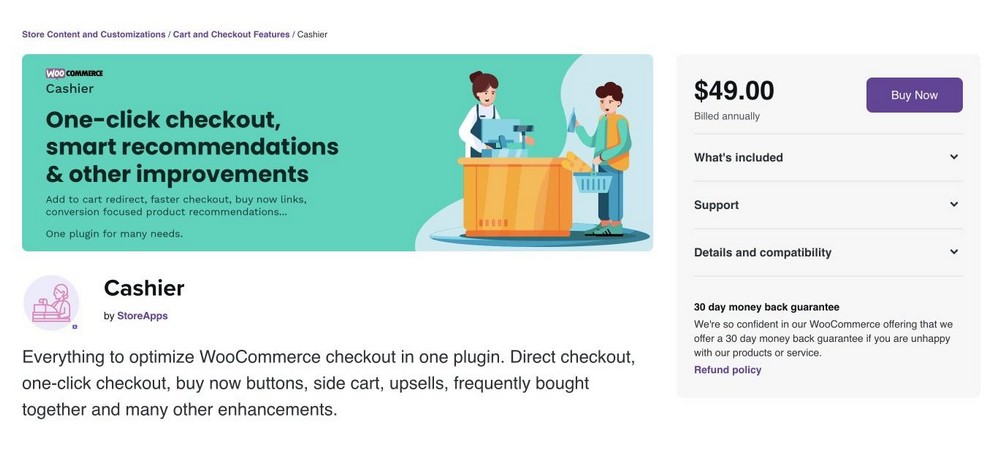
Cashier makes your checkout process faster and simpler. It offers direct checkout options and the option to create direct checkout for specific products and specific categories of products. It allows you to make direct checkout links for emails and social media.
You can buy the Cashier plugin from their official website. Once you have purchased, you can upload the plugin.
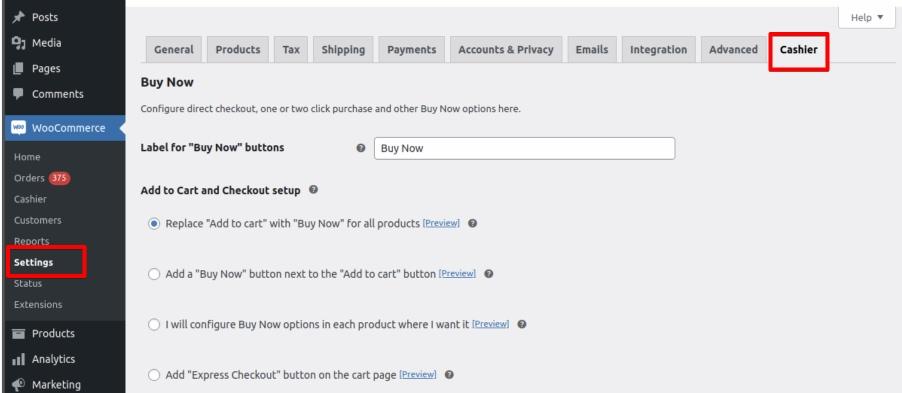
Once installed, you’ll see an additional Cashier tab under WooCommerce > Settings.
You can use this tab to enable direct checkout for your products.
3. Buy Now Button for WooCommerce
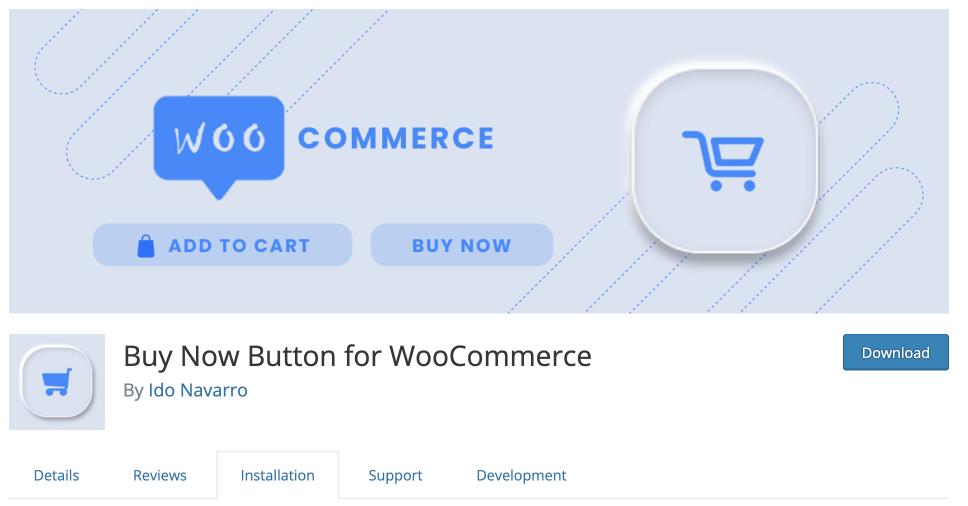
Buy Now Button for WooCommerce is a free plugin available in the WordPress repository.
It adds another ‘Buy Now’ button along with the Add to Cart button on your eCommerce store. This button takes your customer straight to the checkout page.
4. Direct Checkout for WooCommerce
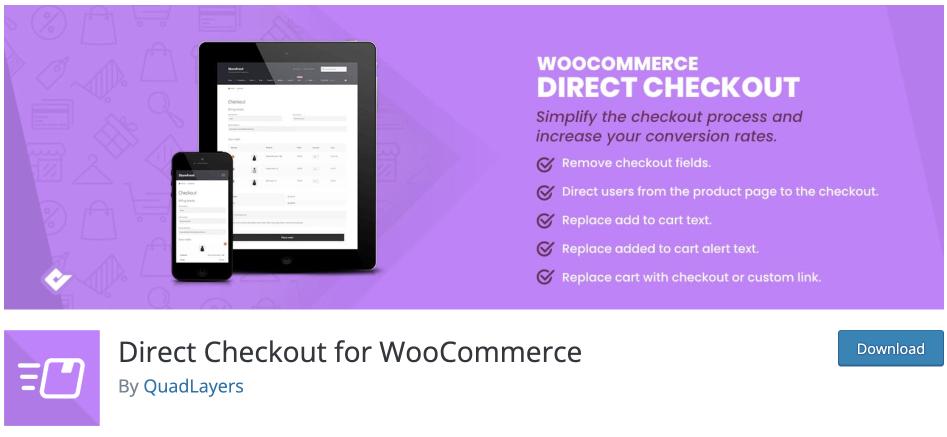
Direct Checkout for WooCommerce also allows you to add a Buy Now button to your store. You can choose to replace the add to cart button. You can also remove checkout fields.
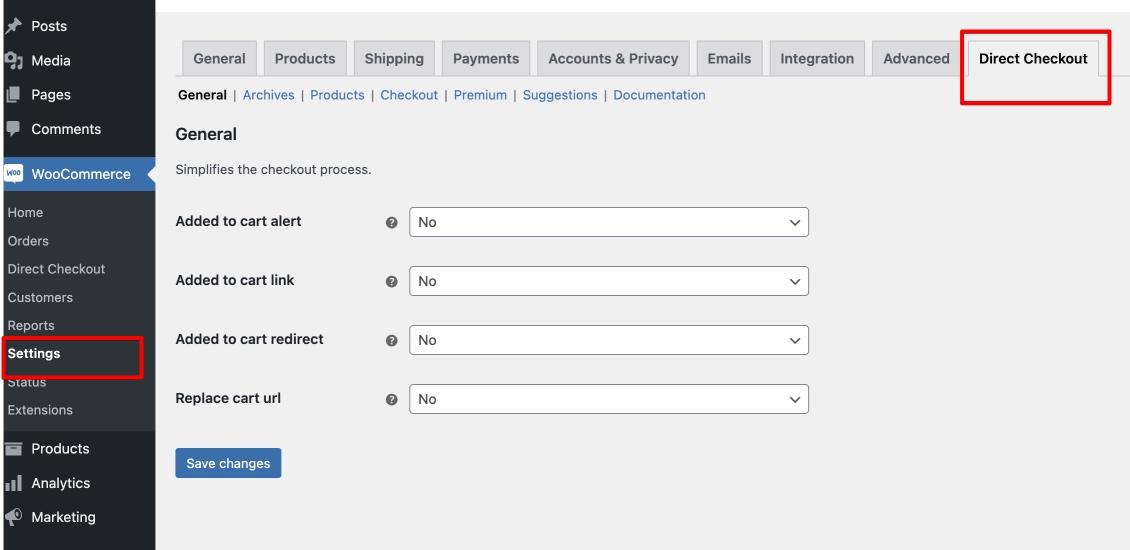
You can find the direct checkout option in the WooCommerce Settings, just like the Cashier plugin.
However, unlike the Cashier checkout plugin, here you don’t have the freedom to use the direct checkout feature on specific categories and products.
5. WooCommerce Direct Checkout Pro
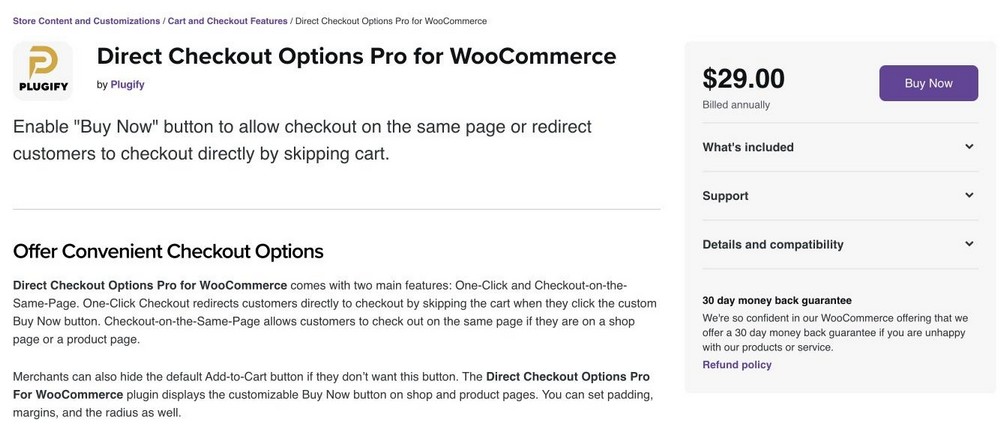
You can choose either direct checkout or same page checkout with Direct Checkout Options Pro for WooCommerce.
The Checkout option lets customers redirect the checkout page when they click Buy Now or any custom call to action you assign.
The other option is unique to this plugin. Customers can finish their purchase through Same Page Checkout without leaving this page. This makes your checkout process even better!
6. Add to Cart Direct Checkout for WooCommerce
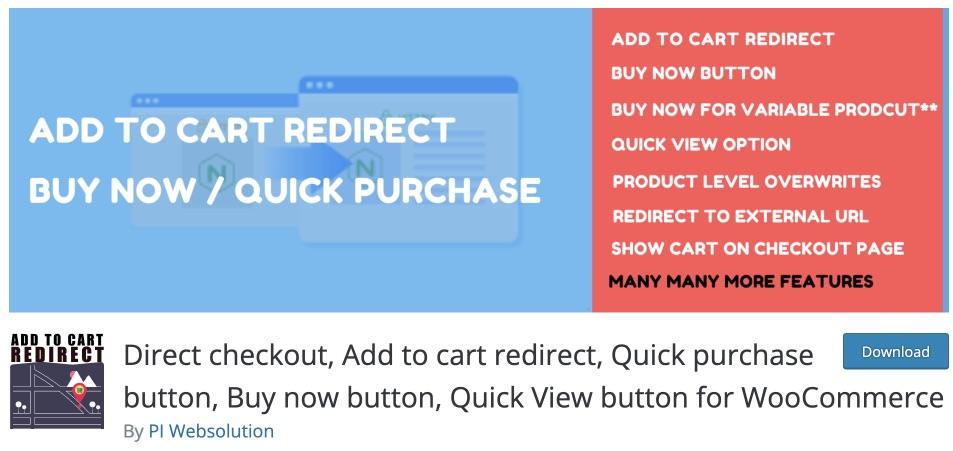
Add to Cart Direct Checkout for WooCommerce comes with a lot of functionality even in the free version.
Apart from direct checkout, you can have a custom checkout page, disable cart page, have a quick purchase button and many more.
You get all of these features without adding any shortcodes.
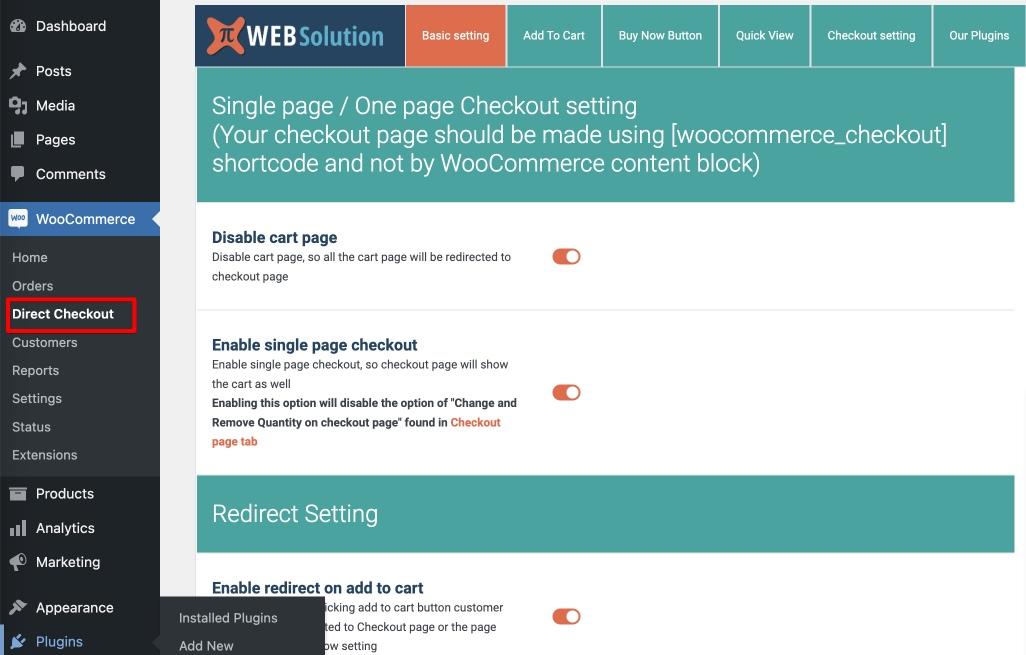
Once you install and activate this plugin, you can see all the options inside WooCommerce > Direct Checkout.
Improve Your Conversions Today!
There are many ways to help customers check out directly from your WooCommerce store.
You can use plugins or add direct checkout buttons to your site. Whichever method you choose, make sure it is easy for your customers to find and use.
To increase the chances of conversion, try using CartFlows – our very own plugin that allows customers to check out seamlessly without any distractions.
I highly recommend this plugin to increase sales and keep track of customer behavior on your website.
Try out and let me know in the comments what your cart abandonment rate looks like after installing.

I've been teaching people to build and grow their businesses online since 2014, on YouTube and here. I tell you what I'd actually use, and why.