
Spectra Pro Overview

Which Spectra this review covers: In July 2026 Spectra was split in two. The plugins I walk through in this review are the originals, now called Spectra Legacy (free) and Spectra Pro Legacy. All new development goes into Spectra Blocks, which is free on WordPress.org, and Spectra Blocks Pro. You still buy one Spectra Pro license, and the same key unlocks both Spectra Blocks Pro and Spectra Pro Legacy. For new sites, Spectra recommends Spectra Blocks, paired with Spectra Blocks Pro, which has the Pro features like the Loop Builder, dynamic content, Countdown, Modal, Slider and Spectra headers.
Spectra Pro is one of the innovative additions in the visual page builder league that plays really well with WordPress.
It uses a block-based method to design and tweak any part of your website within WordPress.
You might already know that WordPress introduced blocks starting from version 5, and it’s where it’s heading in the future.
Everything, from adding pictures to Instagram feeds or calls to action, is now done using blocks.
Spectra is all about blocks, which makes it super speedy and fits right into WordPress. Plus, it gives you a lot of control over each block, so you can really make your website your own.
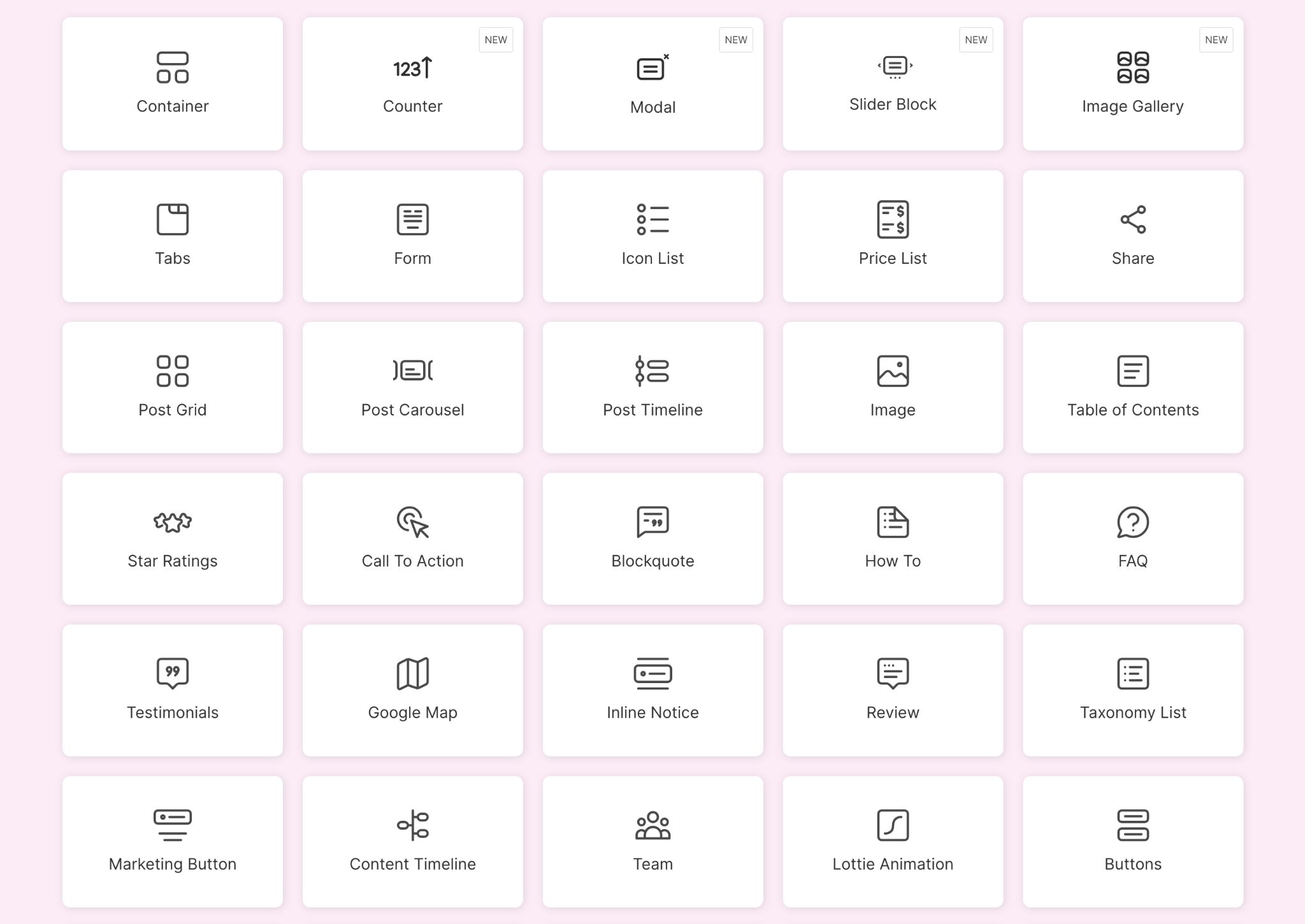
No matter how much, or how little, you know about making websites, you can create professional-looking pages and websites in just a few minutes.
Spectra Pro has loads of readymade designs, including pages, patterns, and wireframes for you to use.
You can either import a design as it is or change it up to match your style.
So, whether you’re thinking of starting a basic blog or diving into a fancy online store, Spectra Pro has got you covered.
Spectra Pro – A Little History
It all began as a free WordPress plugin called “The Ultimate Addons for Gutenberg (UAG)” developed by Brainstorm Force.
Brainstorm Force also makes the Astra WordPress theme.
After considerable success, the free plugin was revamped with loads of new content blocks and other resources.
The name changed to Spectra to show its evolution from a block plugin to a full page builder.
Spectra Pro came next and added the advanced features on top of the free plugin.
In July 2026 Spectra was rebuilt from the ground up on WordPress core blocks as a new plugin called Spectra Blocks, with Spectra Blocks Pro as its premium companion. The original plugins were renamed Spectra Legacy and Spectra Pro Legacy. Spectra Legacy still gets maintenance and fixes, and sites built with it keep working, but new features only go into Spectra Blocks.
Spectra Pro Key Features
Spectra Pro comes with some amazing features and a super easy drag and drop page building experience. This will certainly make you feel like a pro.
This is in addition to more than 80 blocks you already have within the WordPress block editor.
Here are the key features of Spectra Pro as I reviewed it, which is the Spectra Legacy and Spectra Pro Legacy pair. Spectra Blocks takes a different approach, with a smaller set of flexible blocks you combine, so some of these are built differently there.
✅ 44 advanced blocks with complete control | ✅ Star rating block |
✅ 100+ full website templates | ✅ Table of contents |
✅ Predesigned patterns and wireframes | ✅ Customizable form |
✅ Spectra One – free FSE theme | ✅ Image gallery |
✅ Flexbox powered containers | ✅ Sticky containers |
✅ Advanced call to action block | ✅ Review |
✅ Content timeline | ✅ Marketing button |
✅ Lottie animation | ✅ Registration/Login form |
✅ Post grid | ✅ Instagram feed |
✅ Loop builder | ✅ Price list |
✅ Display condition | ✅ Modal popup builder |
✅ Duplicate styles across multiple blocks | ✅ Responsive condition |
✅ 14 day money back guarantee | ✅ Premium customer support |
Spectra Pro First Look
Now let’s dive a bit deeper and see how Spectra Pro works.
Installing Spectra Pro Is Easy
While Spectra Pro pairs up nicely with Astra and Spectra One, it’s designed to work smoothly with any theme.
The installation for Spectra Pro is a simple two-step process:
- First, install the free plugin from WordPress.org. For a new site that’s Spectra Blocks. Sites already built with Spectra use Spectra Legacy, the original plugin. The free plugin is the core and includes most of the features.
- Next, download the matching Pro plugin from your Brainstorm Force account and activate it with your Spectra Pro license key. Spectra Blocks Pro goes with Spectra Blocks, and Spectra Pro Legacy goes with Spectra Legacy. The same key works for both.
Just like any other plugin, you can easily download and install Spectra right from the Plugins menu within your WordPress admin area.
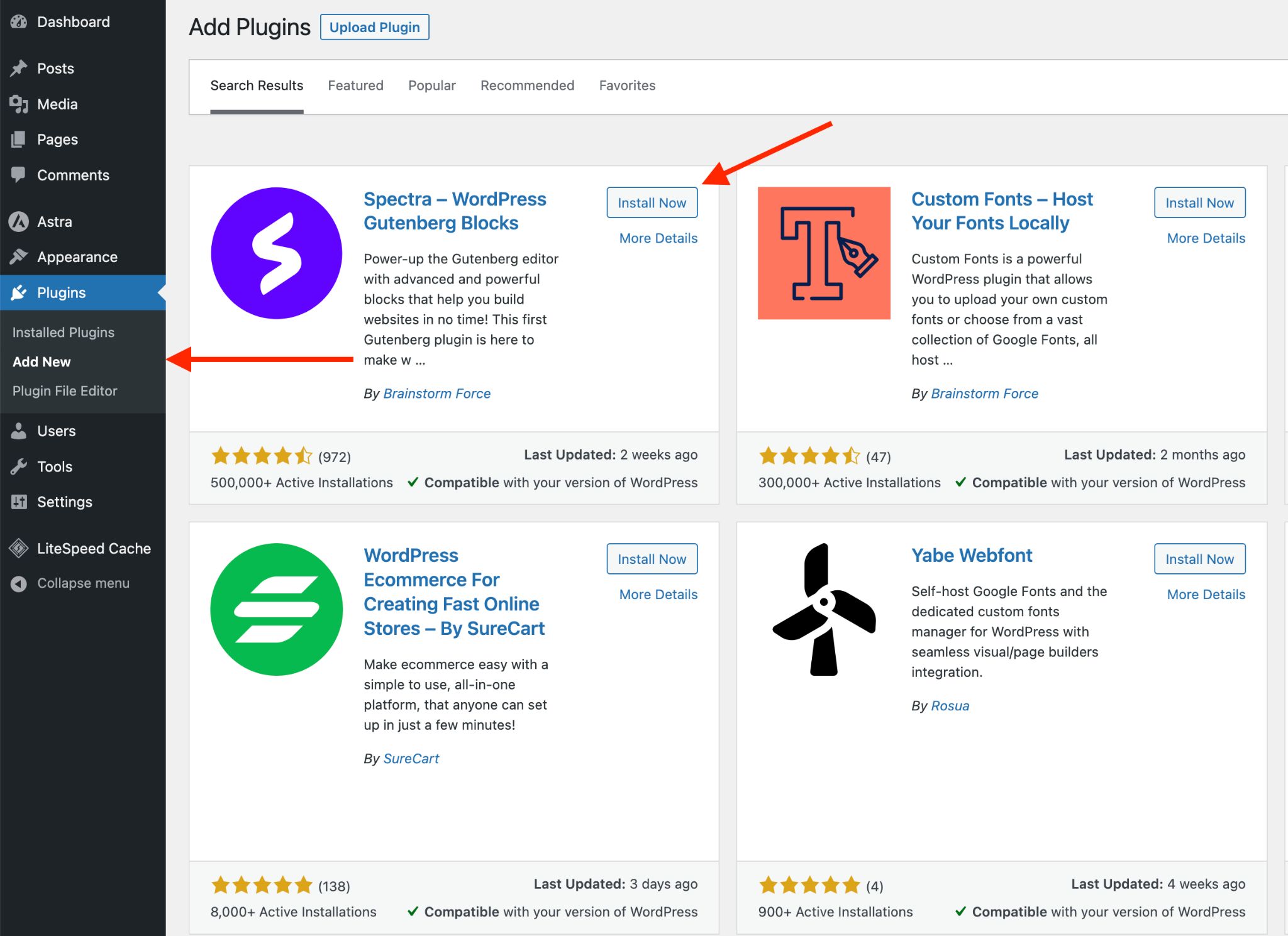
We suggest using the free version for a while and get comfortable with Spectra before you think about upgrading for those advanced features.
What we really appreciate about Spectra is the user-friendly approach.
You can get to know the page builder without spending any money.
You only need to buy the pro version when you’re ready for it.
Upgrading Spectra is quick. You can do it right from the plugin’s admin area.
Alternatively, you can also make the purchase at wpspectra.com. Just hit the “Get Started” button, pick your plan, and you’re good to go!

Now, we’re really excited to take you through the dashboard and highlight the benefits of Spectra Pro over the standard version.
Minimal Dashboard Looks Pleasing
After you’ve got Spectra up and running on your website, you’ll see a clean and uncluttered dashboard that provides all the essential information.
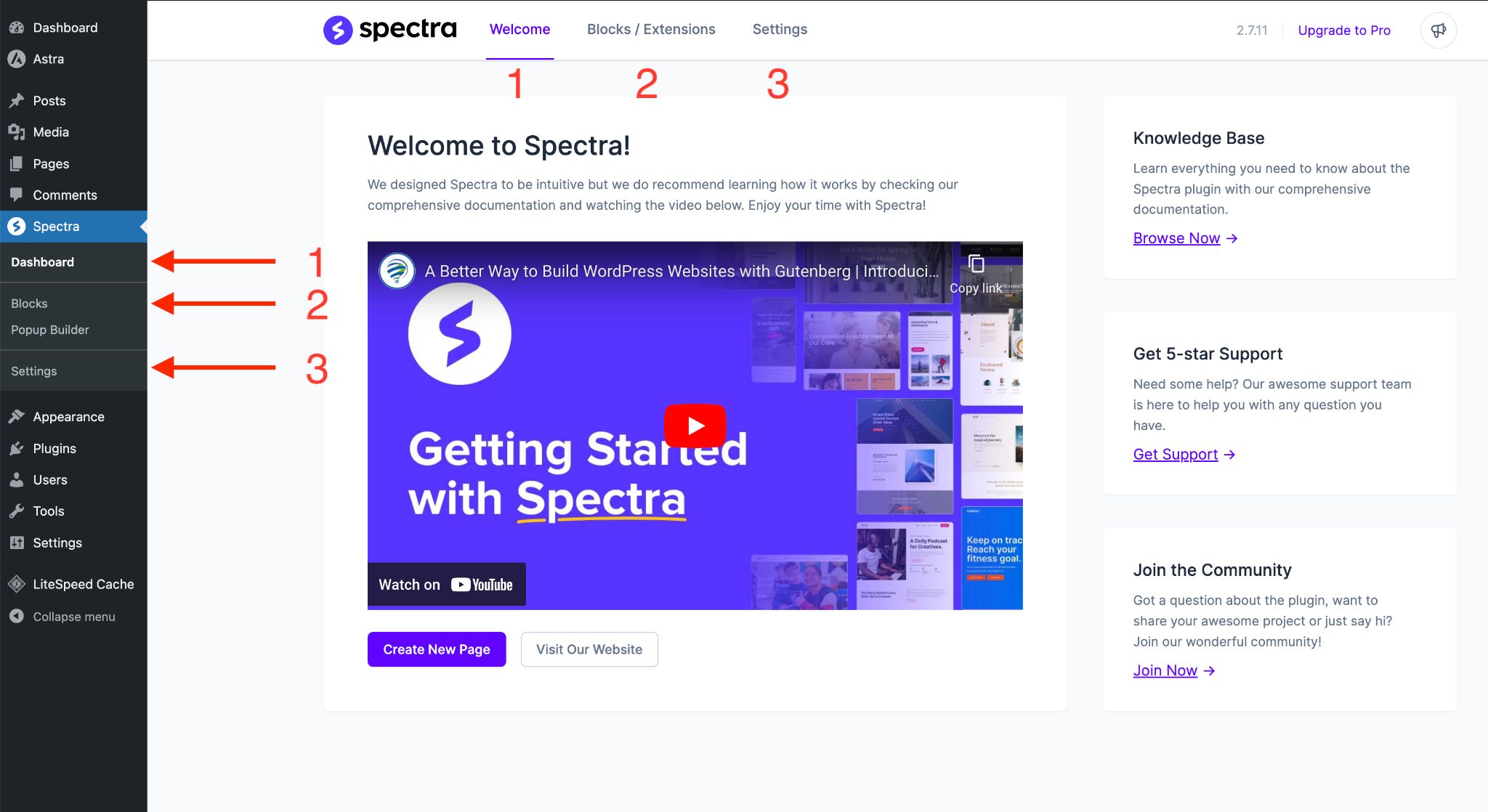
It only took us a few minutes to figure out how to customize Spectra using its three main pages:
- Dashboard
- Blocks
- Settings
The design is so intuitive and straightforward. If you’re new to page builders, don’t stress, Spectra has you covered.
When you open it up, the welcome screen shows a “Getting Started with Spectra” tutorial video.
The video explains how beginners can kick start their journey with the Spectra page builder.

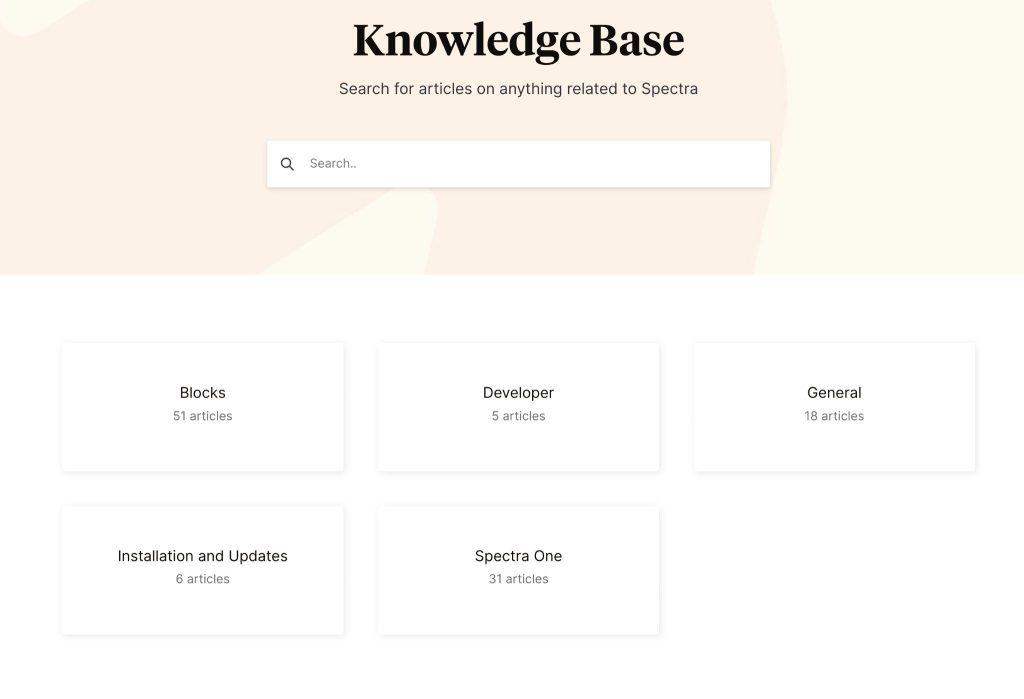
In addition, there’s a link to a knowledge base that’s packed with tutorials showing you how to make the best use of different blocks.
So, you won’t ever feel lost or dependent on someone else to design things for you.
Blocks/Extensions
After exploring the Dashboard, let’s head over to the Blocks page to check out all the cool stuff that comes with Spectra (the free version).
We’re really impressed with how neatly Spectra has organized everything.
At the top, you’ll find buttons that help you filter blocks by category.
You can enable or disable specific blocks right from this page. When a block is disabled, it won’t clutter up your block editor.
If you want to enable or disable all of the blocks at once, use the Activate all or Deactivate all buttons. It’s all about giving you control.
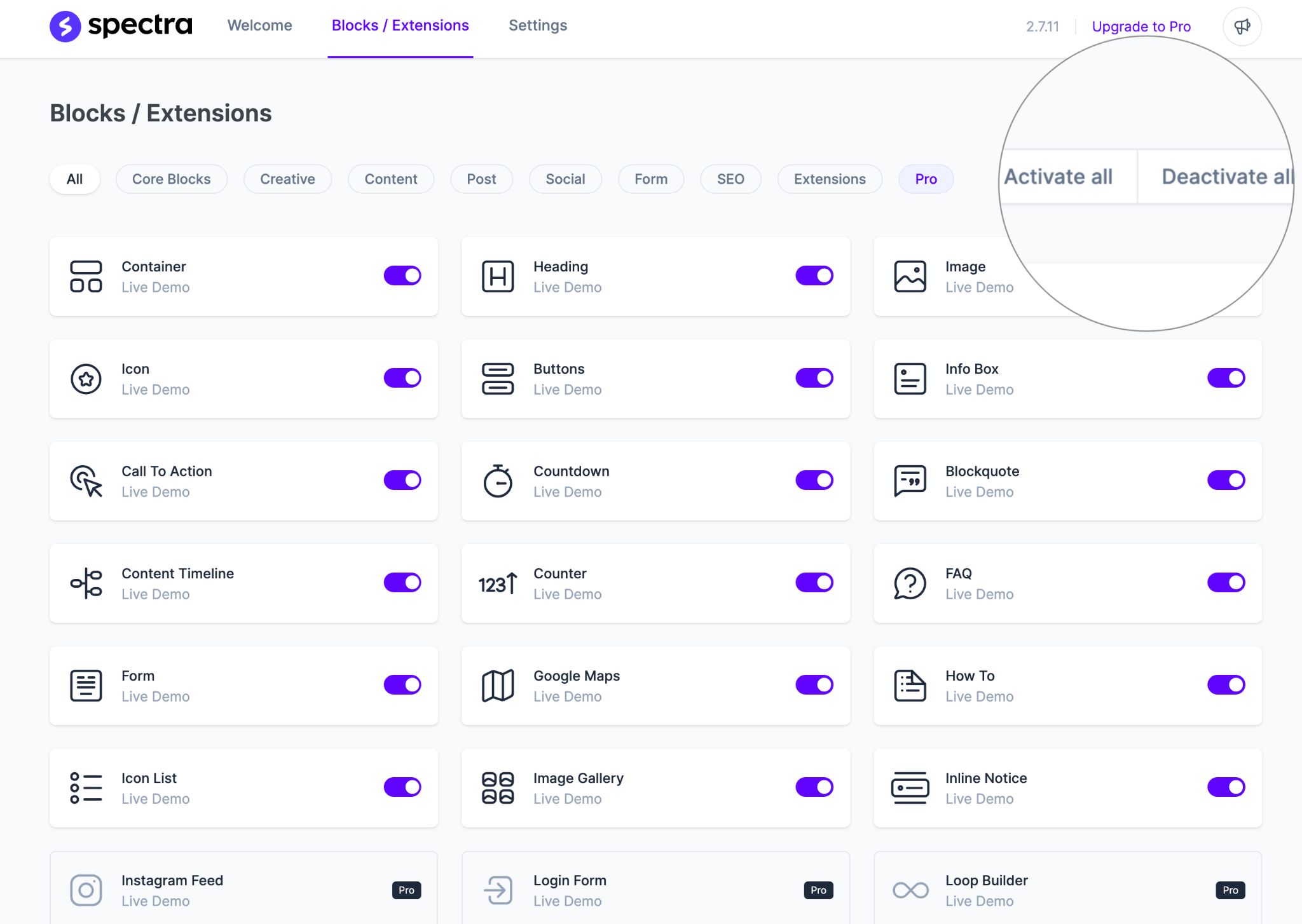
You’ll see that there are a few essential blocks you can’t turn off, and that’s on purpose.
These are the building blocks you’ll always require when working in the block editor. They cover things like containers, headings, images, icons, and more.
But it’s also good to know how many blocks are in each category. Let’s break it down:
Category | Number of blocks |
Core blocks | 8 |
Creative | 7 |
Content | 19 |
Post | 6 |
Social | 5 |
Form | 3 |
SEO | 4 |
Extensions | 5 |
You’ll notice that this count includes the five dynamic blocks that are part of Spectra Pro. These blocks will appear as inactive unless you install and activate the premium version.
Also, it’s important to mention that you might see some blocks showing up in more than one category.
This is because you can use them in different ways. So, in total, Spectra Legacy gives you access to approximately 44 different blocks.
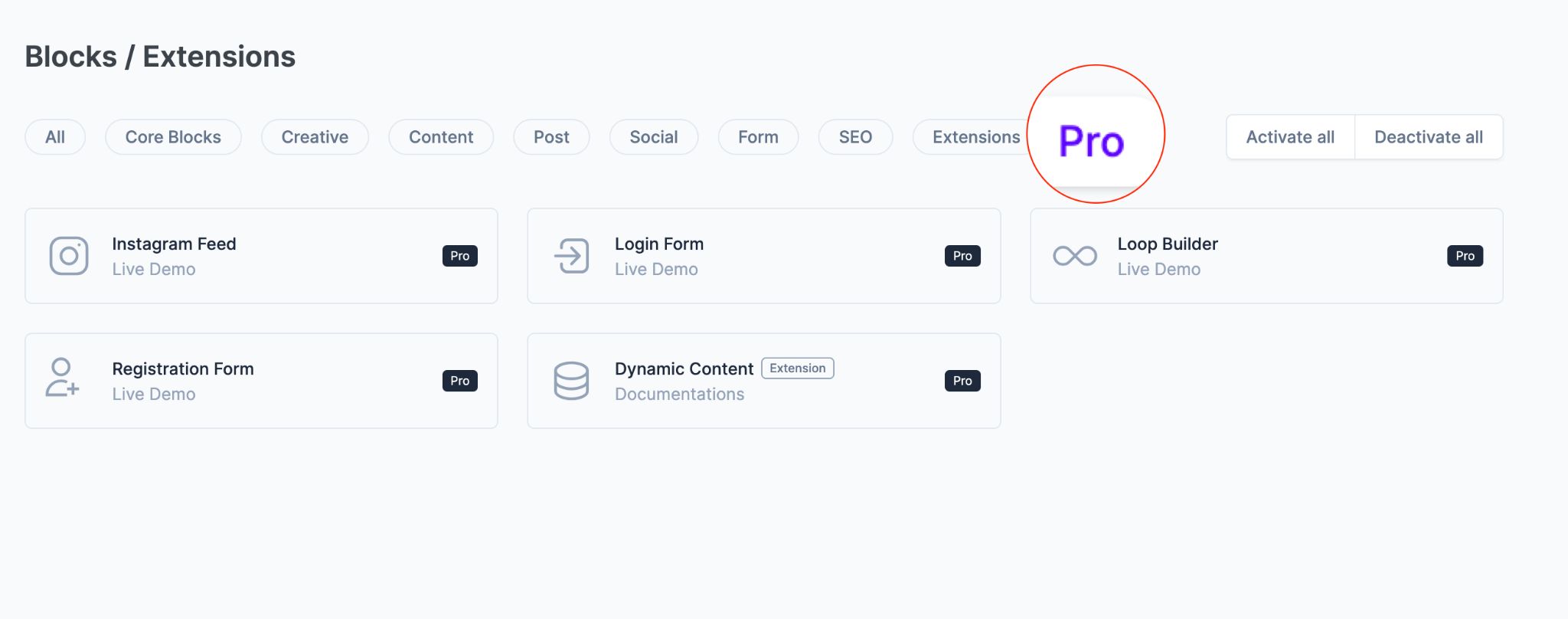
Settings
The settings page is split into seven sub-pages.
Each contains a different group of options that allow you to customize everything related to Spectra.
It’s all neatly organized for your convenience.
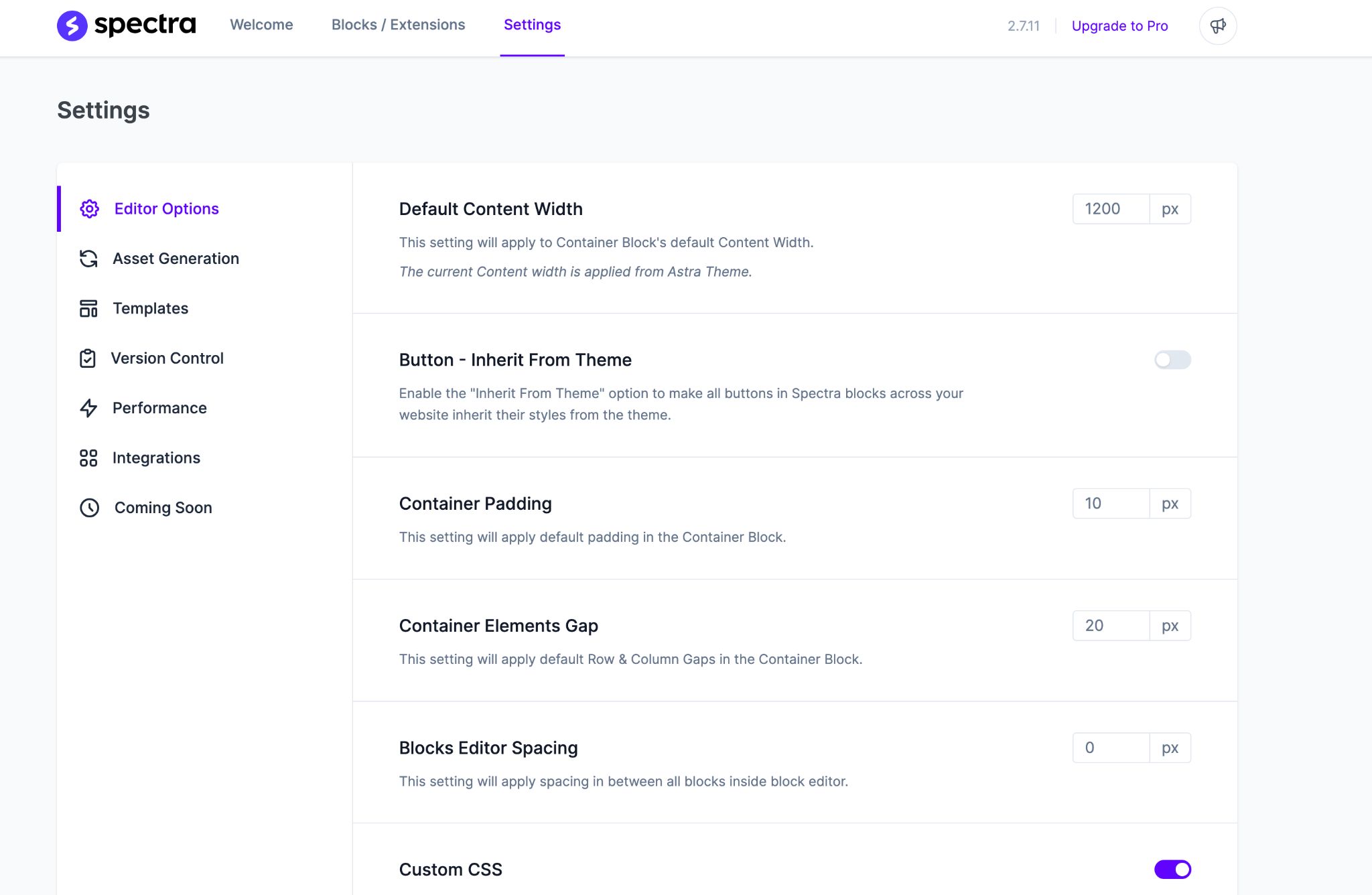
Let us break it down for you:
- Editor Options: This is where you control the spacing between blocks to keep your design clean.
- Asset Generation: Allows you to generate separate CSS and JS files for each Spectra block.
- Templates: Turn on/off the access to a library of pre-designed templates.
- Version Control: Roll back to a previous version or participate in the beta version from this section.
- Performance: Speed up your website by loading Google fonts locally.
- Integrations: Enable Google reCAPTCHA for forms and integrate Instagram with Spectra.
- Coming Soon: If your website is a work in progress, use this option to show a specific page to the public.
- License Key: Only visible when you have Spectra Pro installed. You’ll need to enter the license key to activate the pro version.
Popup Builder
Spectra offers a powerful tool called the Popup Builder that can supercharge your website’s conversions.
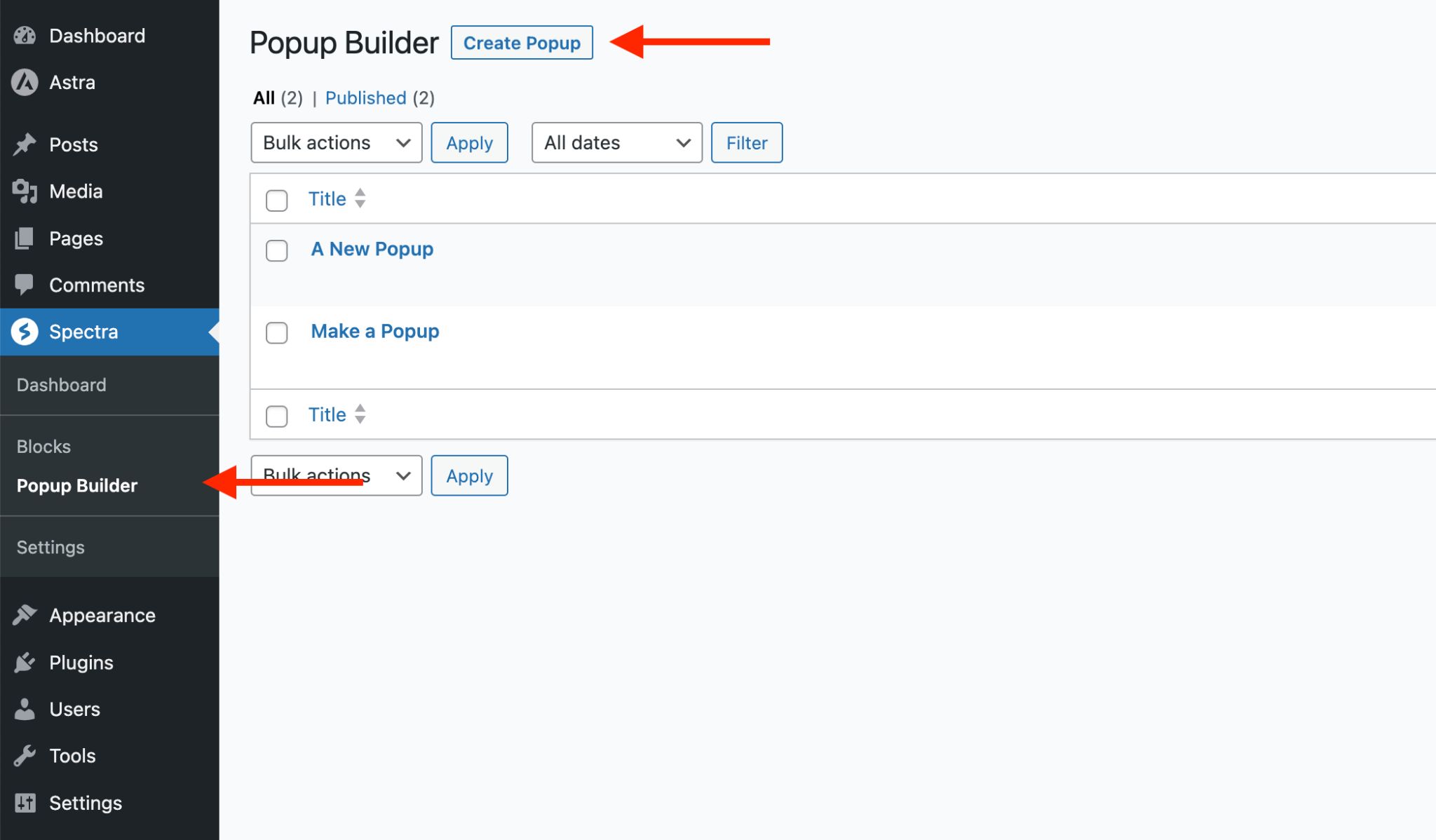
With the free version, you can create as many popups as you want, but things really step up a notch with the pro version.
You have full control over how and where popups show up on various screens.
We’ll dive deeper into this feature in the performance section.
Spectra Pro User Interface
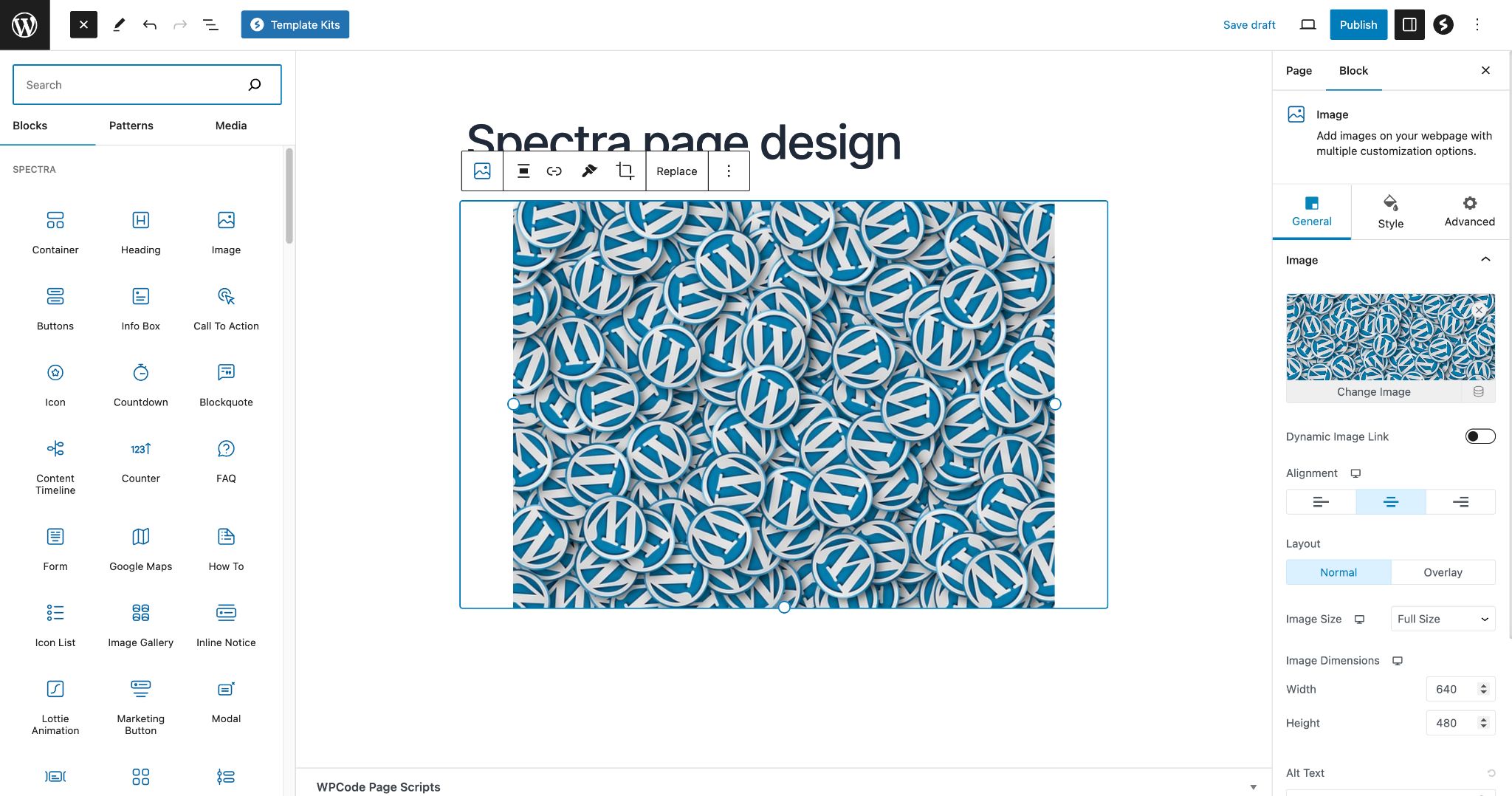
Spectra Pro simplifies the design process with its visual, drag and drop interface.
In a nutshell, you can watch your design take shape as you create it, and you can rearrange things by just dragging and dropping them.
For example, when you want to add an image to your page, it’s as easy as a couple of clicks.
Drag the image box from the sidebar on the left and drop it wherever you want it.
When you need to fine-tune other settings, everything is neatly organized in the right sidebar. It’s designed to be user-friendly and straightforward!
We can divide the entire screen into seven parts:
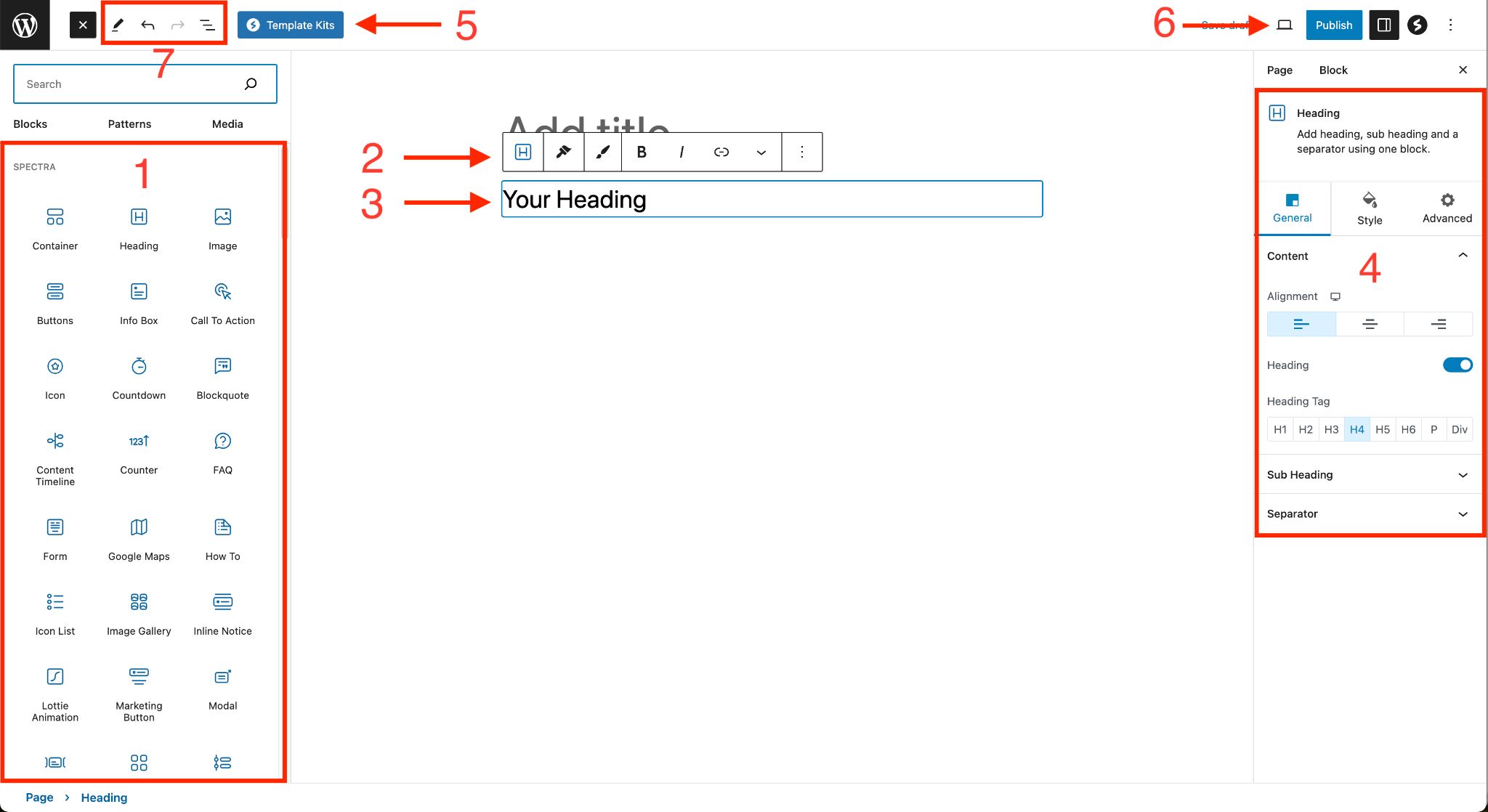
- This is where you’ll find all the Spectra blocks. You can also pick from pre-made patterns and media.
- There’s a block toolbar for speedy actions like copying and pasting formats or duplicating an item.
- The main editing area is where you work on your blocks in real-time.
- You’ll find all the settings related to the block item here.
- This is your go-to place for accessing and importing pre-made page designs for any purpose.
- Choose the screen size you want to edit for.
- You can view documents and block items on the page in a list for easy management such as drag and drop actions. Plus, you can undo or redo changes from here.
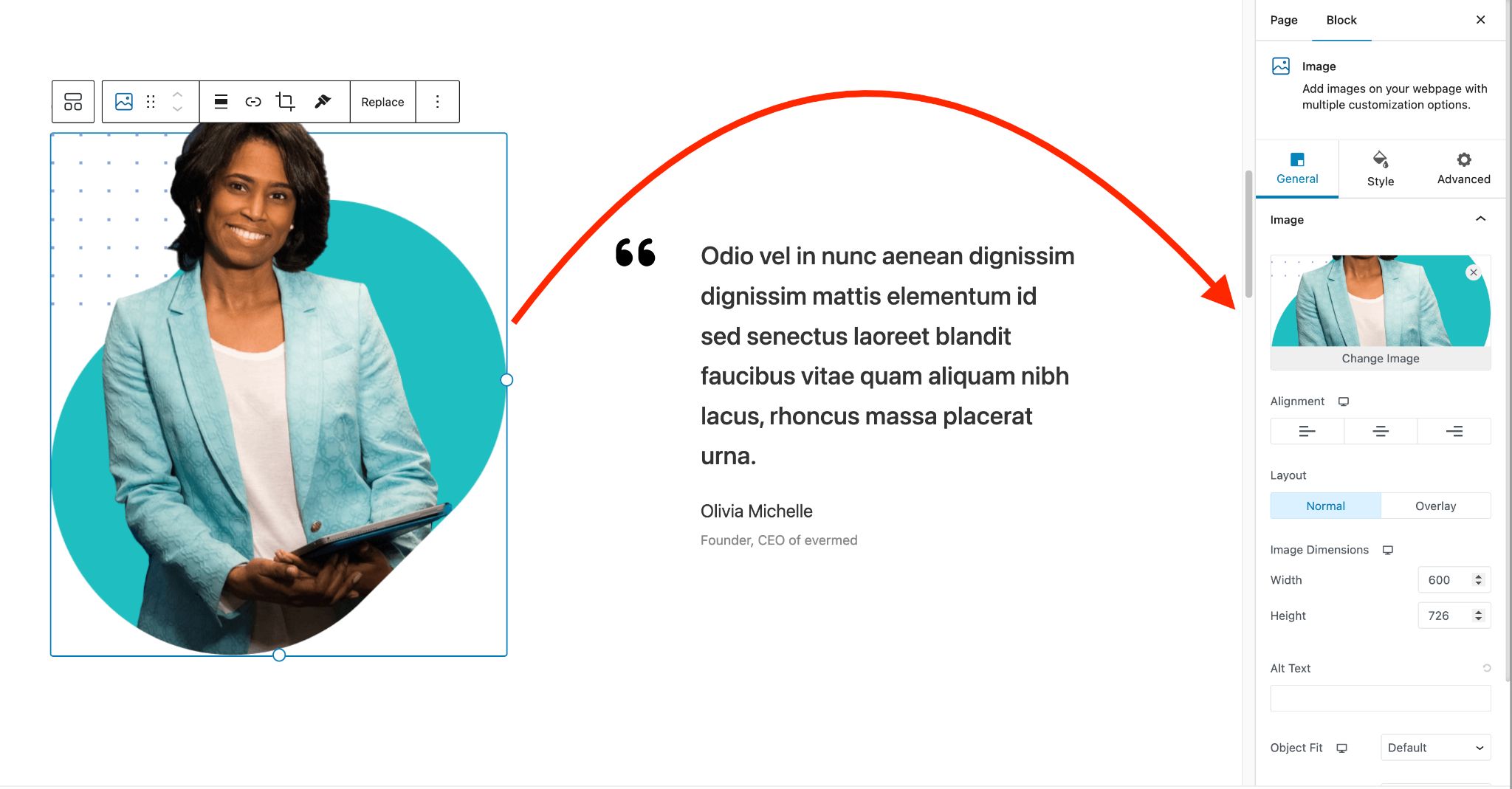
When you import a pre-built template, it will look like this. The settings in the right sidebar give you full control over the selected block item.
Whatever changes you make, you can see them happening in real-time.
Our 6 Favorite Features of Spectra Pro
Spectra is packed with loads of features that cover a whole range of things. We can’t dive into all of them because it would take up a lot of time and space.
But here are our six favorite features that are definitely worth mentioning:
1. Template Library
If you turned off the template library button in the settings area, we recommend turning it back on.
This will reveal the Template Kits button in the block editor. It’s in Spectra > Settings > Templates.
And by the way, it’s usually turned on by default.
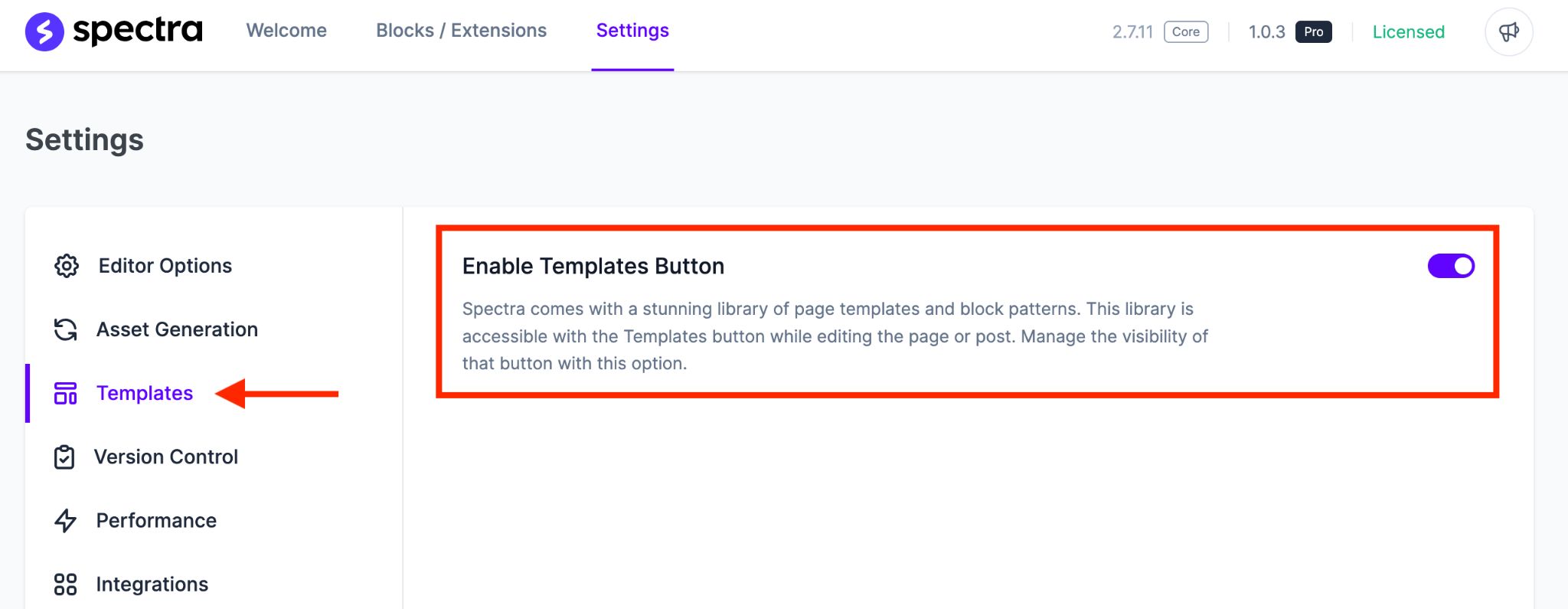
With the Template Kit button enabled, you can access and import a great number of page templates, patterns and wireframes for different needs.
A lot of them are free but you will also find premium templates which you can pay for right there.
These premium templates require the Astra theme. Before you decide to install the Astra theme, it’s better to read my honest review about it.
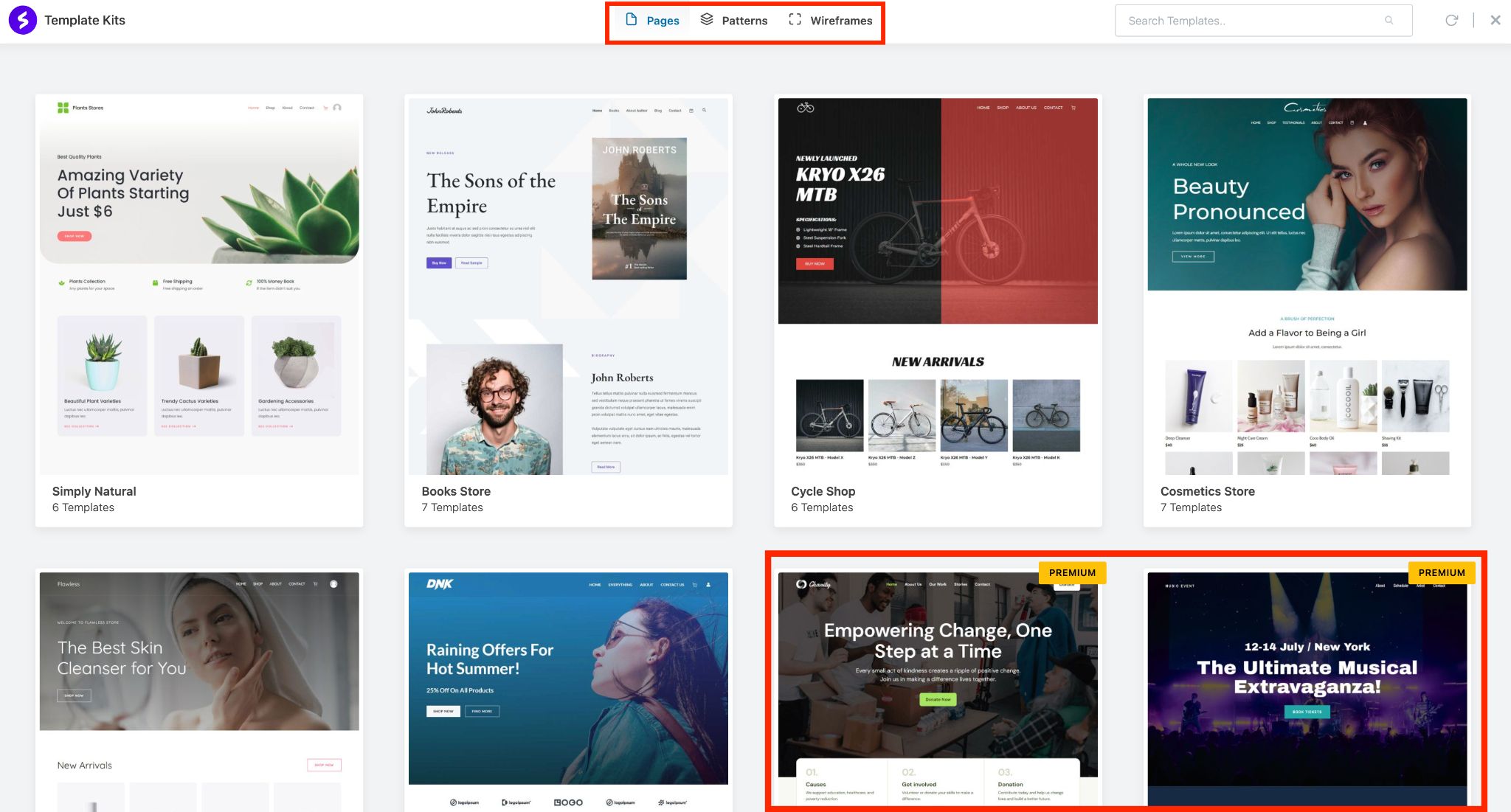
Single Page Templates
This section is like your perfect starting point, offering professionally designed pages for your entire website.
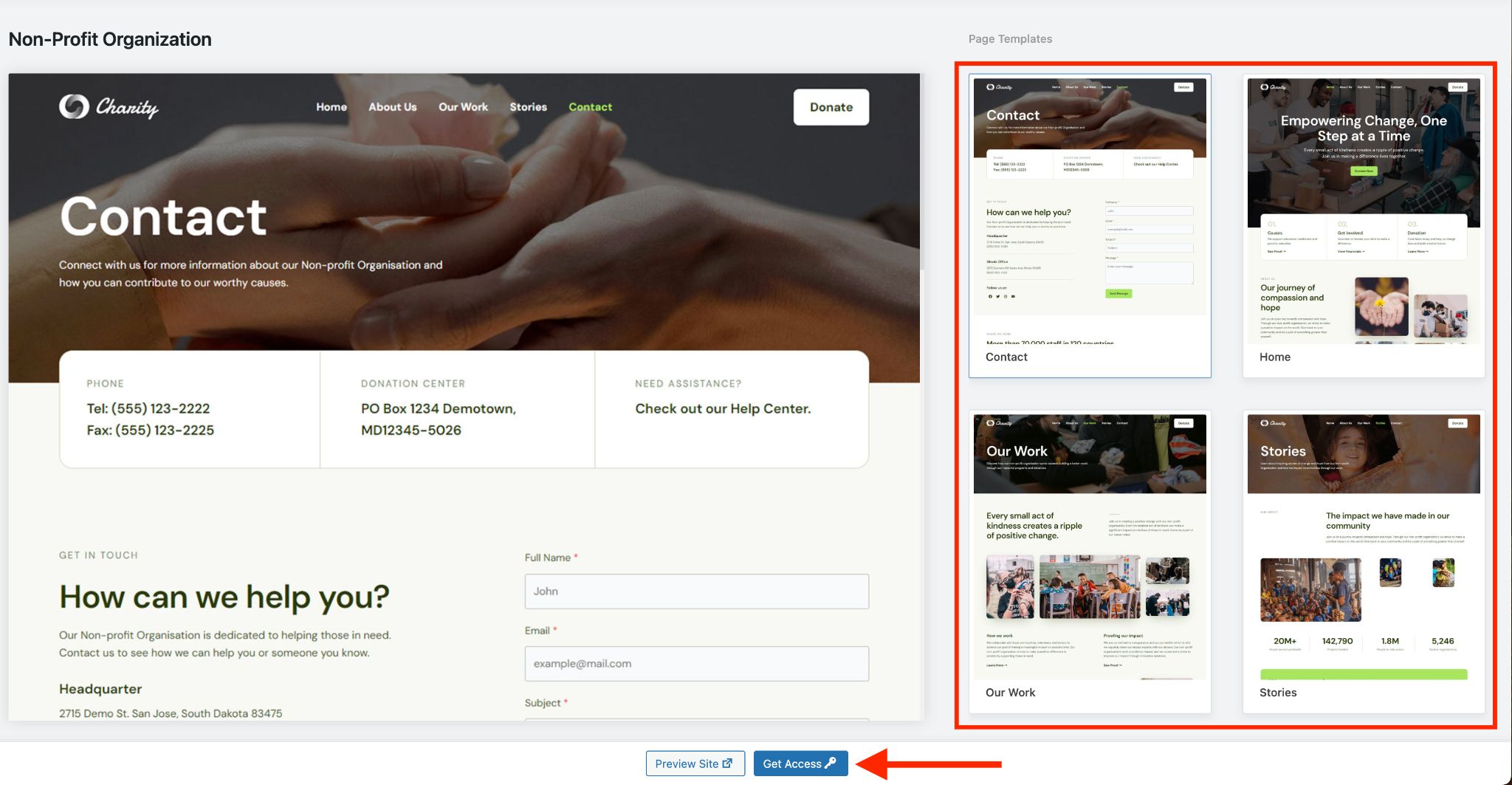
Let’s say your website is all about a non-profit organization. In this case, selecting the “Non-Profit Organization” option is a smart move.
Doing so will display available templates for different pages like your homepage, contact page, about page, checkout page, or blog page.
If the templates are free, you’ll find an “import” option at the bottom. But if they’re not free, you’ll see a Get Access button, indicating you’ll need to make a purchase first.
Oh, and by the way, just a little side note: you can find all the premium Starter Templates in Astra’s Essential Toolkit.
Here’s another important tip you should keep in mind.
If you’re planning to sell anything on your website, you’ll need an eCommerce plugin. Without it, you can’t set up an online store on a standard WordPress site.
In this case, you might come across blank page templates for pages like checkout, shop, or store.
Don’t worry, this doesn’t mean the designs are missing; it simply means you need an eCommerce plugin on your website to properly import these pages.
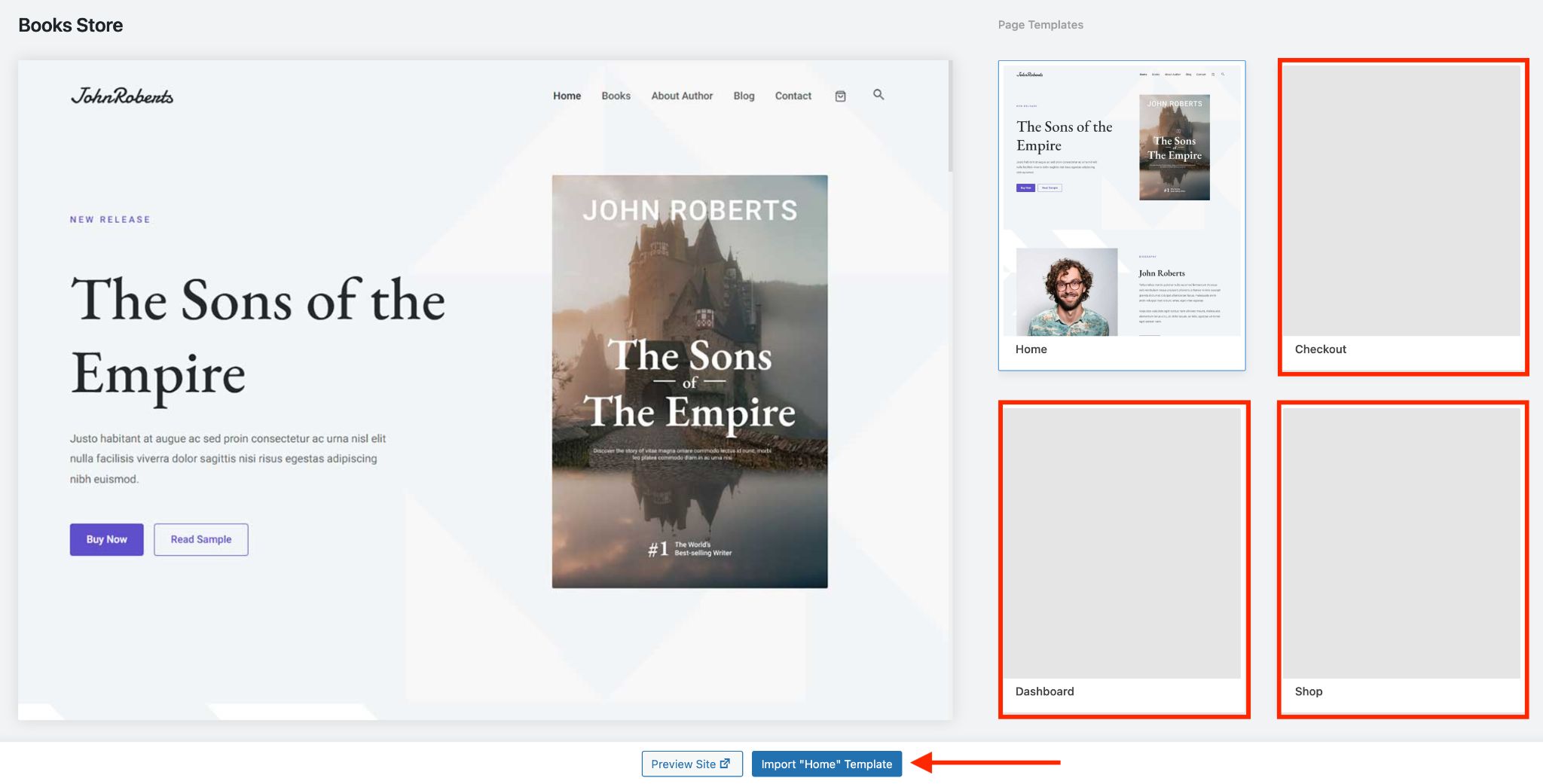
For instance, you see that the Checkout, Shop, and Dashboard pages look empty, it’s because our test website doesn’t have an eCommerce plugin installed yet.
Wonder which eCommerce plugin is the best for you? Here is a comparison of WooCommerce vs Easy Digital Download vs SureCart.
If you’re searching for something different, like contact, about, home, or blog, you’ll get relevant results, no matter the category.
Pattern/Wireframes
Now, let’s talk about patterns and wireframes. These are special sections designed to meet various web page needs.
You can use them to enhance your existing design or create a new one from scratch.
Here are some examples of pre-made designs for:
- About
- Contact
- Call To Action
- Clients
- FAQs
- Features
- Testimonials and lot more
Unlike templates, patterns and wireframes are free to import. Just hover your mouse over a design, and you’ll see an Import button pop up at the top.
Just click that button to add the design element to your web page. It’s as simple as that!
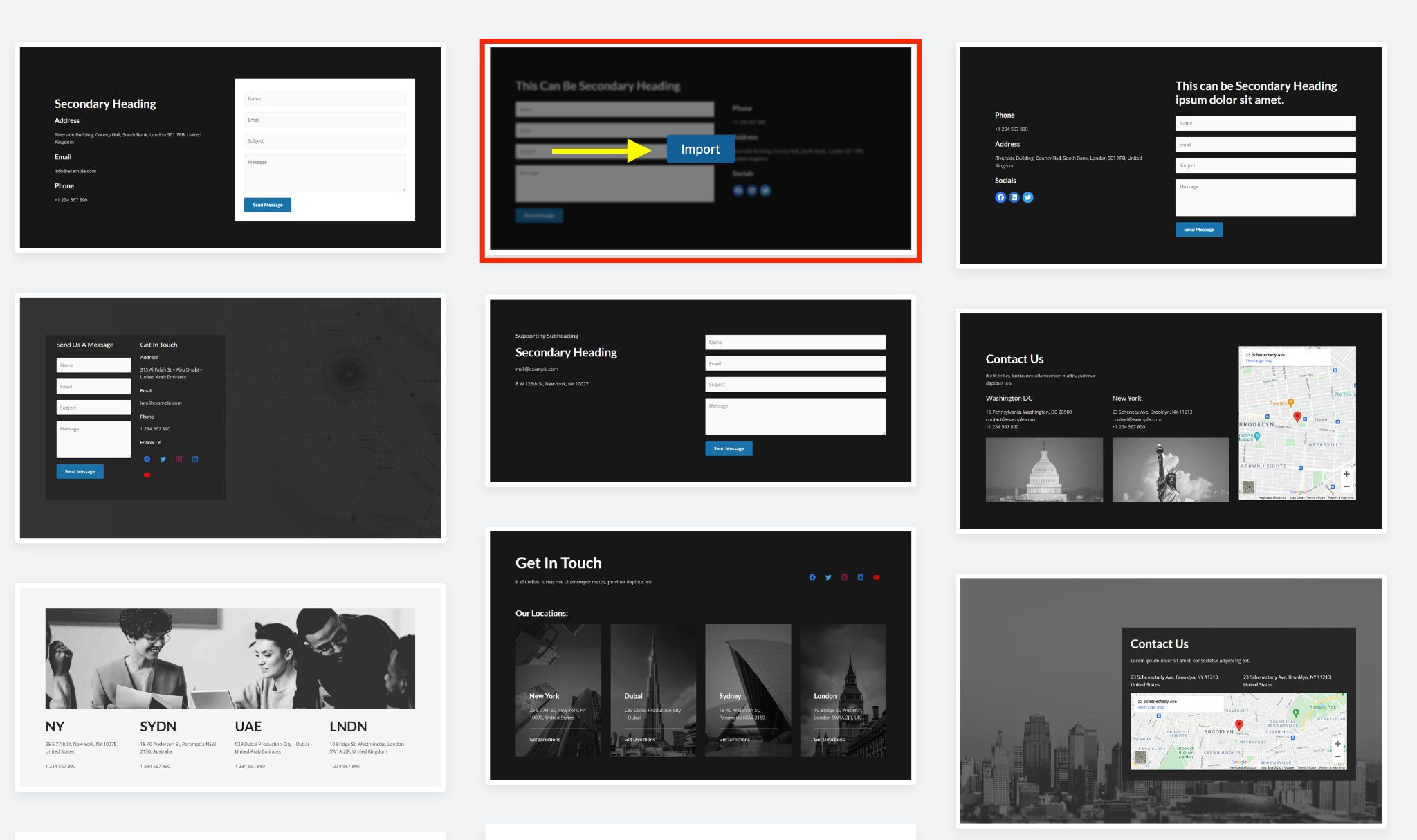
All you need to do is add your own images and content and it’s all ready to go.
2. Responsive Design
Spectra offers a cool feature called “Responsive Conditions.” It’s a real help when you want to make sure your website looks good on different devices, like mobile phones, tablets, and computers.
Imagine you have a store page with a bunch of products neatly arranged in rows and columns on a desktop screen. But when you switch to a mobile screen, it can get messy.
That’s where the responsive condition feature comes to the rescue.
You can choose to display just one product at a time on smaller screens, making things look much cleaner. You can also hide or show certain elements based on the screen size.
For instance, you might decide to hide a large hero image on mobile screens so it doesn’t take up too much space.
Just remember to activate the responsive condition feature from the Spectra admin panel to make all of this work like a charm.
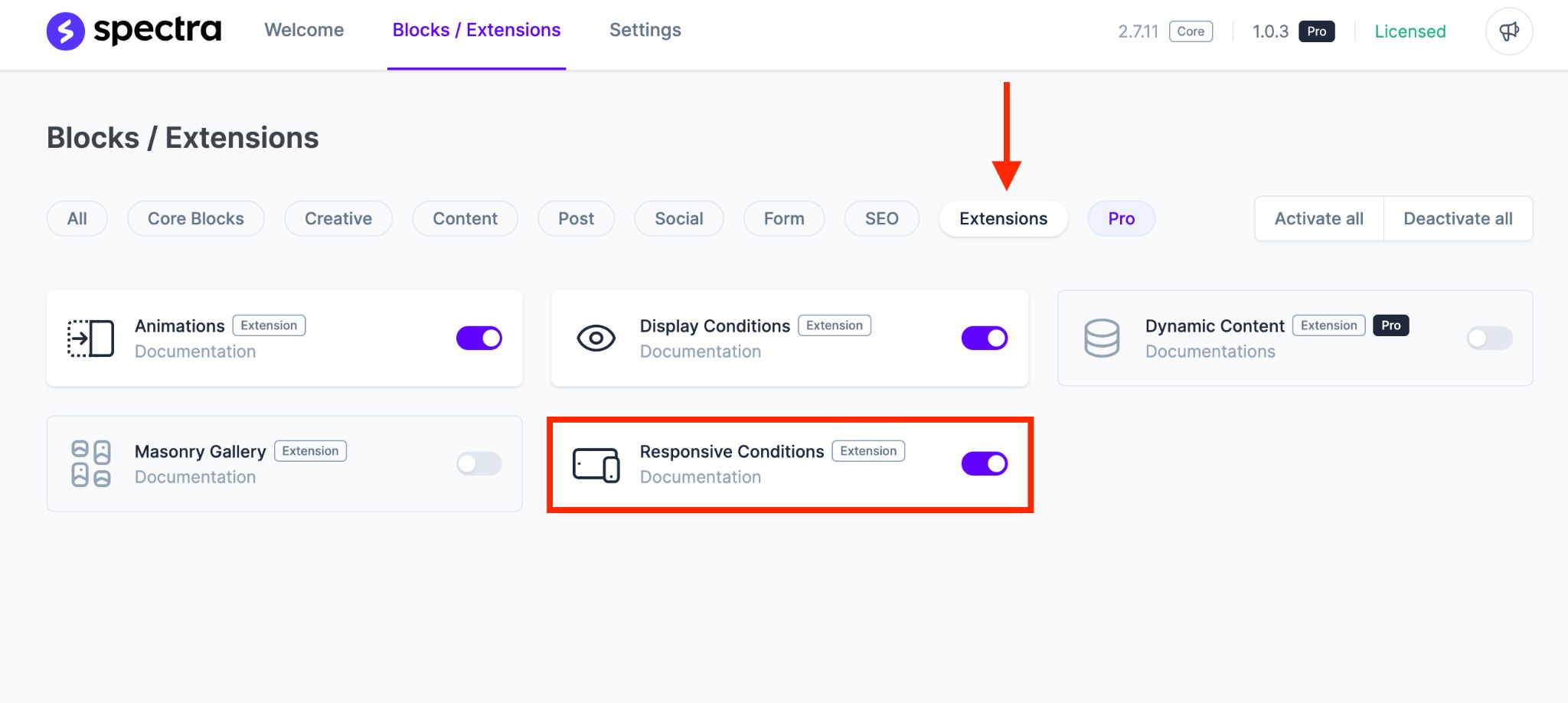
After you’ve turned on the responsive conditions feature, you’ll spot the Responsive Conditions widget in the Advanced settings area for each block element.

If you ever need to display a different block element on a particular screen, you can do that from the same setting area.
It gives you the power to tailor your content for different device sizes.
3. Containers
One of the blocks we really enjoy working with in Spectra is Flexbox containers.
These are super versatile and powerful blocks that give you the freedom to create your website layout exactly the way you envision it.
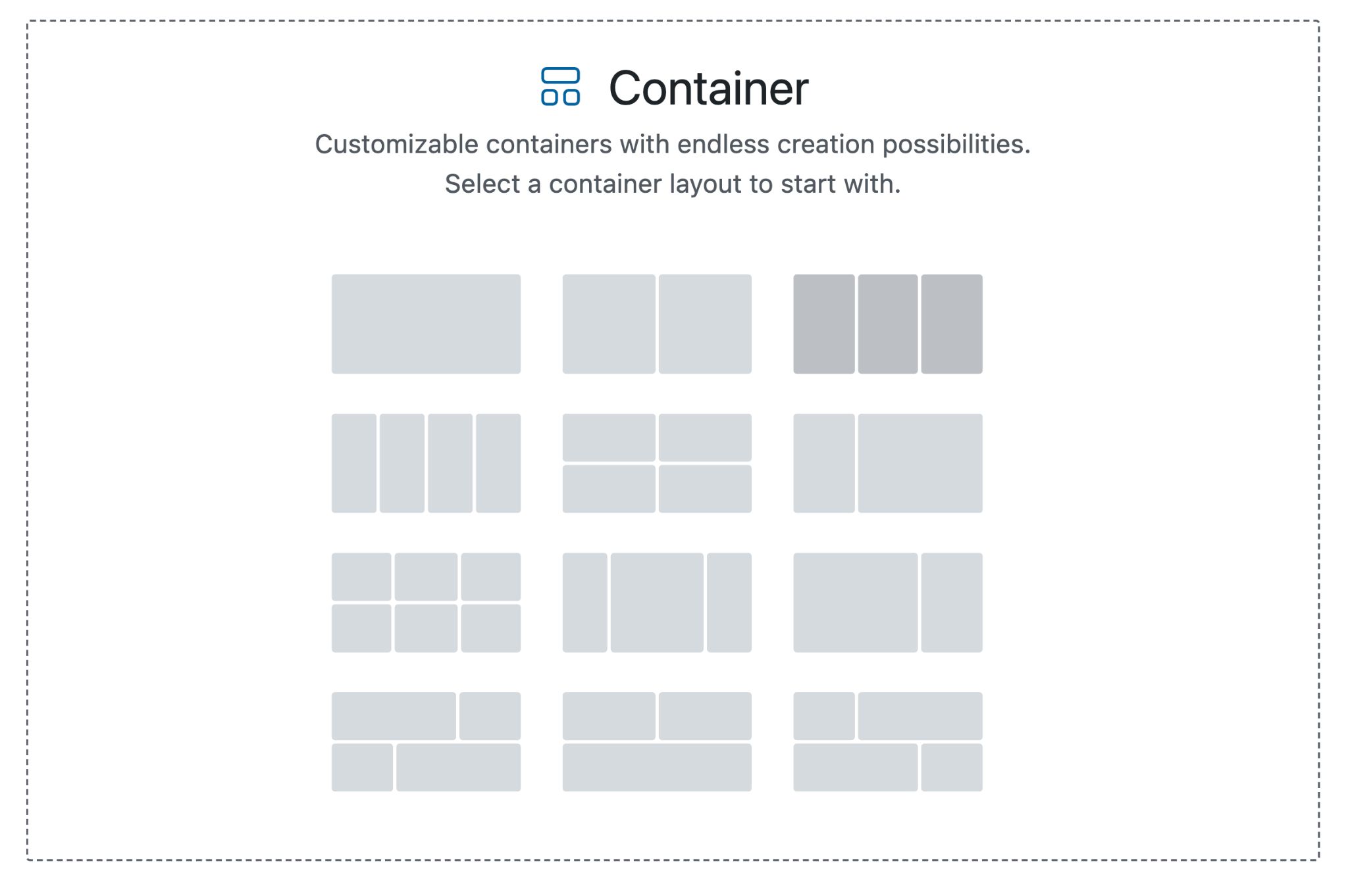
Flexbox containers are fantastic because they let you control the height and keep everything looking consistent, no matter what content you have.
You can make your containers the same height or adjust them to fit your design perfectly.
We really like this nifty feature that allows you animate all inner blocks inside a container.
In a nutshell, these containers make building responsive websites a piece of cake, so you can deliver the high-quality experience your visitors expect.
4. Loop Builder
The Loop Builder is one of my favorite Pro features. It lets you create content loops, which are like those slideshows or displays of posts or information that follow specific rules.
It’s a fantastic tool for websites that deal with lots of content such as newspapers, blogs or magazines!
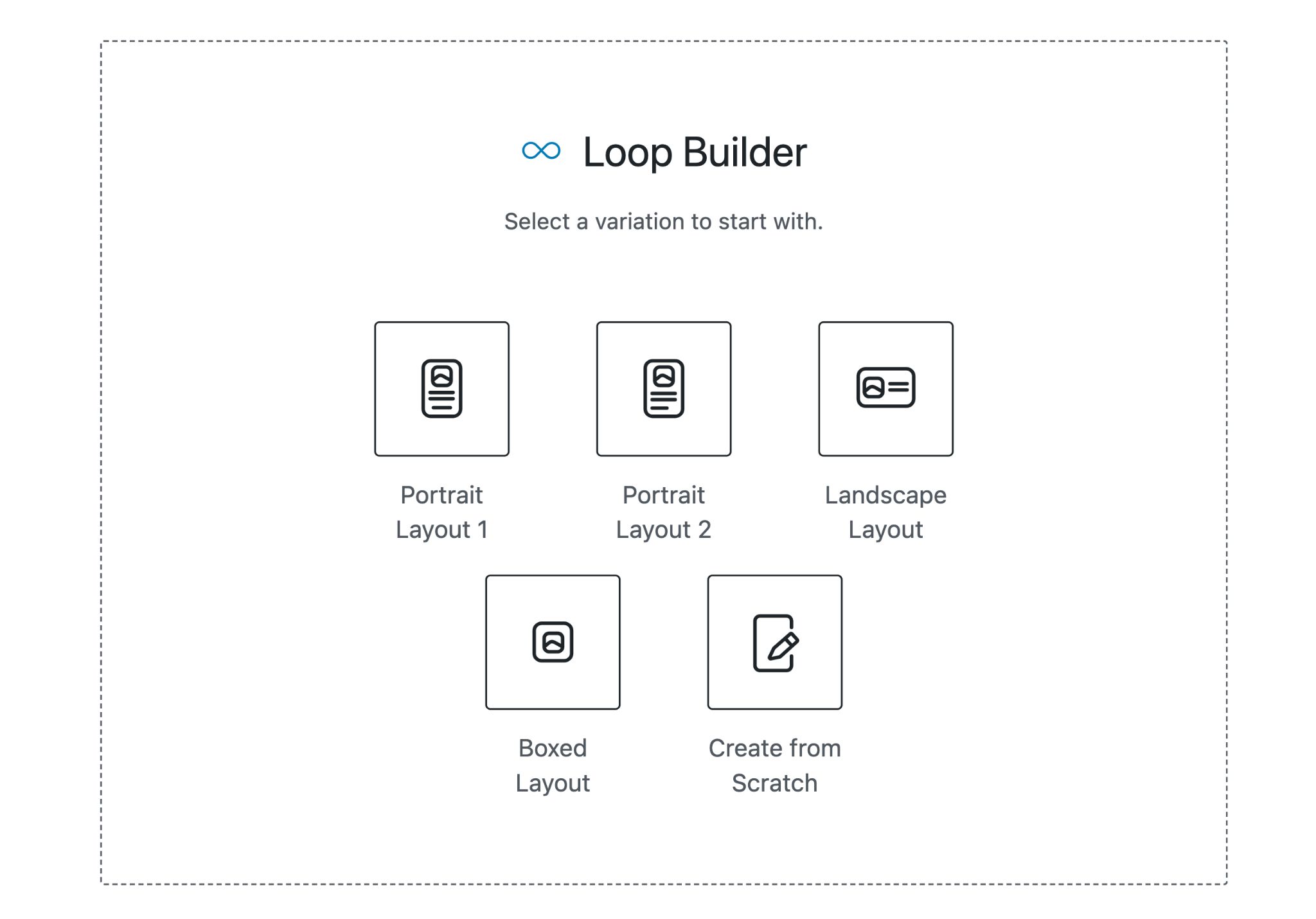
The good news is that it works with dynamic data from custom fields and plugins like ACF, Pods and Meta Box.
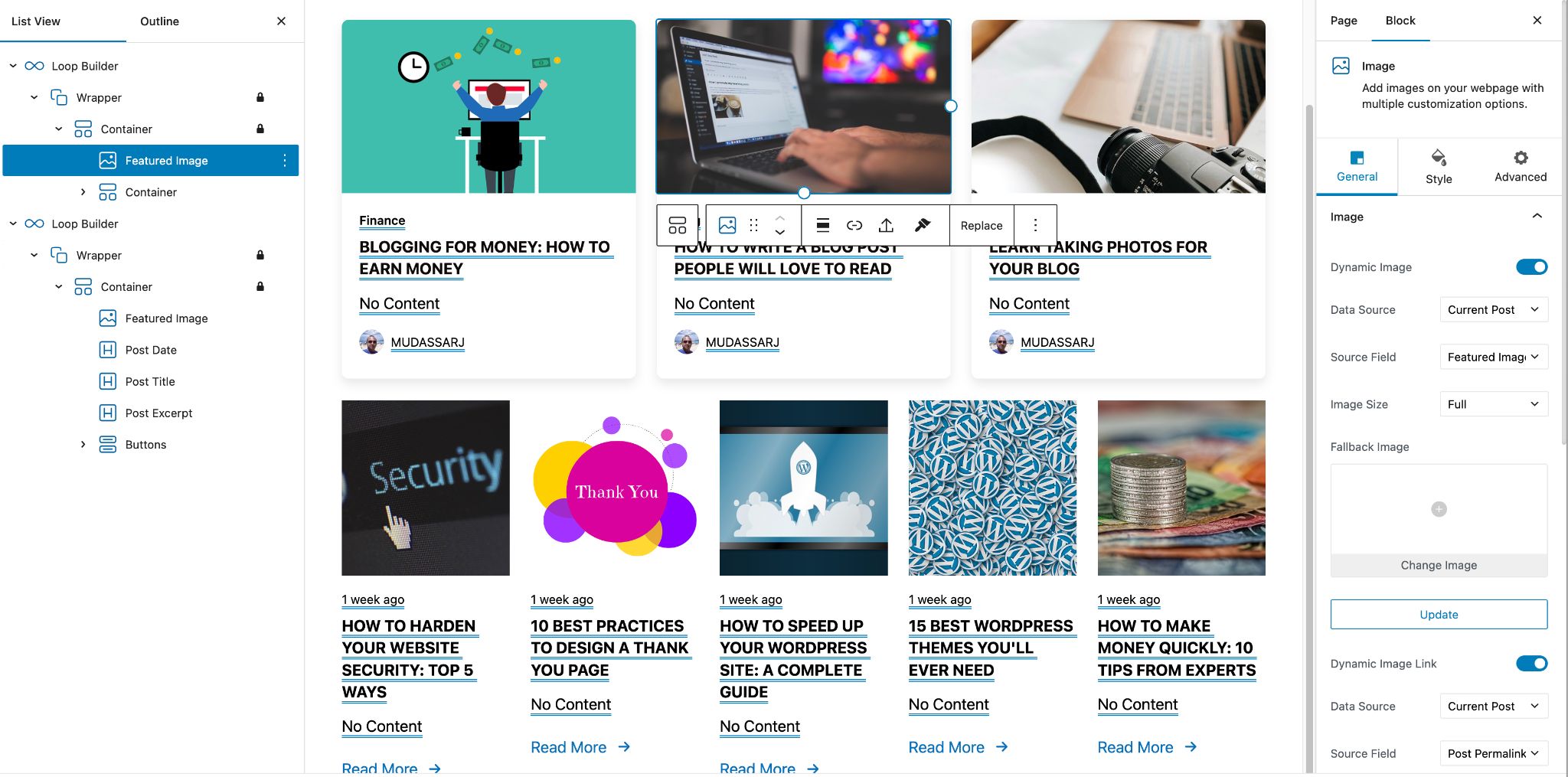
This means you can add dynamic details to make your content loops more personal.
You can show custom fields, metadata, or anything else you want to give your site that unique touch. It’s all about making it your own!
5. Login Form
Login forms can help you achieve various goals. One useful thing they do is let you restrict access to certain content on your website unless users log in.
For example, let’s say you have a blog post that spills the beans on a top-secret chicken curry recipe. If you want only your subscribers to see it, a login form can make that happen.
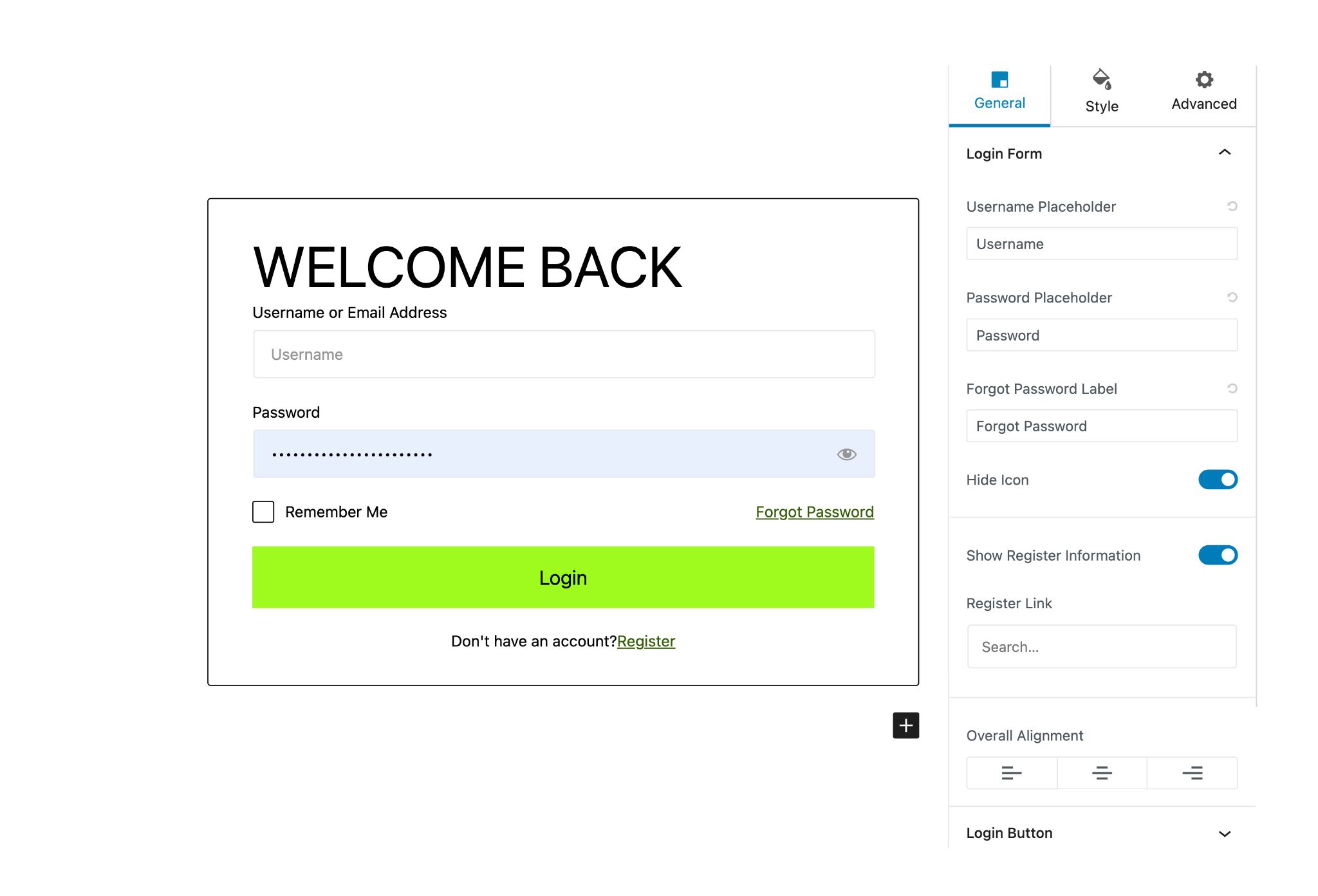
With Spectra Pro you can create personalized and meaningful login forms and control the access to any part of your website.
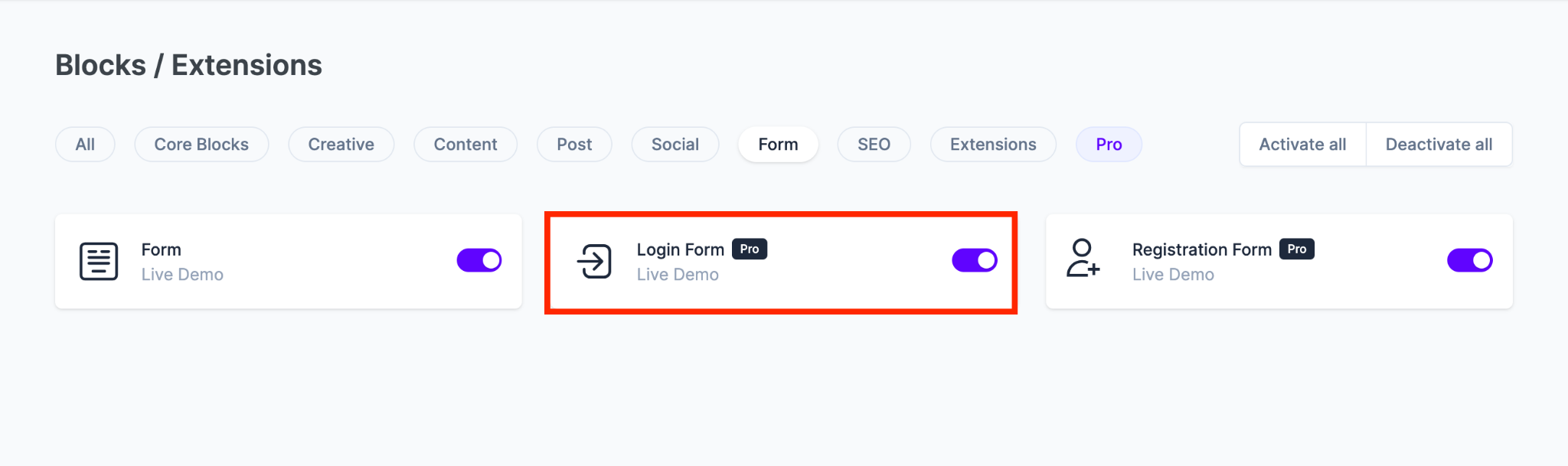
But before you go hunting for the login form block, just double-check that you’ve activated it from the Spectra admin panel.
6. Popup Builder
We’ve all encountered popups on websites, and they’re pretty popular for boosting engagement.
They can do a bunch of things, like capturing email addresses for newsletters, promoting special offers, sharing important updates, or getting visitors to take action.
Spectra comes with a built-in popup builder that can supercharge your sales.
What’s great about this handy tool is that even the free version lets you create as many popups as you like.
When you go Pro, you gain more control over how and where these popups appear.
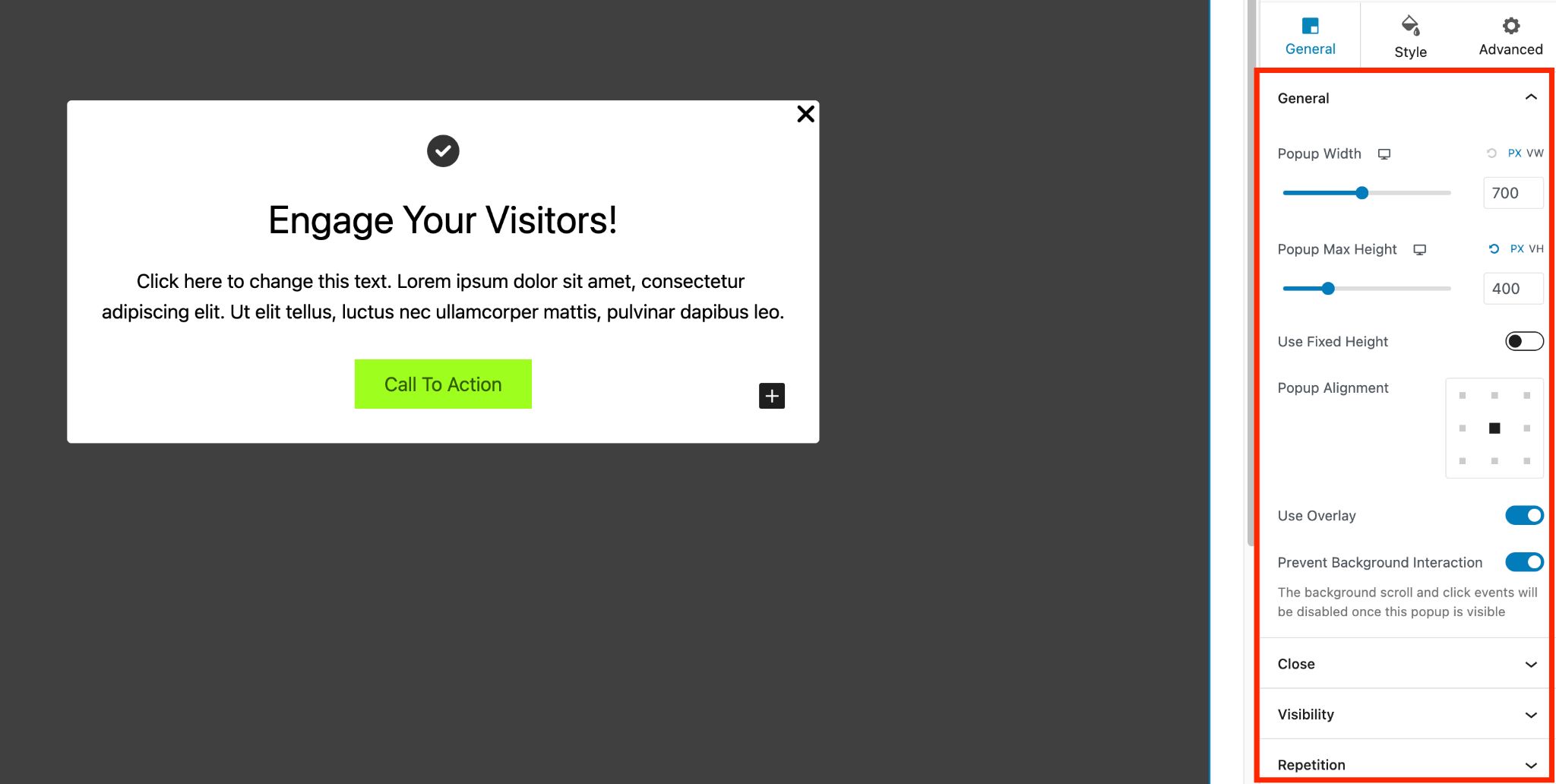
You can style them to match your website’s look, but the part that really caught our attention is the visibility settings area.
With the display conditions, you can decide where and when the popup should show up.
You have some cool options, like:
- Trigger a popup after a certain number of seconds a user has spent on the webpage.
- Trigger it when a user clicks on a specific element on your website.
- Display it at the moment someone’s about to leave the page.
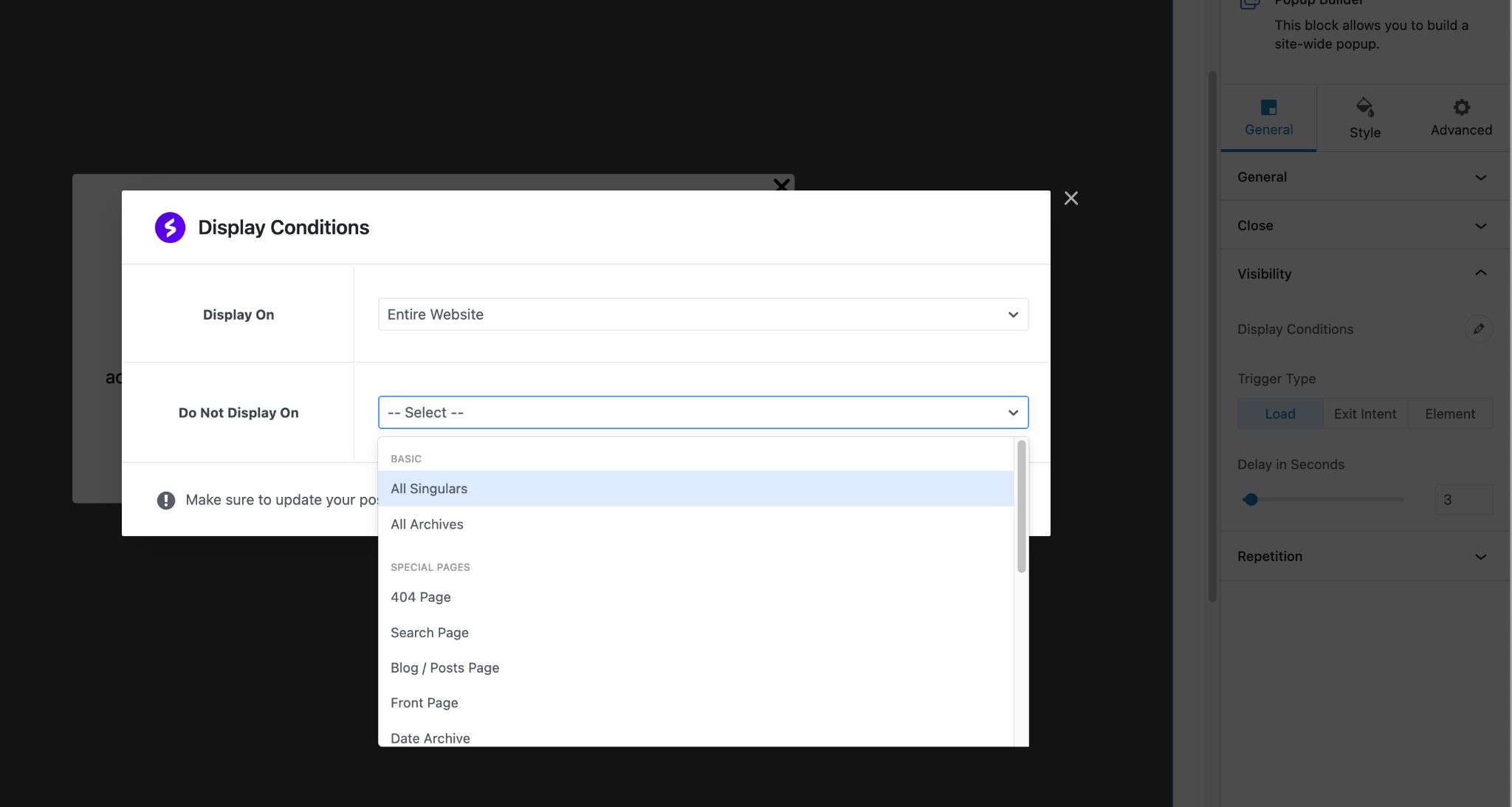
It’s pretty versatile, covering a lot of scenarios.
However, it would be even better if there was an option to trigger a popup after a user has scrolled a certain percentage of the webpage.
That could be a handy addition.
Spectra Speed Test
Now that we’ve gotten to know Spectra quite well, it’s clear that this visual page builder can tackle a wide range of tasks.
When it comes to assessing performance, we can’t forget about speed.
So, to make it simple, we’ve set up our test website like this:
➡️ We’re using shared business hosting from Hostinger.
➡️ The WordPress website is freshly installed.
➡️ We intentionally didn’t install any cache plugins to see how Spectra affects page load times.
➡️ For our testing, we’re relying on GTmetrix (San Antonio server location) and Google Page Speed.
Now, let’s take a look at the results.
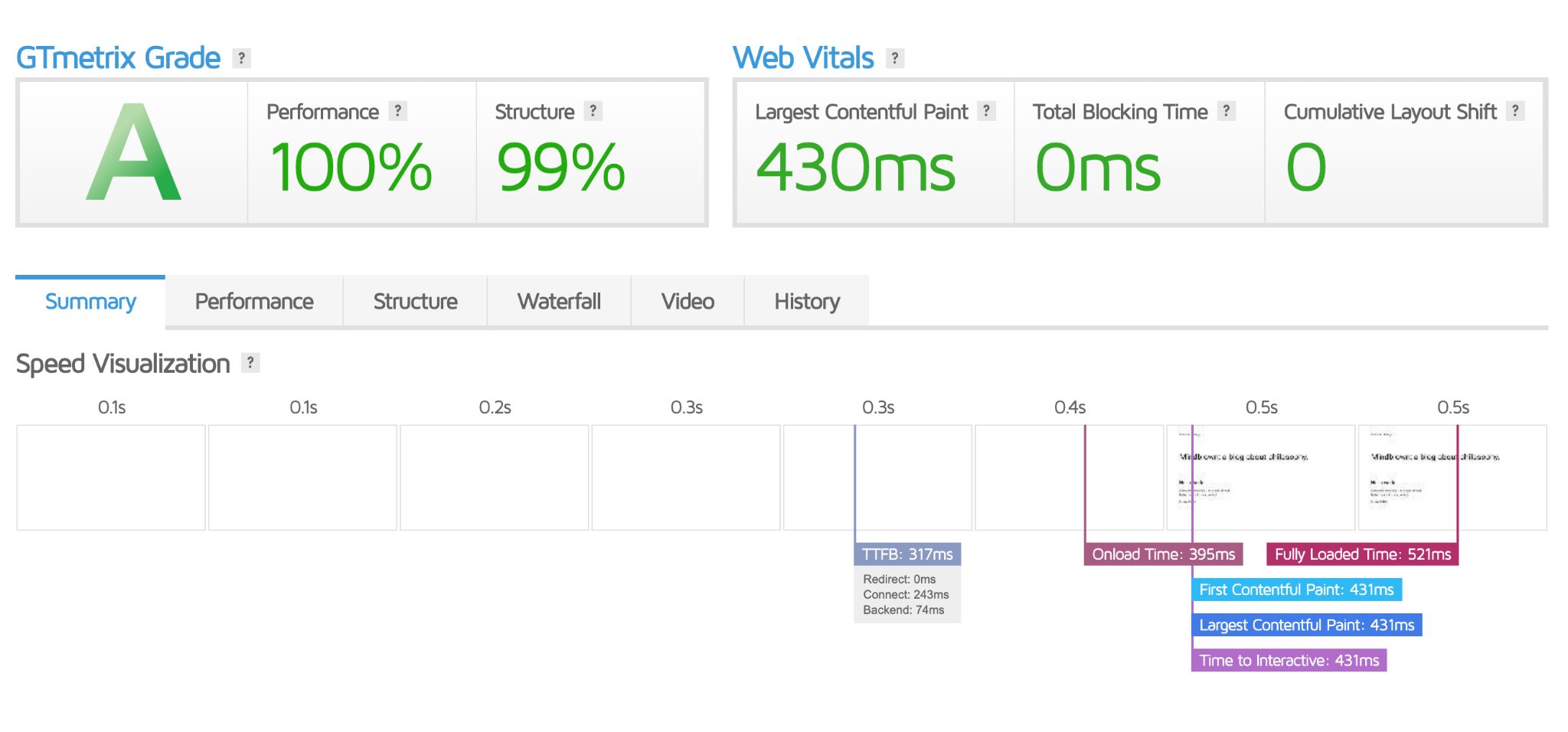
- For reference, we’ve checked the stats on a freshly installed WordPress site.
GTMetrix
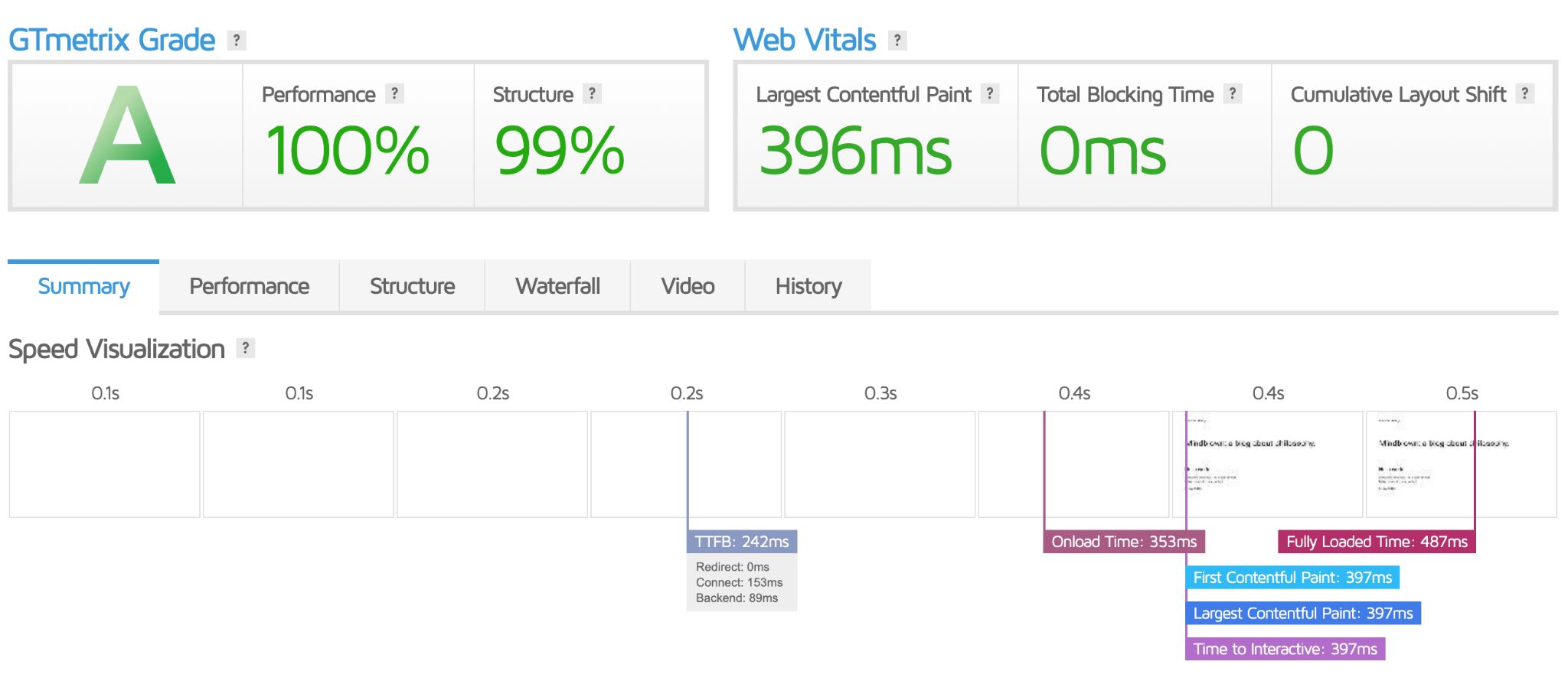
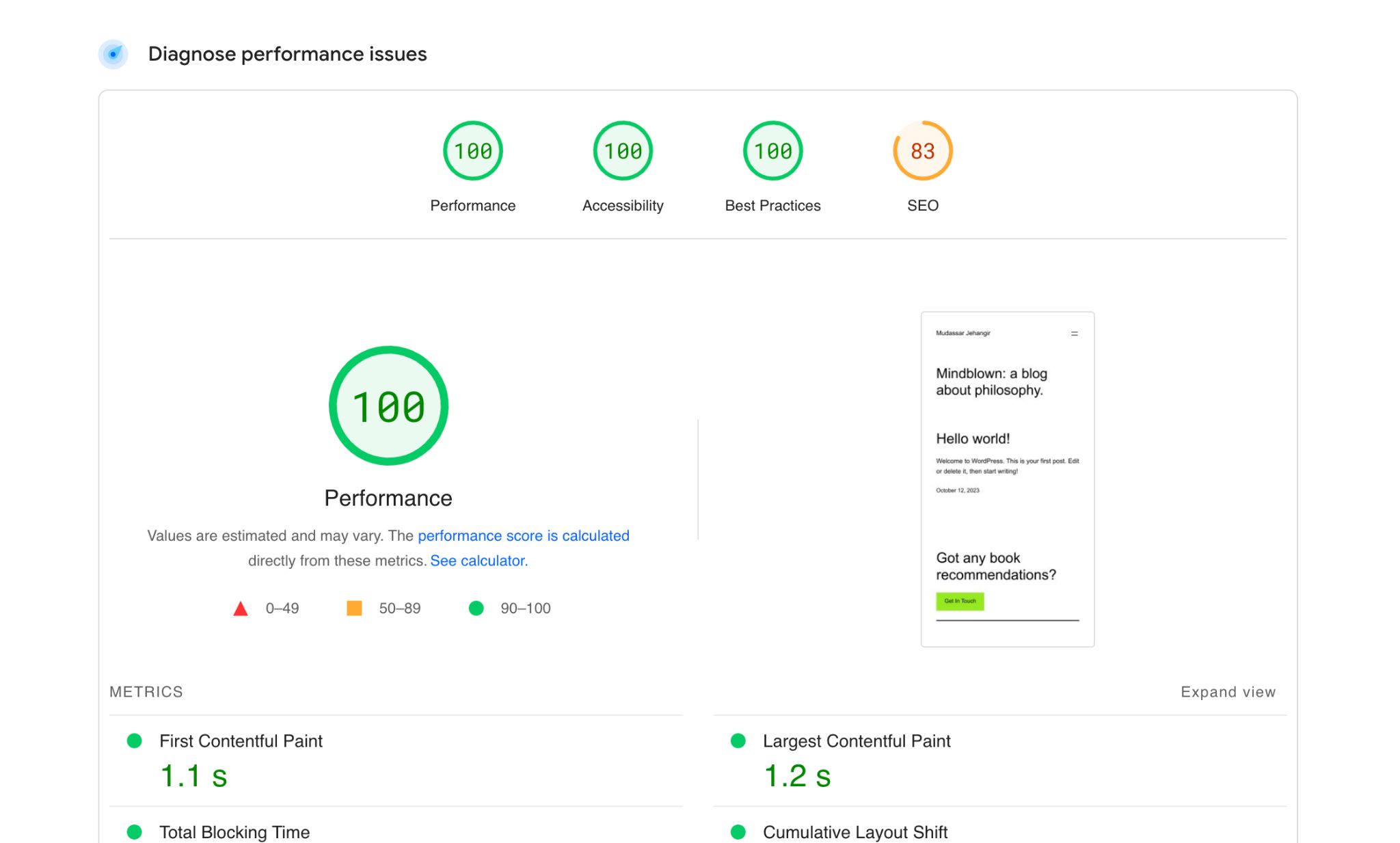
- Now, we’ve added the Spectra page builder. There is no other plugin on our test site.
GTMetrix
Google Page Speed
- Let’s import a web page template from the library.
GTMetrix
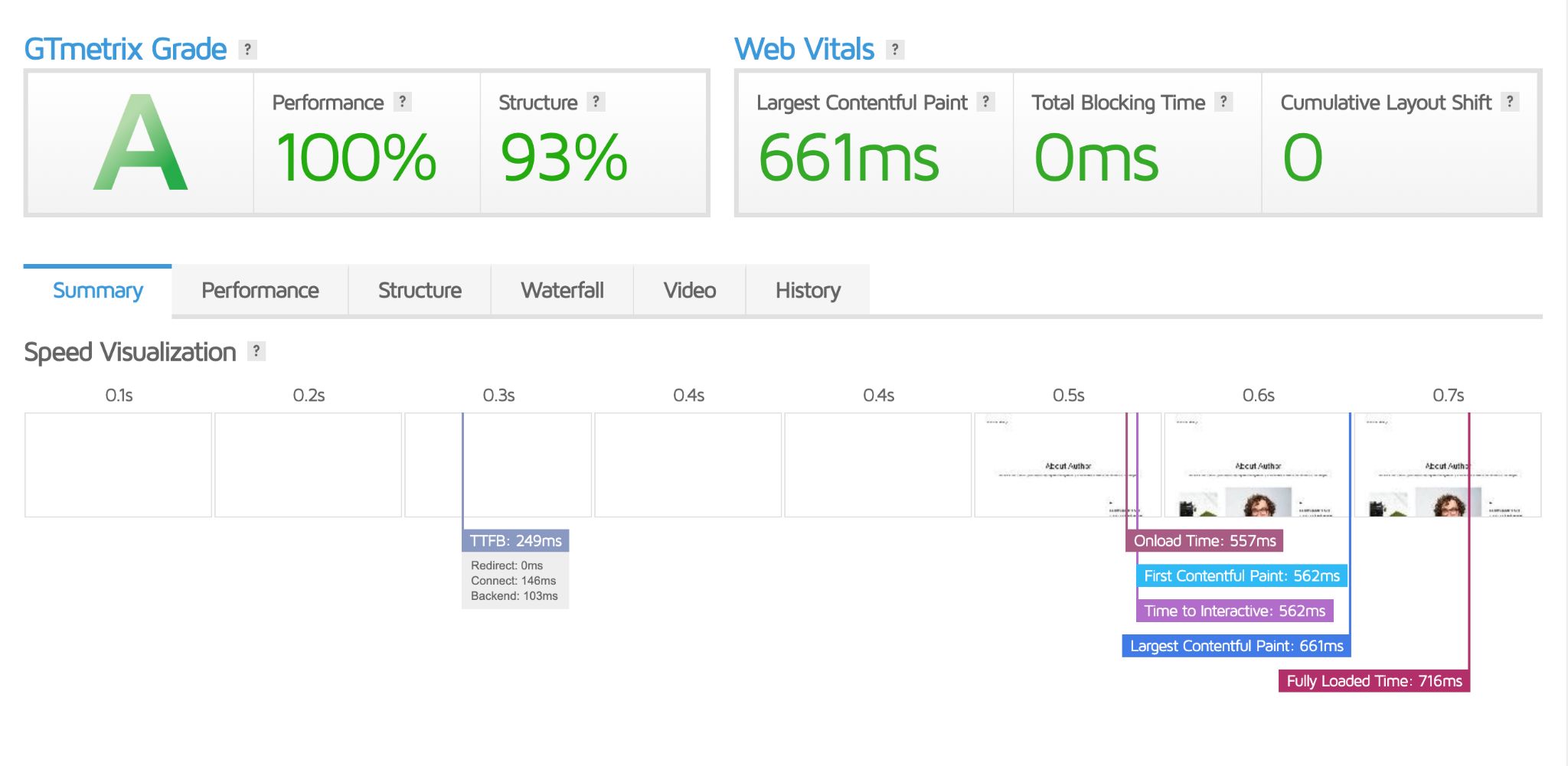
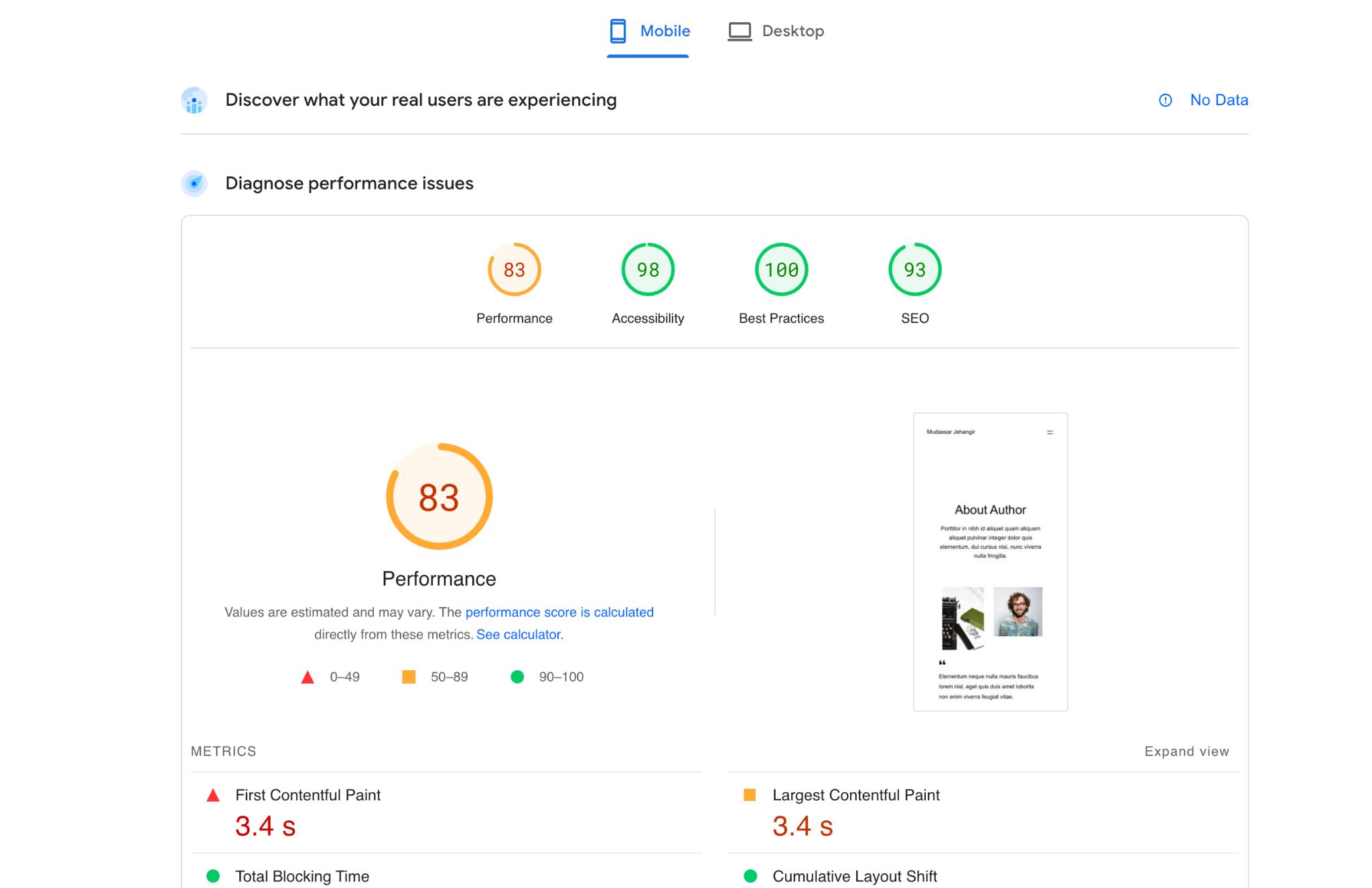
- Let’s go a little further and add more weight to our page. We’ve imported a homepage template that has multiple images of different sizes and some text.
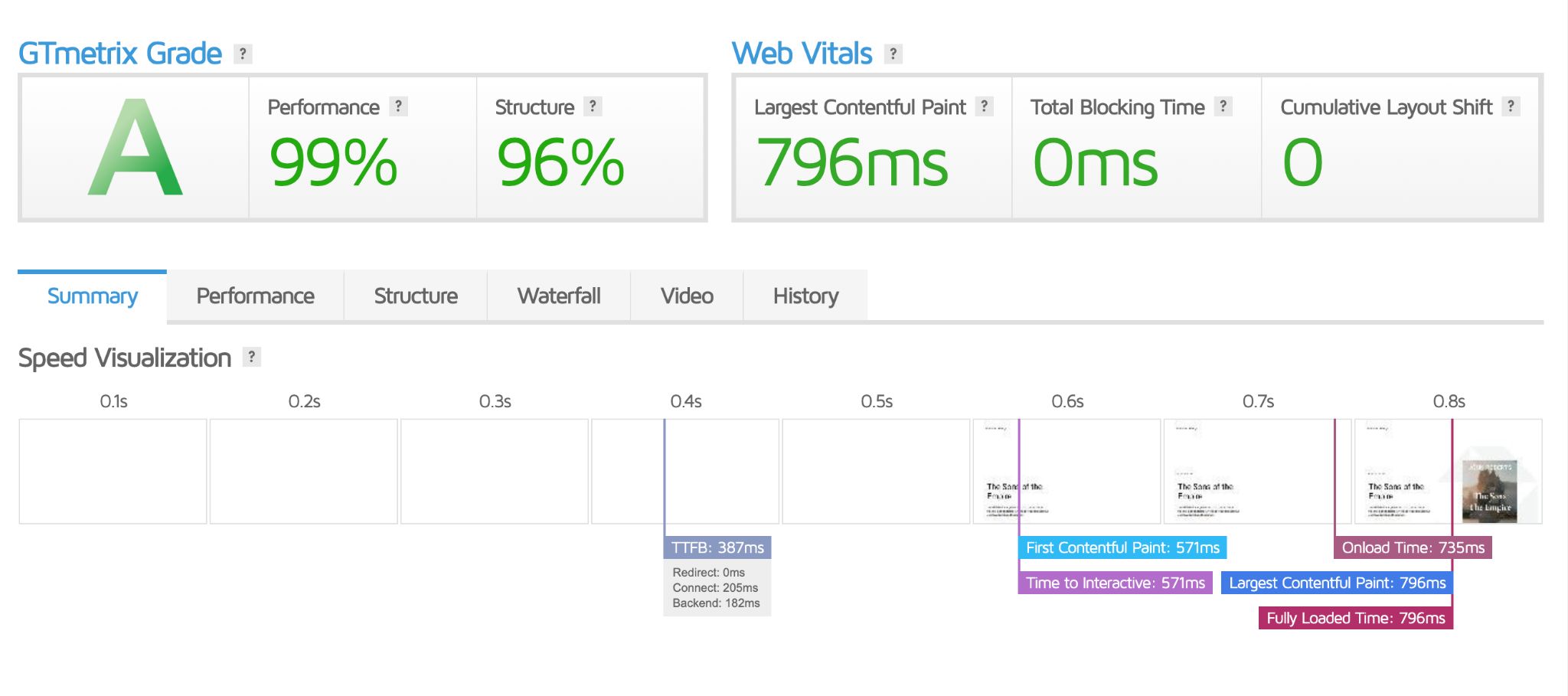
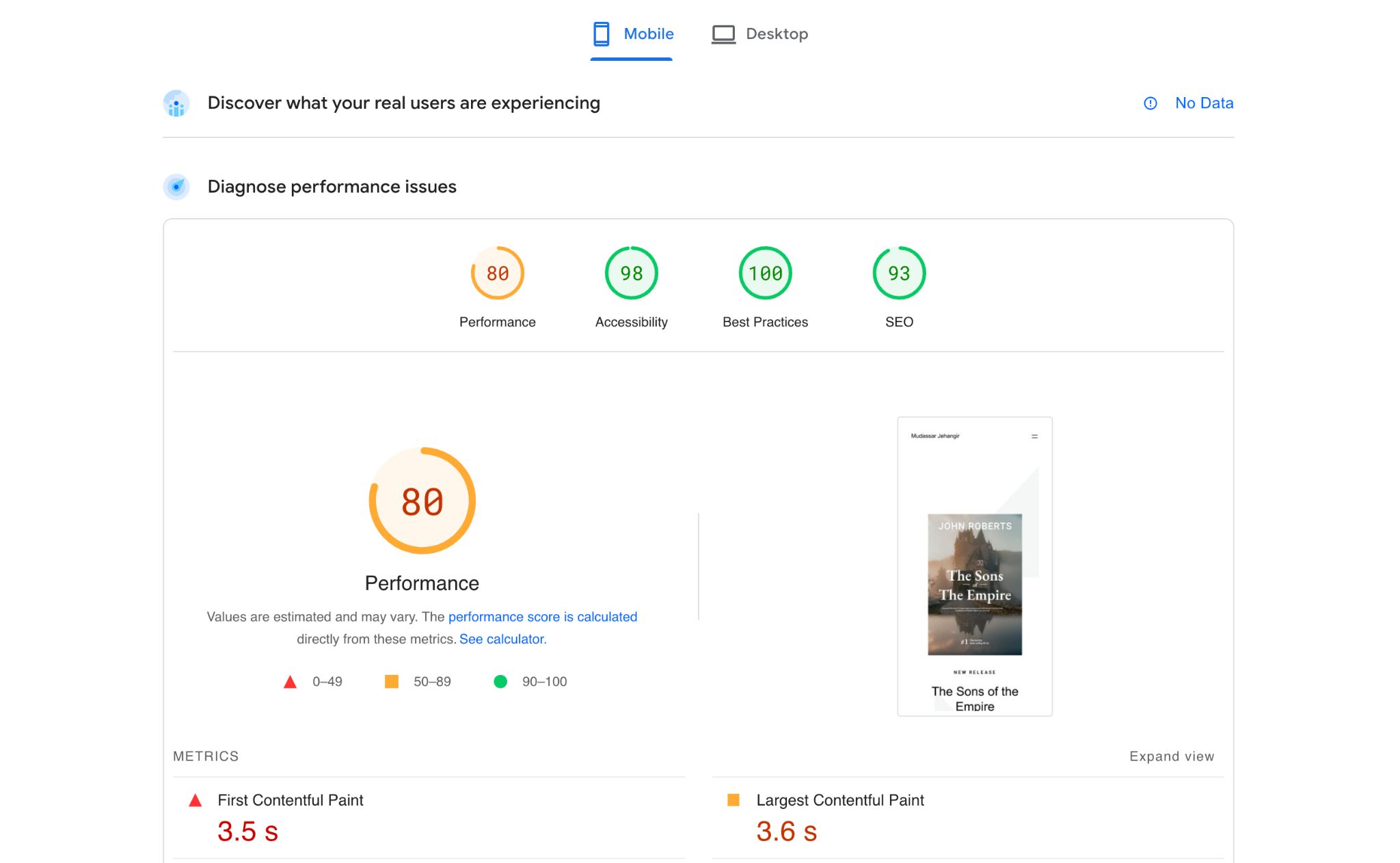
Those speeds are pretty good. Especially when you consider we haven’t optimized pages at all and didn’t use any caching or minifying plugins!
Spectra Pro Pricing
Just like its features, Spectra Pro offers flexible pricing that caters to everyone’s needs.
You can choose between annual and lifetime subscriptions for up to 1000 websites with bundles, or 3 websites with Spectra Pro alone.
If you’re a small business owner or a freelancer, Spectra Pro on its own covers up to 3 sites, and one license unlocks both Spectra Blocks Pro and Spectra Pro Legacy.
If you’re a larger agency or a development team managing many clients and complex projects, the Essential Toolkit + AI (10 sites) and the Business Toolkit + AI (up to 1,000 sites) provide advanced tools and great value for money.
To sum it up, here’s a quick overview of Spectra’s annual and lifetime plans:
| Plan | Websites | Yearly | Lifetime |
|---|---|---|---|
| Spectra Pro | 3 | $69 | $349 |
| Essential Toolkit + AI | 10 | $299 | $899 |
| Business Toolkit + AI | 1,000 | $429 | $1,299 |
These are the regular prices. First-year discounts are common, and renewals are at the full price. The lifetime plans are a one-time payment that includes updates and support with no renewal.
It’s essential to understand what’s packed inside the Essential and Business Toolkits and how much you’re saving when you grab a license.
Let’s break down what these plans include:
Essential Toolkit + AI (10 websites):
- Astra Pro (usually costs $69/year): This is the world’s most popular WordPress theme, designed to meet all your website needs.
- Premium Patterns & Kits: Access to the premium templates, patterns and kits, so you can start from a professional design instead of a blank page.
- 24/7 Priority Support: One-on-one help by email, and paying customers usually hear back within a few hours.
- Also included: Spectra Pro, Ultimate Addons for Elementor, SureForms Agency and the AI site builder (5 blueprint and 5 sandbox sites).
Business Toolkit + AI (up to 1,000 websites):
- Everything in the Essential Toolkit + AI, for up to 1,000 websites.
- More AI site building: 20 blueprint and 20 sandbox sites, plus the AI Site Planner.
- 24/7 VIP Support that skips the queue.
The toolkits make sense if you also want Astra Pro and the other plugins, or need Spectra Pro on more than 3 sites.
Spectra Pro vs Other Page Builders
Selecting the right visual page builder is a breeze when you understand which one suits your needs best.
Let’s do a quick comparison between Spectra Pro, Elementor, and Beaver Builder to assist you in making the right choice:
Spectra Pro | Elementor | Beaver Builder |
|---|---|---|
Spectra Pro works inside the WordPress block editor instead of adding a separate builder. The free Spectra Blocks plugin gives you a focused set of flexible blocks plus design extensions, and Spectra Pro adds the advanced features, starting at $69 a year. | Elementor is a popular WordPress page builder. It’s user-friendly, provides real-time editing, and the free version has 31 widgets. The pro version adds 35 more widgets, starting at $60. | Beaver Builder, one of the oldest players, offers a free version with some limitations. The pro version, starting at $89, delivers over 24 advanced modules, templates, and customization options. |
Some Notable Features
Features | Spectra Pro | Elementor | Beaver Builder |
|---|---|---|---|
Visual website builder | Yes | Yes | Yes |
Responsive editing | Yes | Yes | Yes |
Modules/Widgets/ Blocks | 45 | 66 | 24 |
Website speed impact | Almost none | Minimal | Minimal |
Schema compatible blocks | Yes | No | No |
Lottie animation block (Module/Widget/Block) | Yes | No | No |
Integration | Native | External | External |
Predesigned templates | Yes | Yes | Yes |
Yoast compatibility | Yes | Yes | No |
Copy and paste styles | Yes | Yes | Yes |
Global design system | Yes | Yes | No |
Customer support | Yes | Yes | Yes |
Spectra Pro and Spectra One
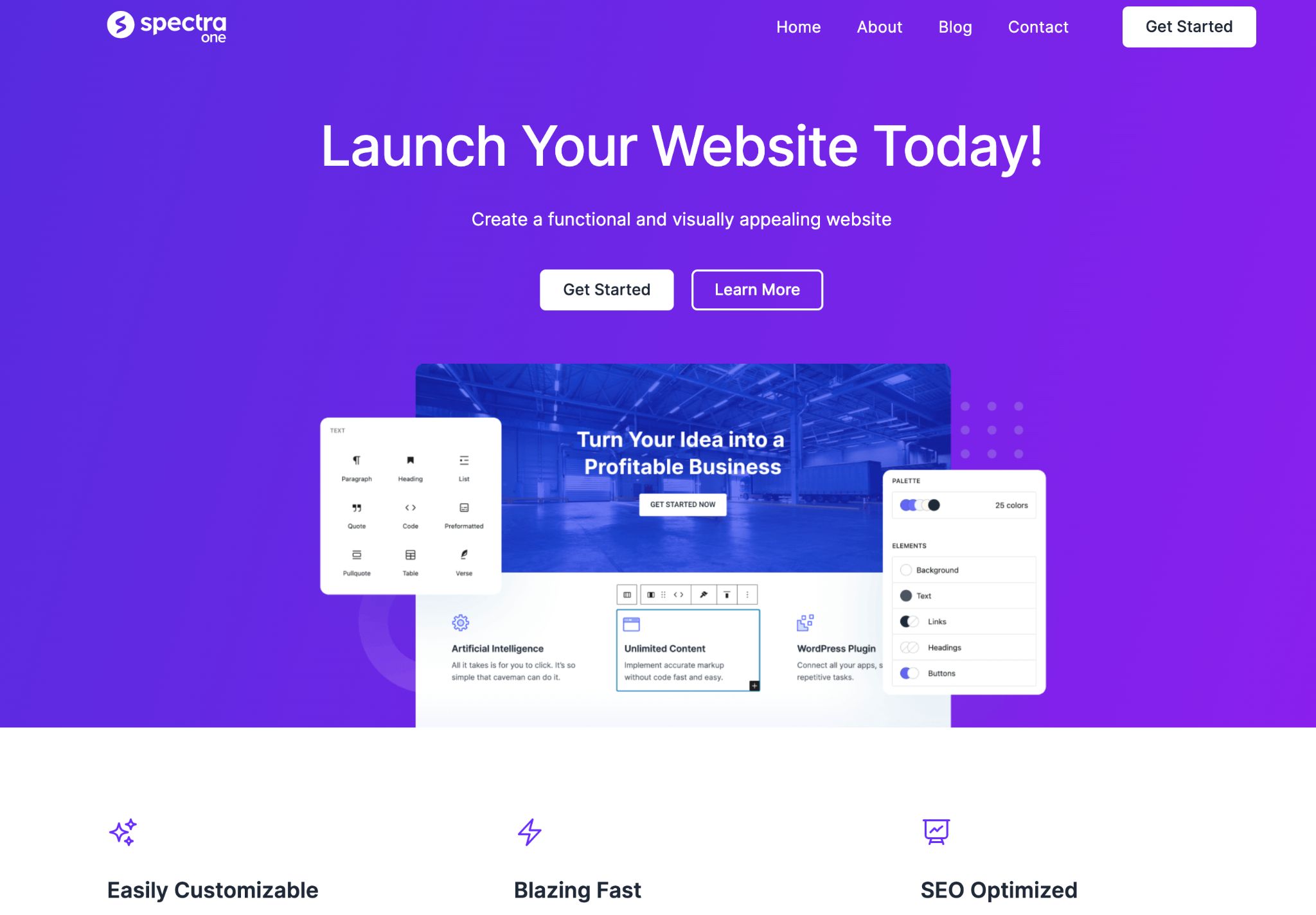
As you now know, Spectra Pro is a visual page builder. Spectra One is a free block theme from Brainstorm Force, which also makes Astra and Spectra.
Unlike the classic themes like Astra, Kadence, or OceanWP, Spectra One offers a Full Site Editing (FSE) experience.
What’s cool is that Spectra One works with Spectra Pro.
When you install this theme, it will suggest adding Spectra Pro to your website for extra functionality. It’s like a dynamic duo!
Whether you're just dipping your toes into the website-building waters or you're a seasoned pro, Spectra Pro has all the tools you need.
It's an uber-reliable visual website builder that plays super nice with WordPress, and you can use it with any WordPress theme.
My hands-on review covers the original plugins, now called Spectra Legacy and Spectra Pro Legacy. New features go into Spectra Blocks and Spectra Blocks Pro, which is what Spectra recommends for new sites. You buy the same Spectra Pro license either way, and it unlocks both.
Spectra Pro FAQs
How much does Spectra Pro cost?
Spectra Pro is $69 a year or $349 once for a lifetime plan, for up to 3 websites. For more sites it comes inside the Essential Toolkit + AI ($299 a year or $899 lifetime, 10 sites) and the Business Toolkit + AI ($429 a year or $1,299 lifetime, up to 1,000 sites). These are the regular prices, and first-year discounts renew at the full price.
Is there a free version of Spectra?
Yes. Spectra Blocks is free on WordPress.org, and it's the version Spectra recommends for new sites. The original free plugin is still available too, now called Spectra Legacy.
What is the difference between Spectra Blocks Pro and Spectra Pro Legacy?
Spectra Blocks Pro pairs with the rebuilt Spectra Blocks plugin, where all new features go. Spectra Pro Legacy is the original Spectra Pro, pairs with Spectra Legacy and still gets maintenance and fixes. Your Spectra Pro license key unlocks both at no extra cost, and you download them from your Brainstorm Force account.
What's the main alternative to Spectra Pro?
Elementor is the big one. If you want a separate drag and drop editor, look at Elementor, but if you'd rather stay inside the WordPress block editor, I'd pick Spectra.
Does Spectra Pro work with any theme?
Yes. Spectra works inside the WordPress block editor, so it isn't tied to one theme, though it pairs naturally with Astra.
Is there a money-back guarantee?
Yes. Spectra Pro has a 14-day money-back guarantee. If it's not right for you, or there's an issue Spectra support can't fix, you can get a full refund within 14 days of purchase.

I've been teaching people to build and grow their businesses online since 2014. I test the tools myself and tell you what I'd actually use, and why.