

Are you wondering if the Kadence Pro theme hype is real?
In this in-depth review, I’ll give you a walkthrough of its main features and standout functionalities.
I’ll also compare it with other leading themes in the market.
You’ll learn more about the theme and the people behind it, its missing and coming soon features, who the Kadence theme is perfect for, and whether the free version suits you better.
About Kadence Pro Theme
The Kadence theme is the most full-featured WordPress theme that is available for free.
The paid version makes it even better, but it now only comes in one Liquid Web plan that starts at $350 a year.
While other themes are only copies of each other, the Kadence Pro theme keeps on working to bring innovations to the table.
It is packed with features that you won’t get with other themes in the market.
It will help you effortlessly build smarter websites faster.
Can you trust Kadence WP?
Kadence was built by a US-based team that had been in business since 2013.
Today Kadence is owned, sold and supported by Liquid Web, a hosting company. Liquid Web dissolved its StellarWP plugin brand in early 2026, and the old kadencewp.com site now redirects to liquidweb.com.
They have created several themes and plugins in the past.
Among their most popular creations is Kadence Blocks.
This plugin incorporates a page builder like functionality to WordPress blocks.
The free version on WordPress.org has more than 600,000 active installs and was updated in November 2026.
I believe that who you buy your products from is as important as the products themselves, and when I wrote this review I had total confidence in the Kadence team.
Kadence Theme Performance
Performance should be one of the first things to consider when picking a WordPress theme.
It is super important to use one that is fast and not at all bloated.
As for the Kadence Pro theme, you get nine total requests upon the installation of a fresh WordPress site and the theme.
Well-coded themes have between 8-10 requests.
It also has a size of 41.9 kilobytes.
The fastest themes should come in at 40-55 kilobytes.
When a theme goes over 100 kilobytes on a default install, this is an indicator that they are using old libraries and that they aren’t up-to-date with the latest encoding trends.
Considering everything it has to offer, it is incredibly compact and sure to help you create lightning-fast websites effortlessly.
Kadence Theme Integrations
The Kadence theme works well with Elementor, Beaver Builder, or any page builder.
It also integrated with WooCommerce, even enhancing its features.
Another great thing about this theme is its integration with Learn Dash, LifterLMS, and other online course plugins.
Kadence Theme Pricing
Kadence isn’t sold on kadence-theme.com any more. The old kadencewp.com address now redirects to Liquid Web, which sells Kadence at liquidweb.com/software/kadence.
The free Kadence theme and the free Kadence Blocks plugin are still on WordPress.org, and both were updated in November 2026.
You can’t buy Kadence Pro on its own now. There’s one paid plan that includes every Kadence Theme and Blocks feature, plus LearnDash, The Events Calendar and Give. You pick it by the number of sites:
- 1 site: $350 a year
- 10 sites: $599 a year
- 25 sites: $799 a year
- 50 sites: $899 a year
- 100 sites: $999 a year
The old $59 a year Pro plan, the $139 a year Full Membership and the lifetime plans are gone. That’s a big jump if all you want is the theme’s extra features, so start with the free version and make sure you really need the paid features first.
Liquid Web’s Kadence terms page says that if you cancel or don’t renew, you can keep using the version you have, but you lose updates, premium support and the premium templates. The same page says you can ask for a refund up to 30 days after you buy.
Kadence Pro Features
Now let’s go over some of the standout features that come with Kadence Pro, which are now part of the paid Kadence plan.
1Header Addons
The first main feature Kadence Pro theme I’ll discuss is its real-time drag-and-drop header and footer builder.
It is easy-to-use and powered by items and grids.
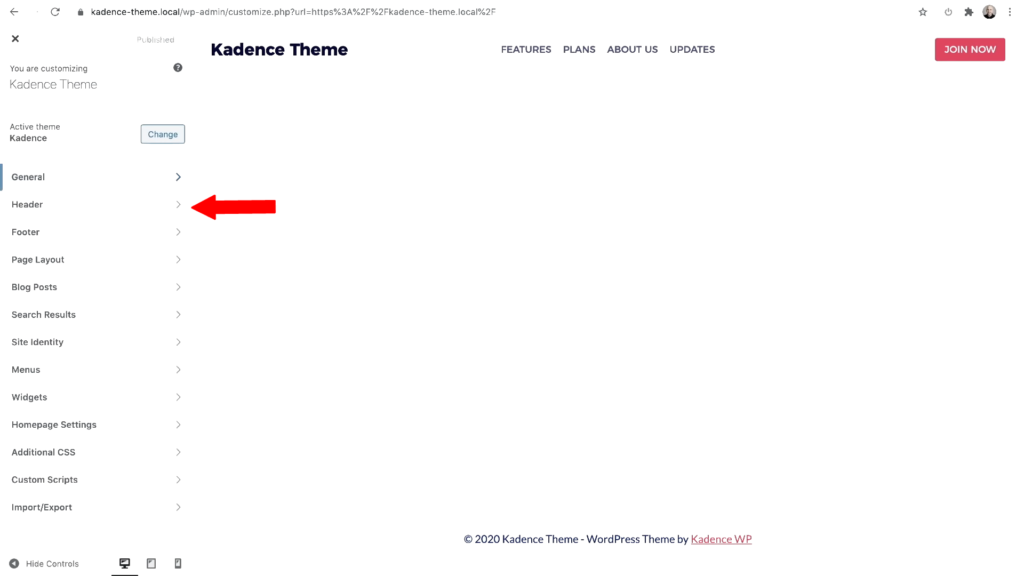
To use it, go to Customize and choose Header.
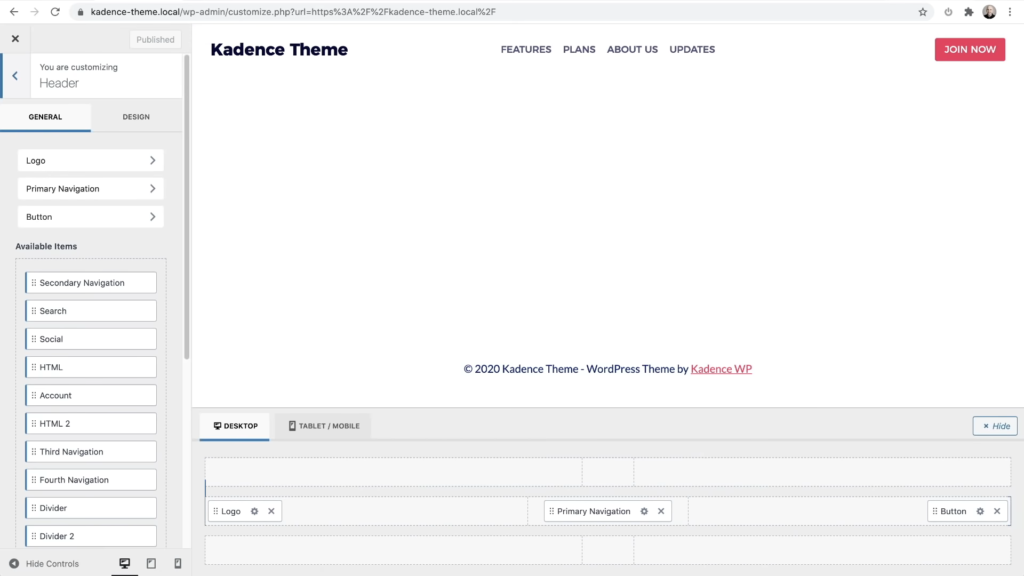
As you can see, there is a grid that has three columns and three rows.
You can drag and drop any item you want here or click on the + icon on the grid.
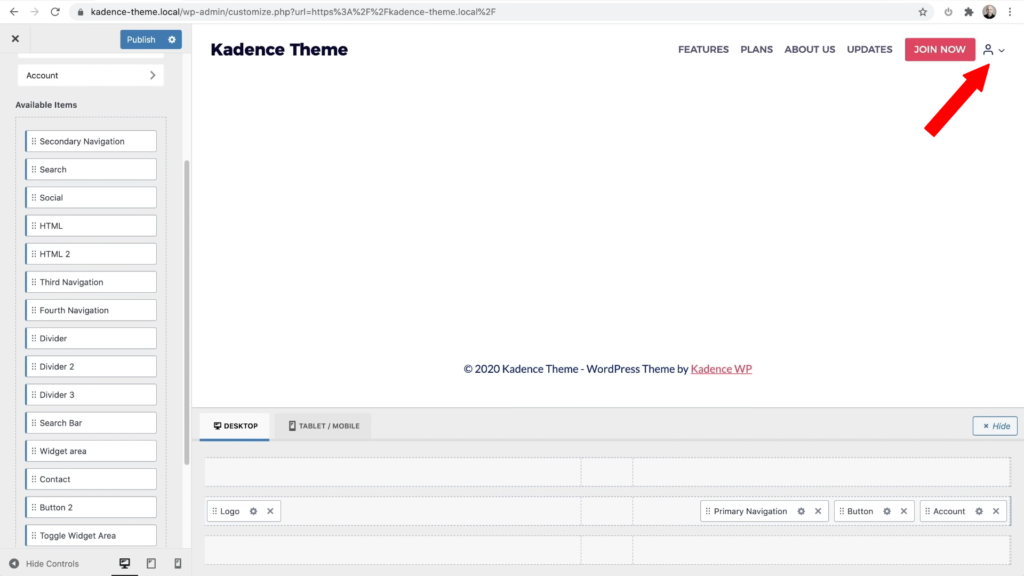
Account
A standout header item that happens to be a favorite of mine is called Account.
It is ideal for websites that require people to log in and give it an app-like feel.
It has a tiny Avatar icon that you can usually see it on the top right.
To set it up, click on the Settings icon beside Account.
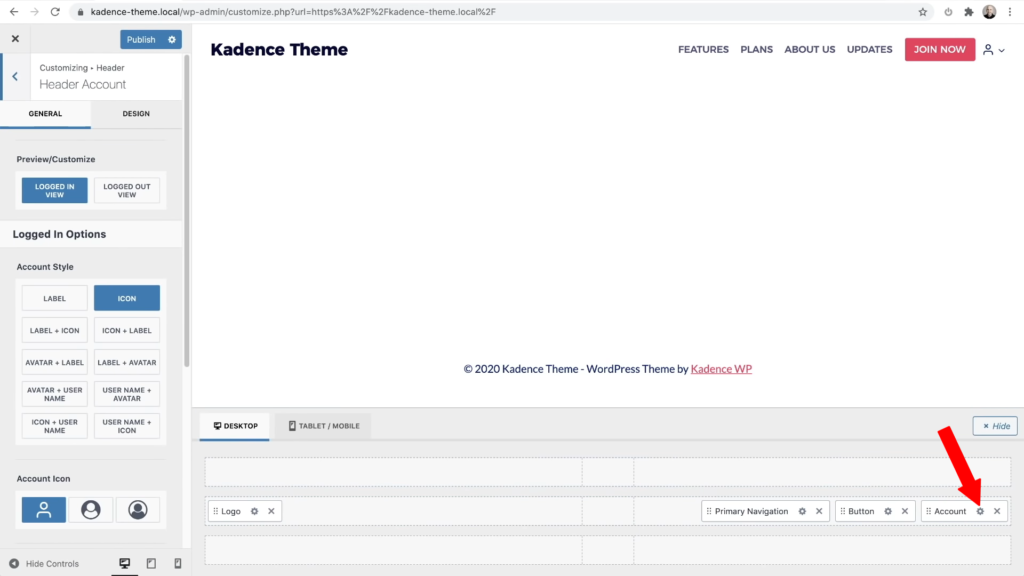
There tons of options for you to choose from.
Let me show you a live website that I’ve been setting up.
Notice that it’s displaying my name, Gravatar image, and a drop-down menu when I hove over it.
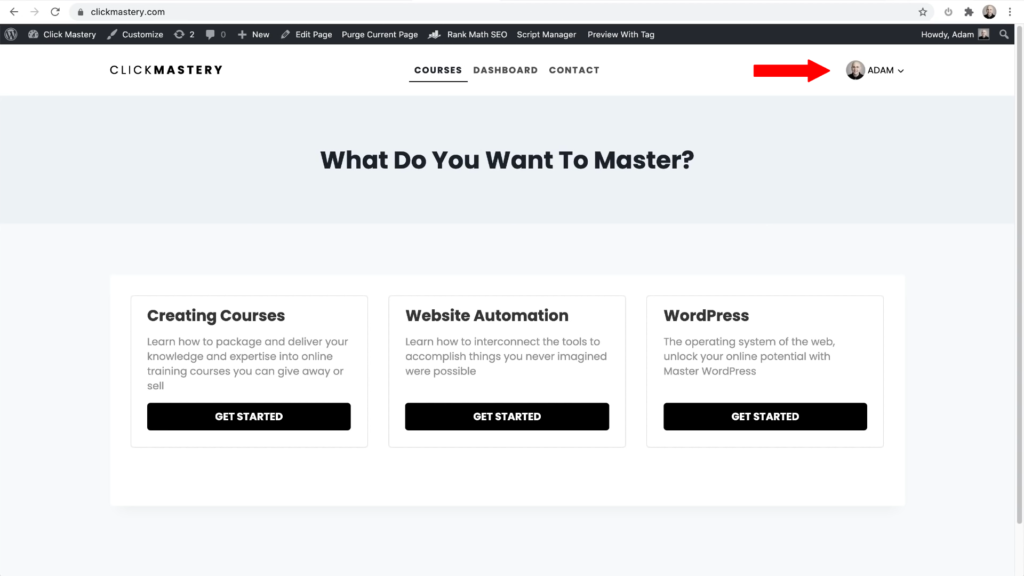
This is what appears when I’m logged in.
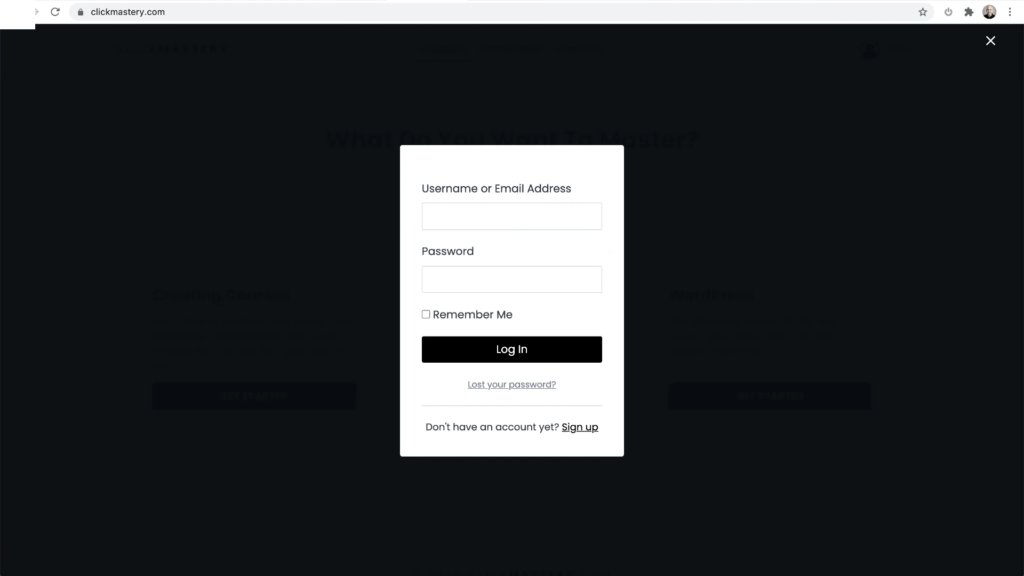
If I log out, the icon changes and when I click on it, it displays a pop-up window that is asking me to log in.
An option to register is also shown.
Other additional header items include extra navigational options, buttons options, and html options.
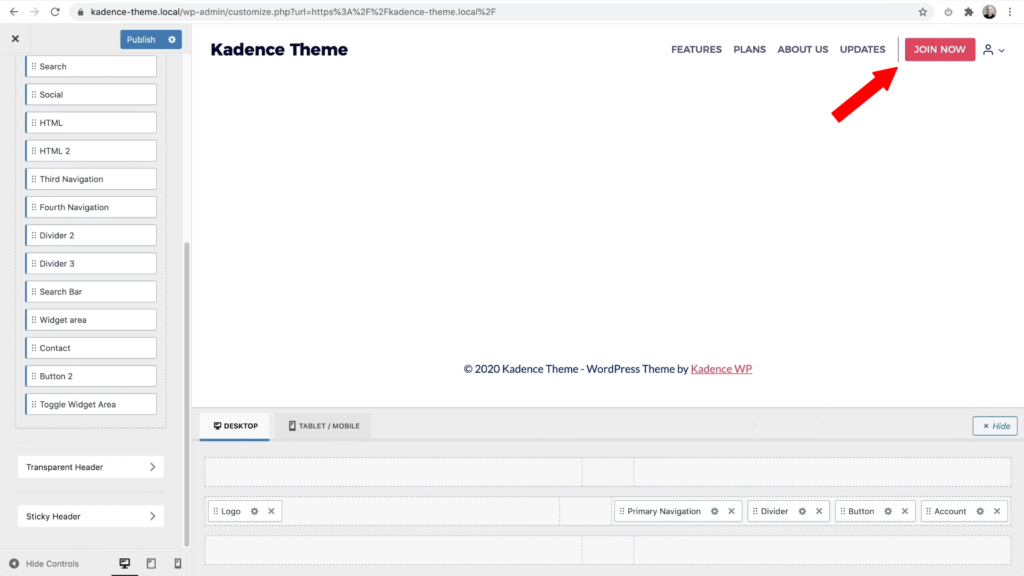
Divider
Another standout header item that I like is Dividers.
You can place it between your header items.
You can also style it out to your liking.
Contact
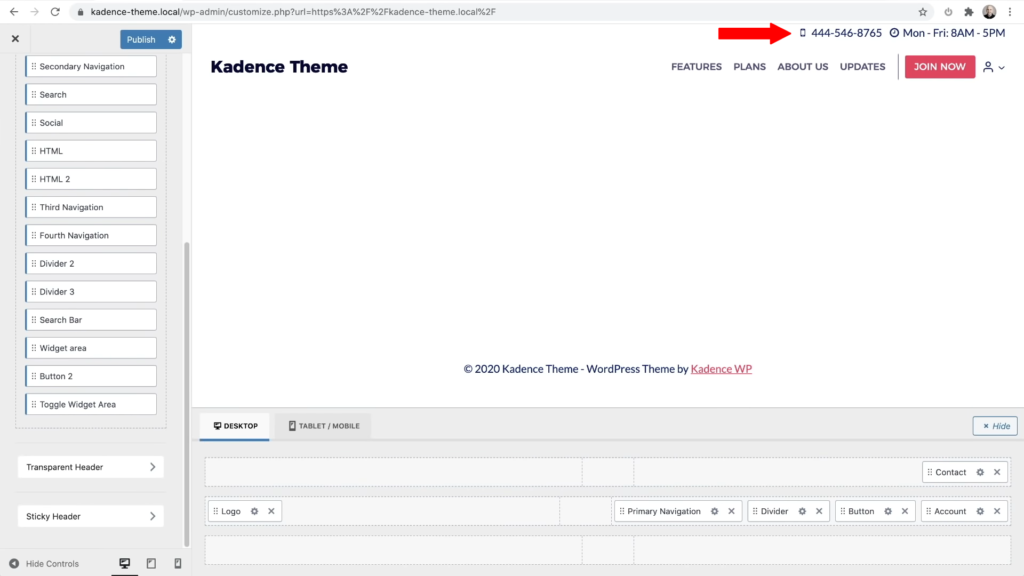
The Contact item is also a standout header addon.
When I drag it to an area, it displays contact information.
This is a wonderful feature especially for local businesses because you can add your phone number, address, email, etc.
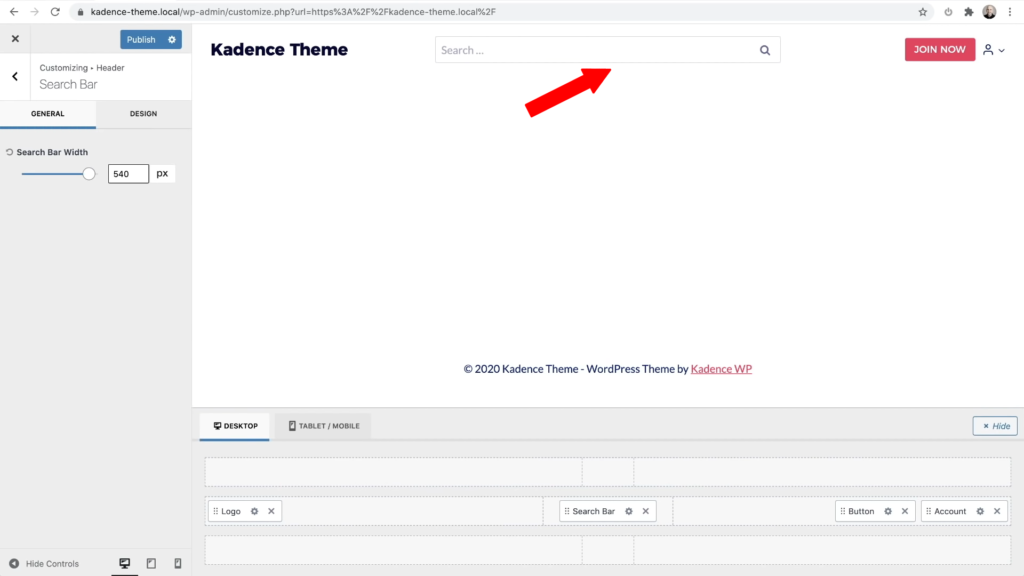
Search Bar
Through this header addon, you can create a search bar similar to the one used on Amazon’s website.You can also drag and drop the search bar.
You can change its color, width, style, and specify what it searches.
Toggle Widget Area
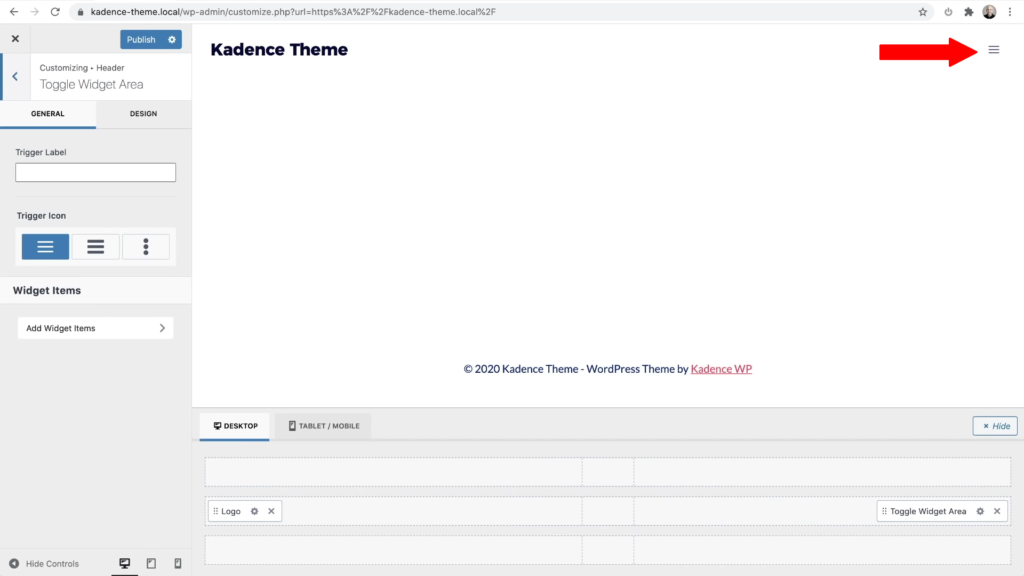
The toggle widget area is an interesting header item.
Selecting this allows a menu to appear.
There are different options for icons, including the hamburger icon.
You can also include a name beside the icon to make the menu more eye-catching.
2Elements
The second huge feature of the Kadence Pro theme is Elements.
It is interchangeable with the terms custom hooks or custom layouts.
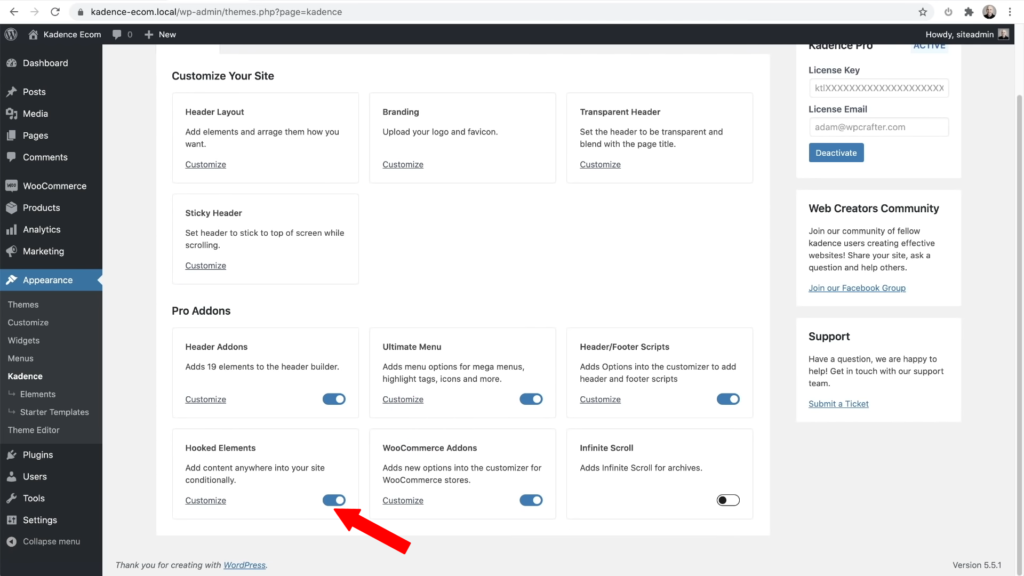
To utilize it, head over to Appearance and select Kadence.
You’ll see pro features that you can toggle on or off.
Make sure Hooked Elements is turned on.
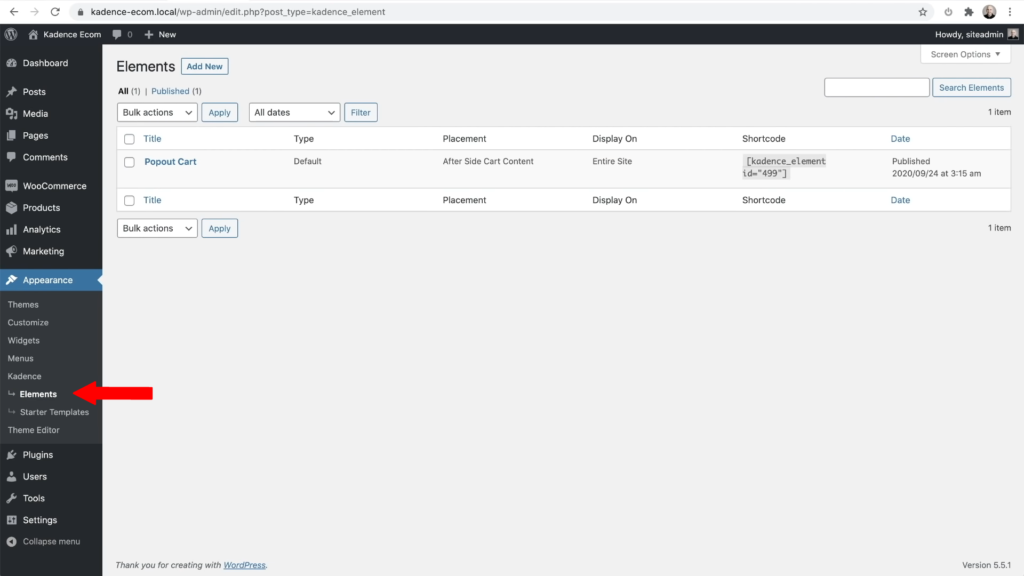
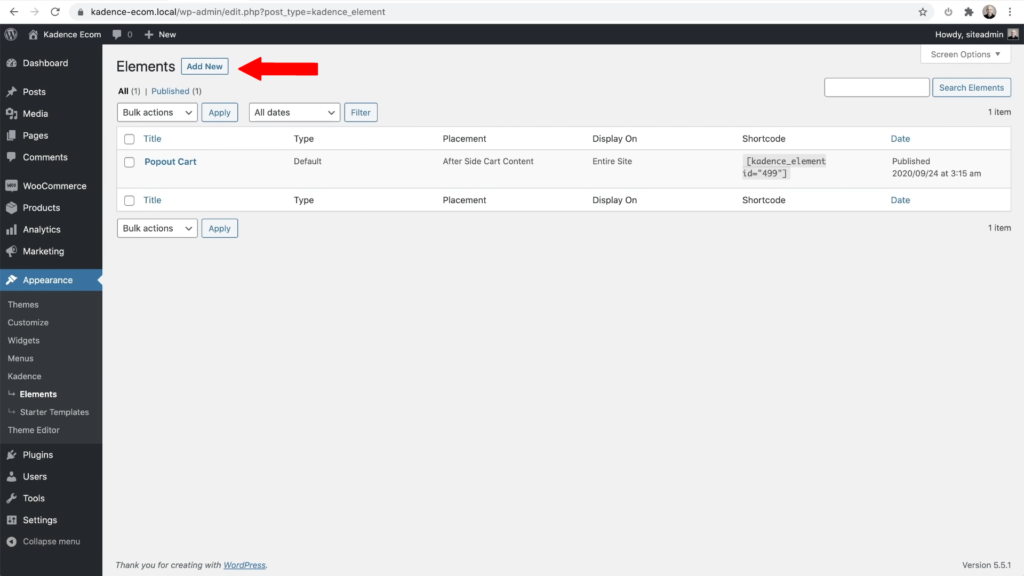
Click on the new menu option Elements.
Selecting this shows a list of elements.
Let me show you what you can do with this feature.
Click on Add New.
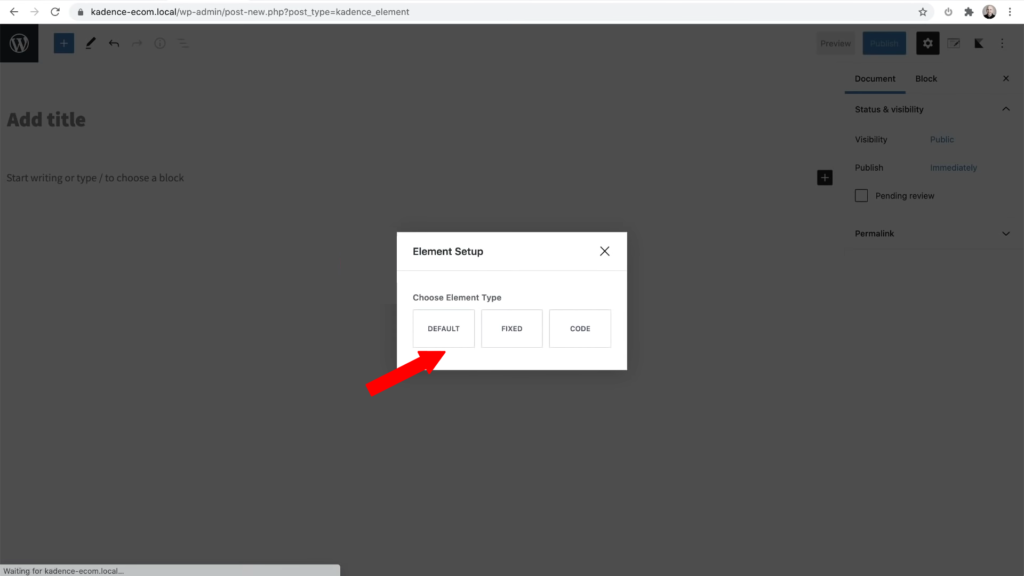
Choose the Default option.
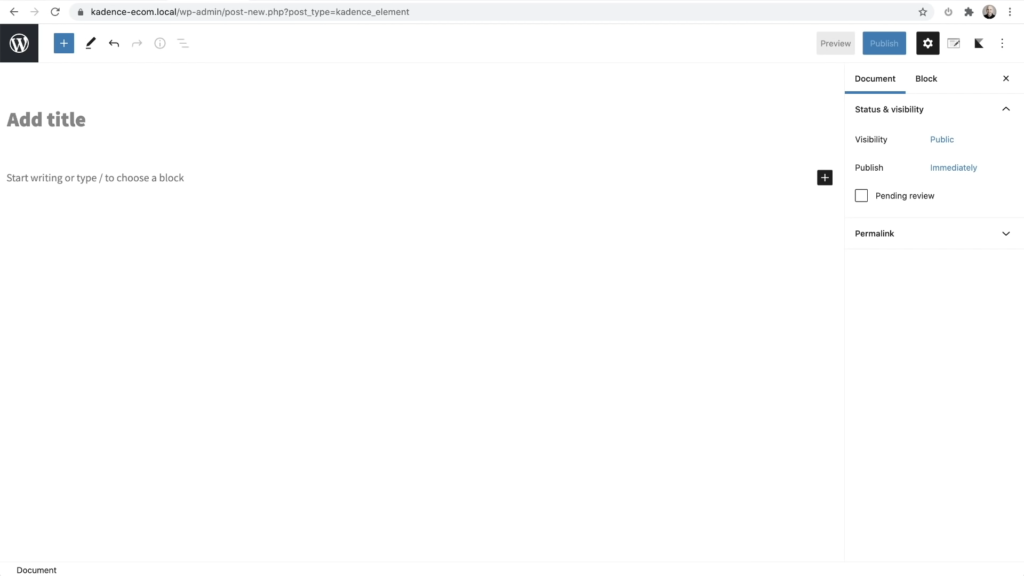
You create content inside the block builder and give it a name.
You can also use a page builder, like Elementor, if you have it installed.
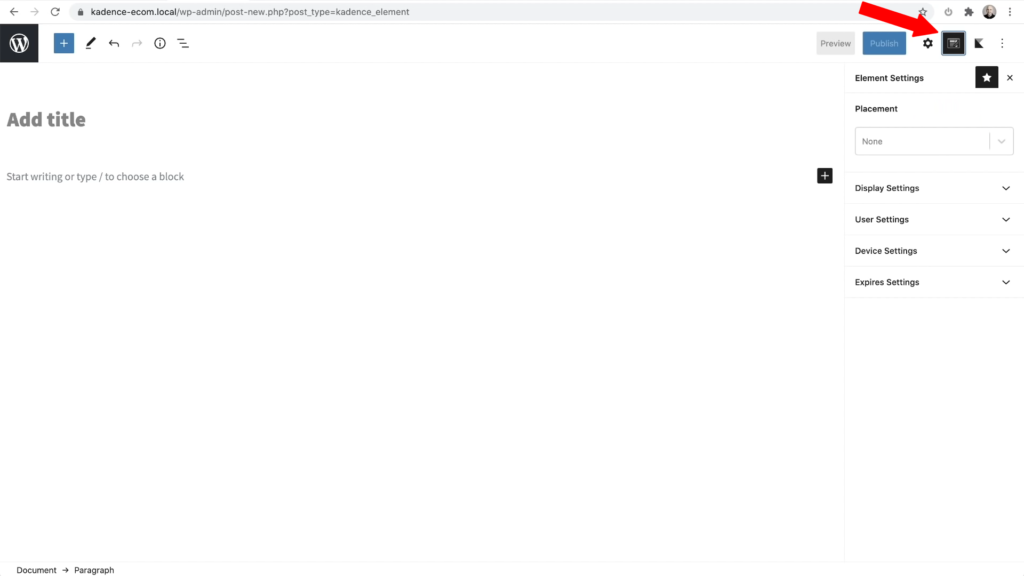
Click on the top right icon beside settings.
This will give you the option to choose where you want to content inserted.
This wonderful feature lets you insert content where you can’t normally put it.
To give you an example, here’s a product page.
When you scroll down, there’s an Add To Cart button and a text beneath it.
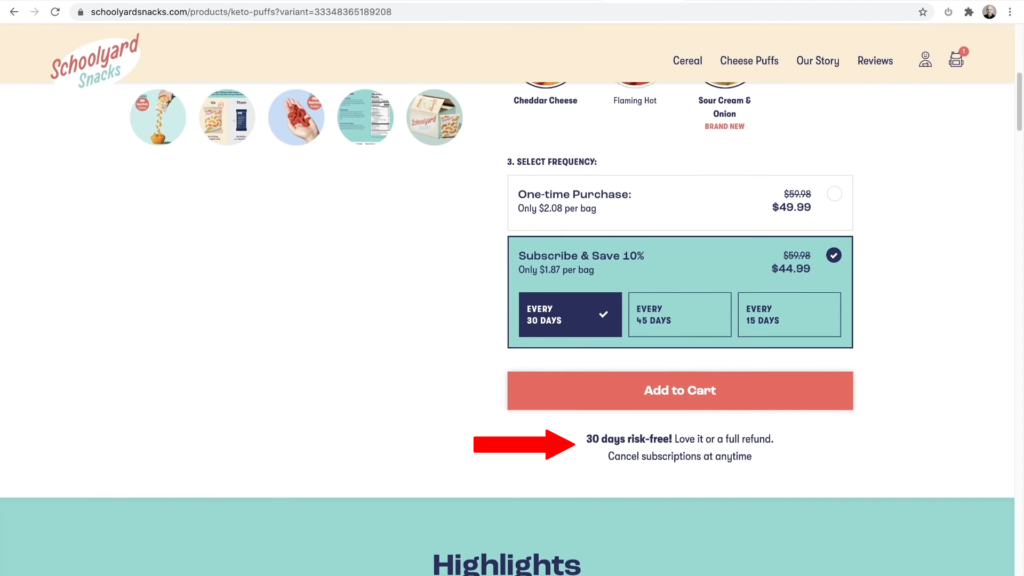
You can create that bit of text is through Elements by providing the text and choosing the location of that specific area.
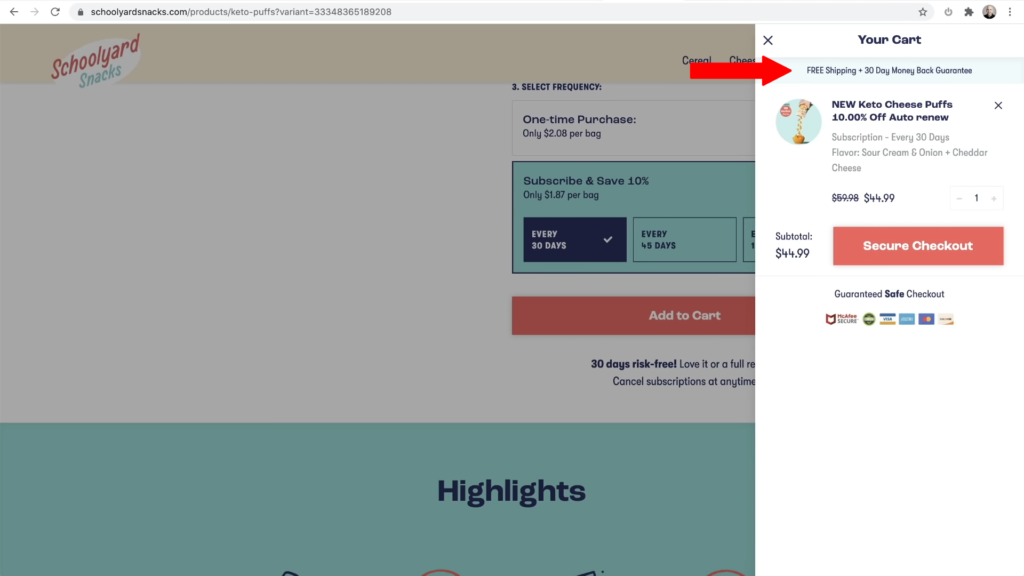
Here is another example, a pop-up cart where you can see the “free shipping” text.
This is an element that’s been inserted on top of the cart.
Let’s say that you’re having a sale on your site and you want to put an announcement banner.
Whether you want it on the top or bottom of your website or only on certain pages or site-wide, this is the feature that lets you achieve that.
You can also replace a header and a footer or make a 404 page.
Going back to the pop-window for signing up, you can insert content its left, right, bottom, or top.
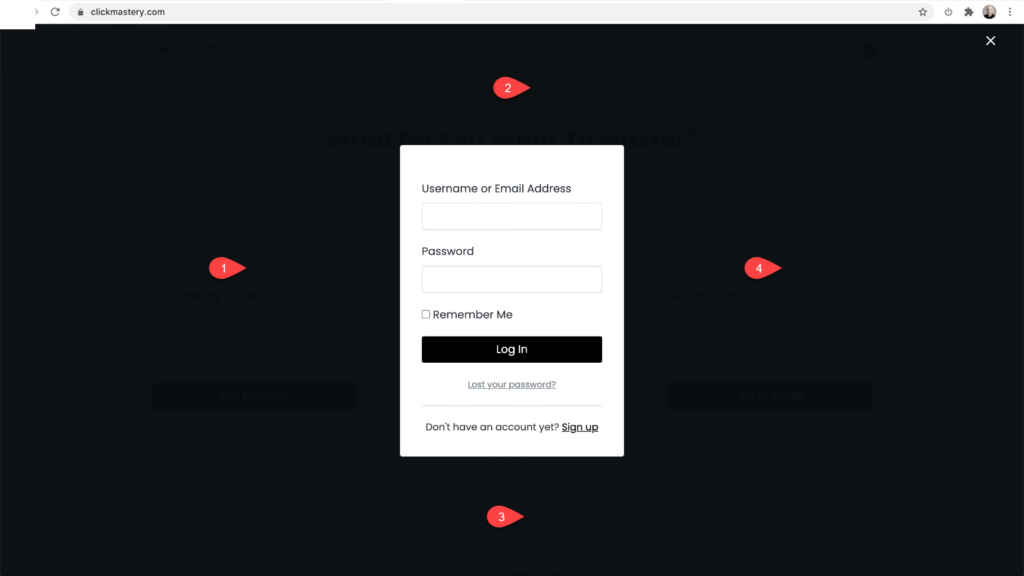
You will be able to insert content in normally untouchable areas.
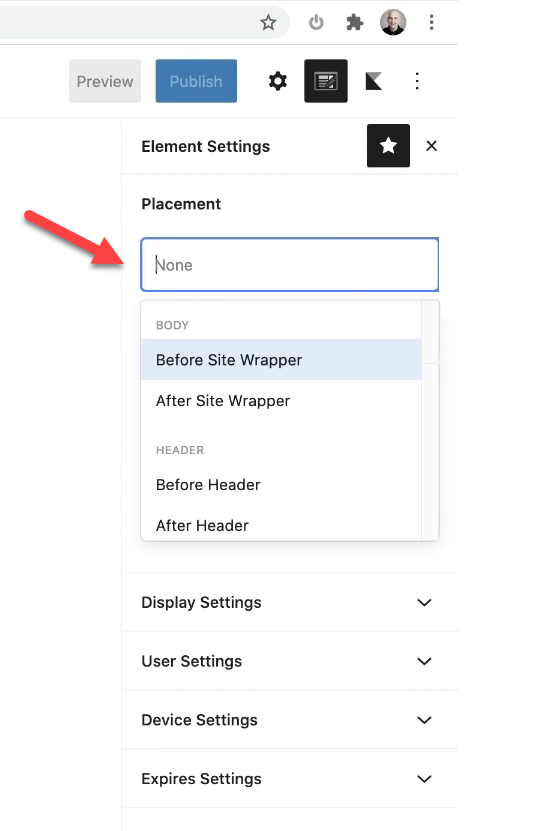
To modify select the location of an element, click on Placement under Element settings.
When I first reviewed it, I hadn’t seen this feature in any other theme.
Custom Hooks
At the bottom of the list is Custom Hooks, a feature that develops will love.
This is used for third-party plugins.
Although it may seem a bit techie, all you really have to do is know the location, name, and information you need for the hook.
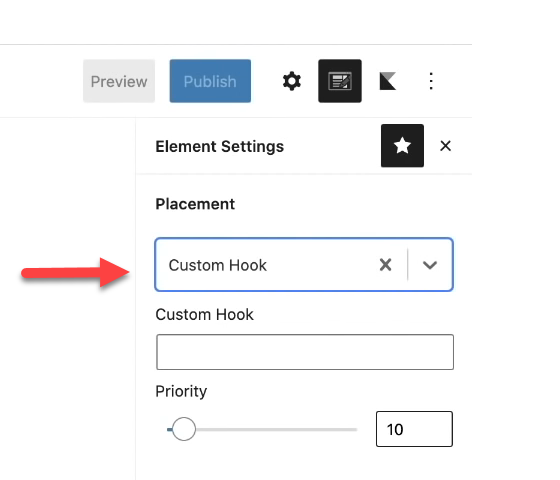
The content can also be displayed via a shortcode.
When I wrote this, Kadence was the only theme I knew of with hook areas for LearnDash.
You can insert content inside the lessons here too.
Next, you have Display Settings. This is where you want the content to show on your website.
You have various options and additional rules that allow you to target what you want.
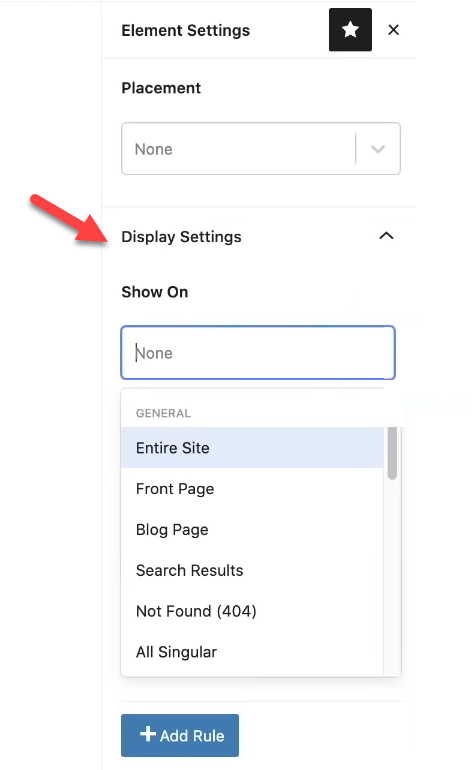
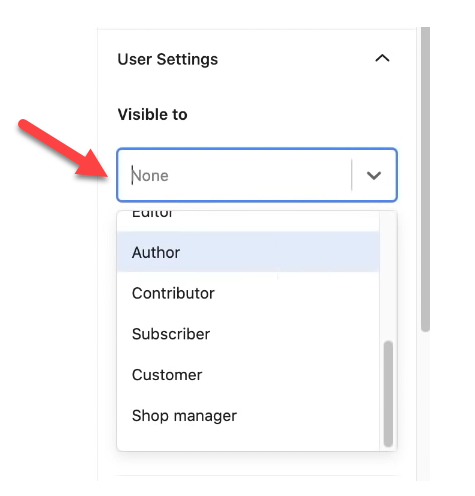
Located under Display Settings is the User Setting.
Here you can select if you want it to be visible to All Users, just Logged In Users, Logged Out Users, or based upon certain User Roles.
You also have the Device View option where you can choose whether it is viewable via desktop, tablet, or mobile phone.
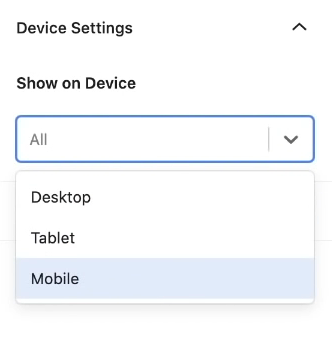
When I first wrote this review, no other theme offered this.
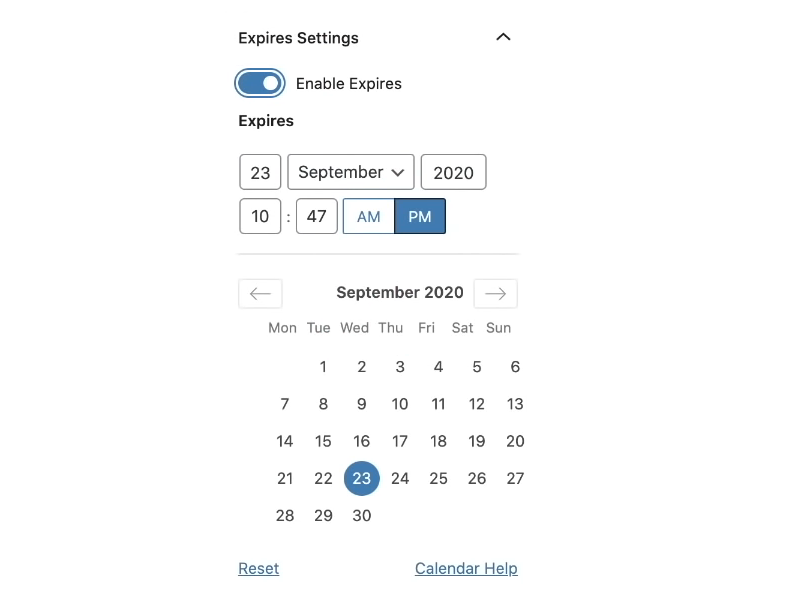
Expires Setting
Perhaps the most powerful feature of the Kadence Pro theme is the Expires Setting.
This allows you to create and insert content and then have it expire on a certain date.
It is handy for time-sensitive sales.
You can create a banner and place it on your site and you won’t have to worry about forgetting to remove this because it will automatically disappear.
There are other themes that have elements/custom hooks/custom layouts.
However, not all of them allow you to use Gutenberg.
You have to use page-building tools but not the native builder.
Another big advantage of the Kadence Pro is that you can manually enter the custom hook location.
I didn’t see this option in other themes when I wrote this review.
You’ll be able to set device-specific views for desktops, tablets, and mobiles.
3Fixed Elements
When I first wrote this review, Fixed Elements was a feature I hadn’t seen in any other theme.
It works just like a normal element except that you can only place it fixed on the top or bottom of a page.
It is ideal for creating announcements but you can also do creative things with it.
Check out this site where this talented guy took this feature and enabled this fixed pop-up.
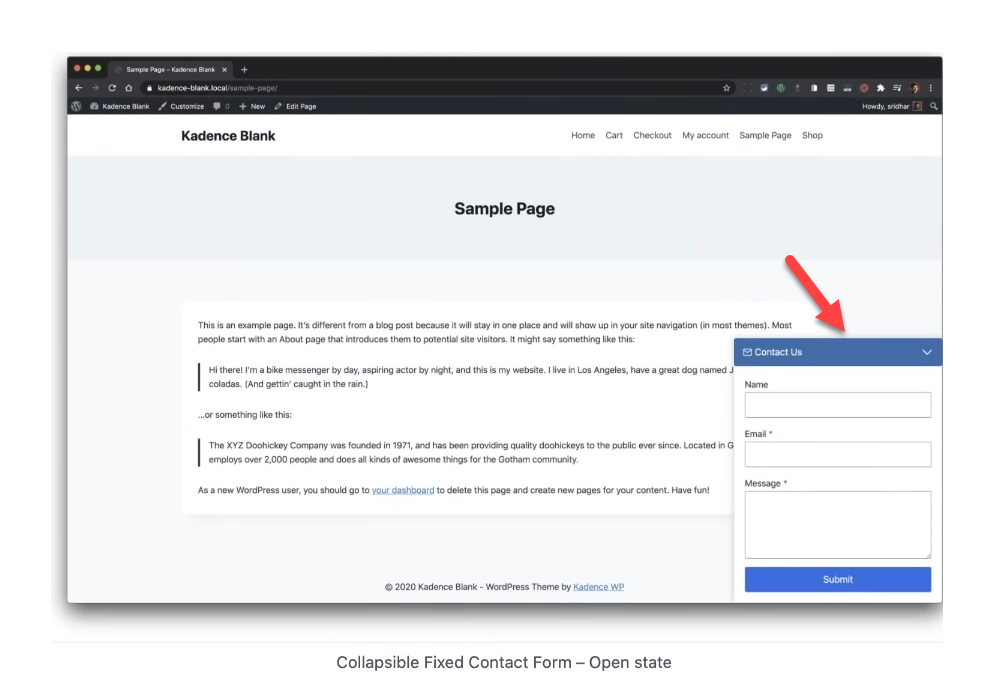
He wrote a tutorial on how to use it with a contact form but on his website he uses it for a different purpose.
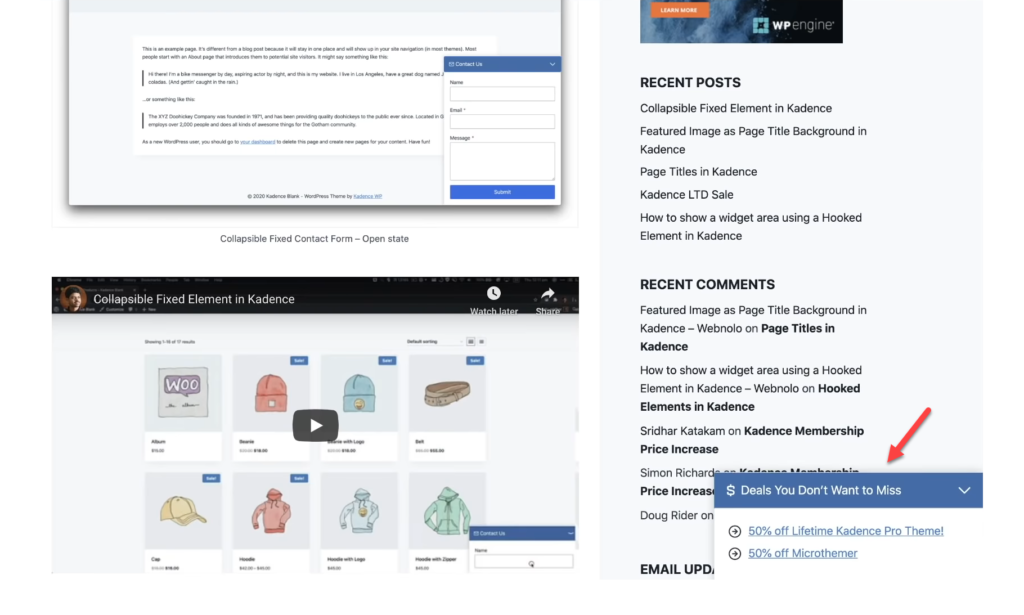
This is a great example of using a fixed element creatively.
He has a snippet of code that allows you to do this.
To create a Fixed Element, click on Add New.
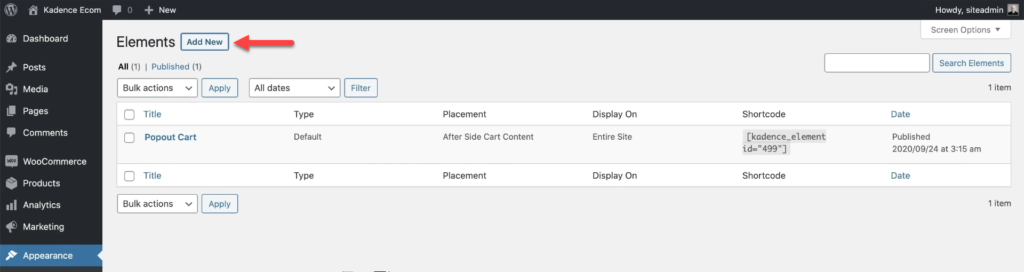
Choose Fixed instead of Default or Code.
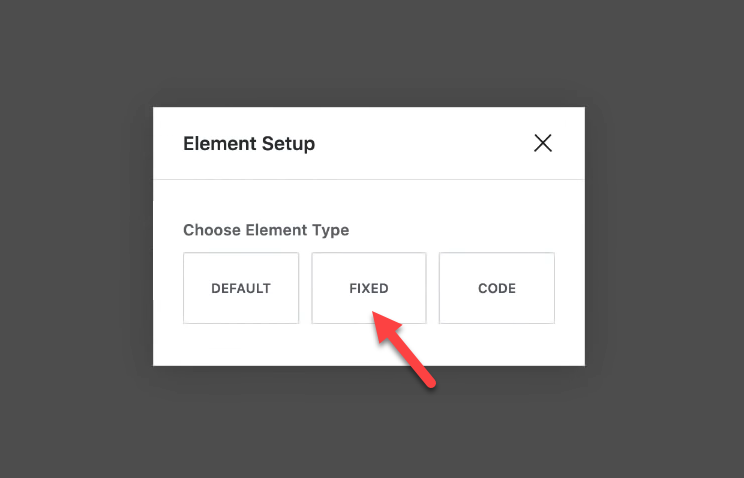
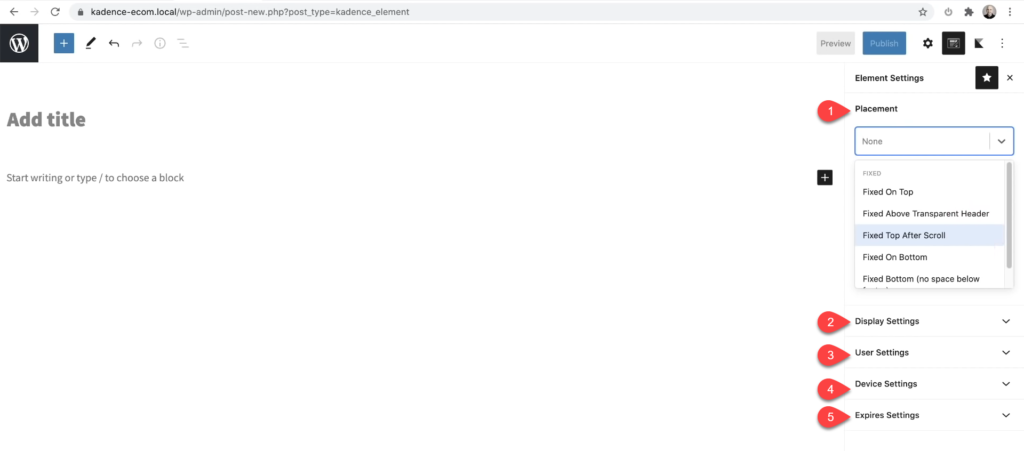
There are different placement locations.
It includes fixed on top of the website, fixed above a transparent header, fixed at the bottom, and fixed at the bottom no space below the footer.
You also have the fixed at the top after a scroll option – which I’ll show you how it works in a bit.
There’s also display settings, user device, and expires settings.
So, here we have a website for ketogenic dessert, where wife and I ordered a delicious dessert from.
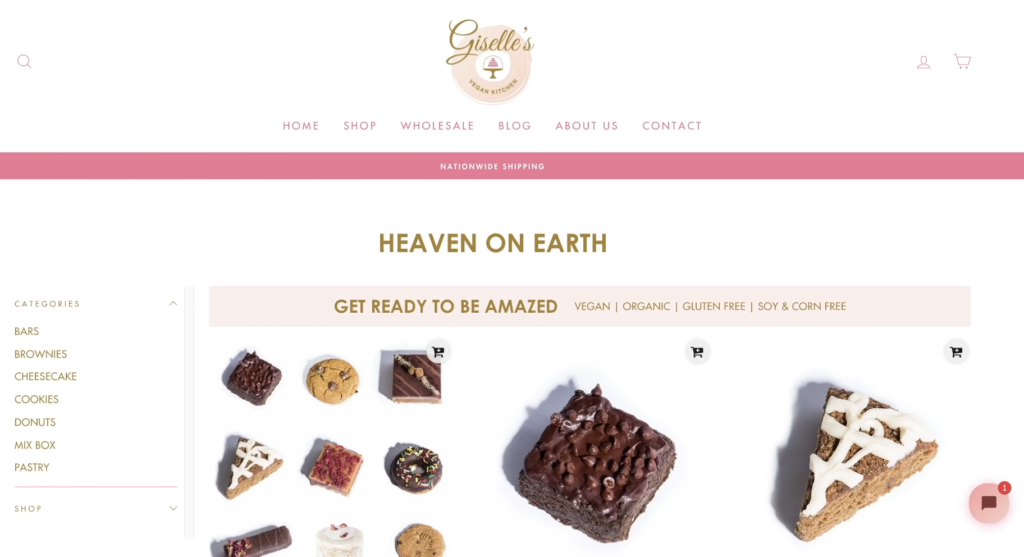
Notice what happens when I scroll down.
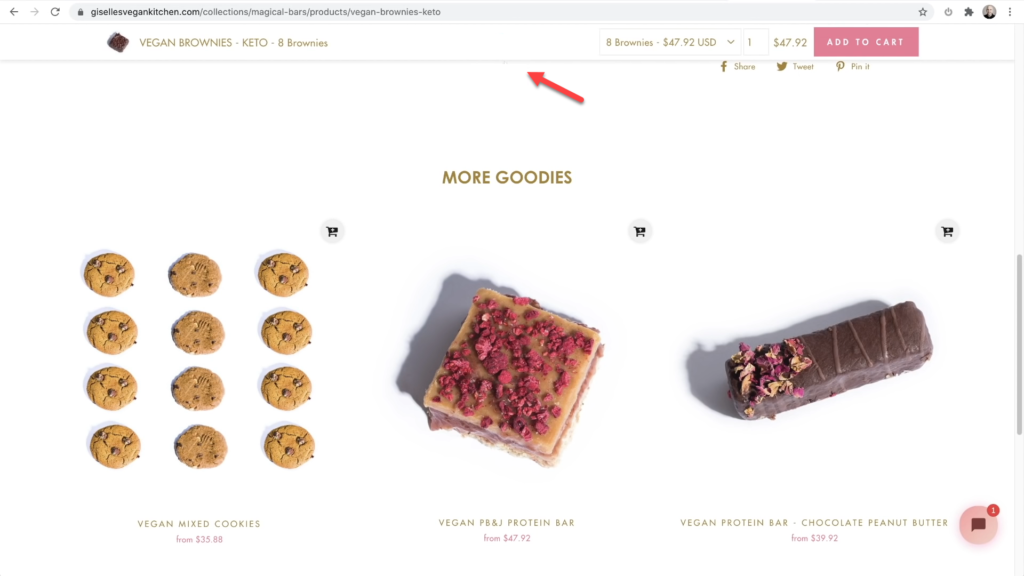
A fixed feature with a bit of content appeared on the header after I scrolled.
This is the effect you get when you enable Fixed On The Top After Scroll placement option.
And again, I hadn’t seen this in any other theme back then.
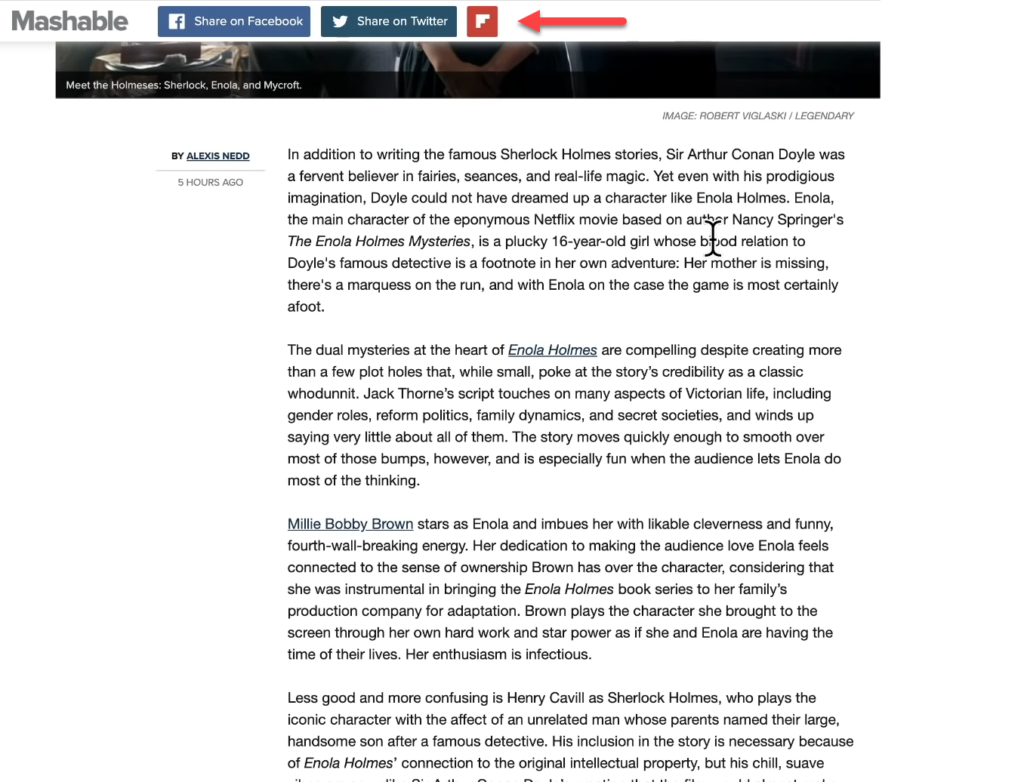
Another site that uses this is Mashable.

Upon scrolling down on their blog posts, share buttons are displayed.
4Ultimate & Mega Menus
The ultimate and mega menus are two amazing features of the Kadence Pro theme.
First, let me show you what the ultimate menu is.
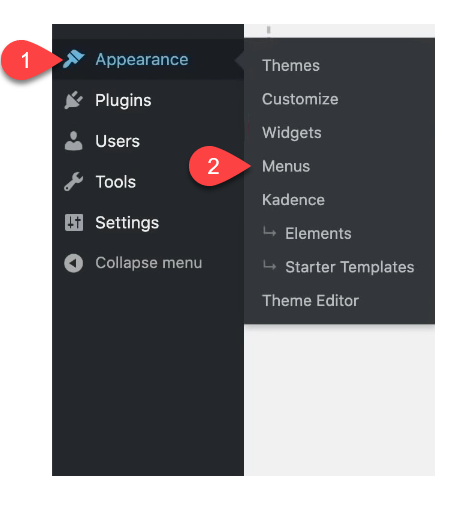
In WordPress, go to Appearance and then Menu.
Here you’ll see different menu items.
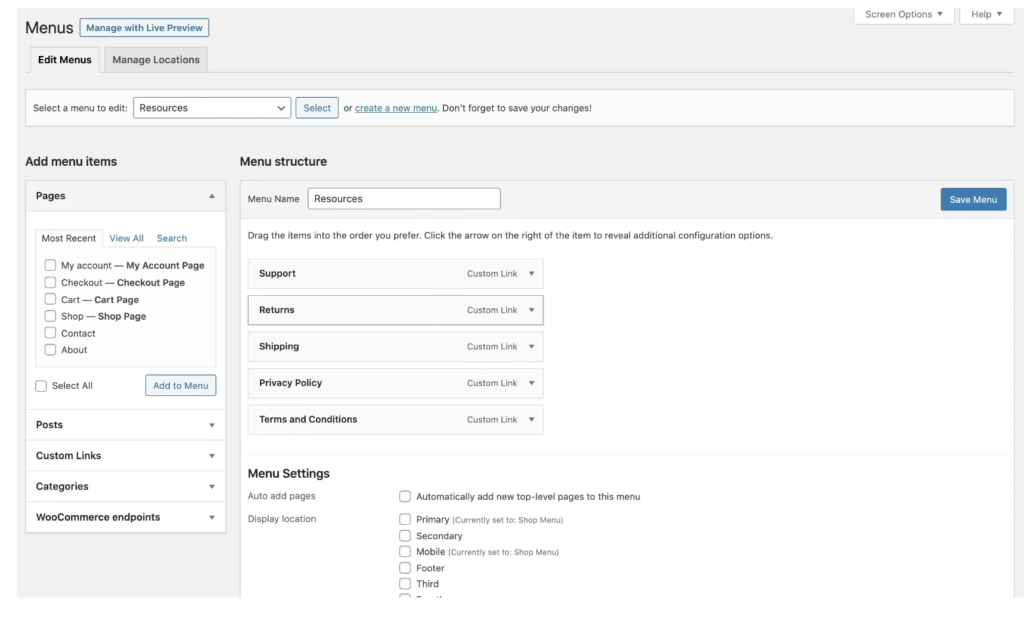
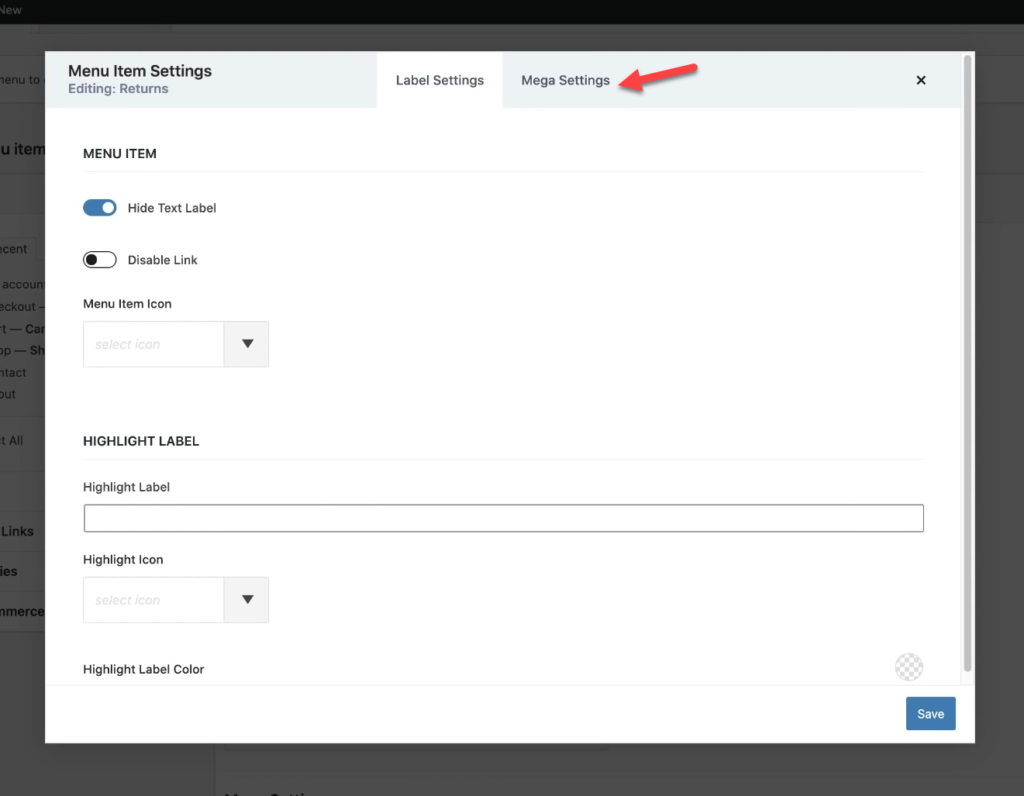
Select Returns and then click on the option that says Menu Item Settings.
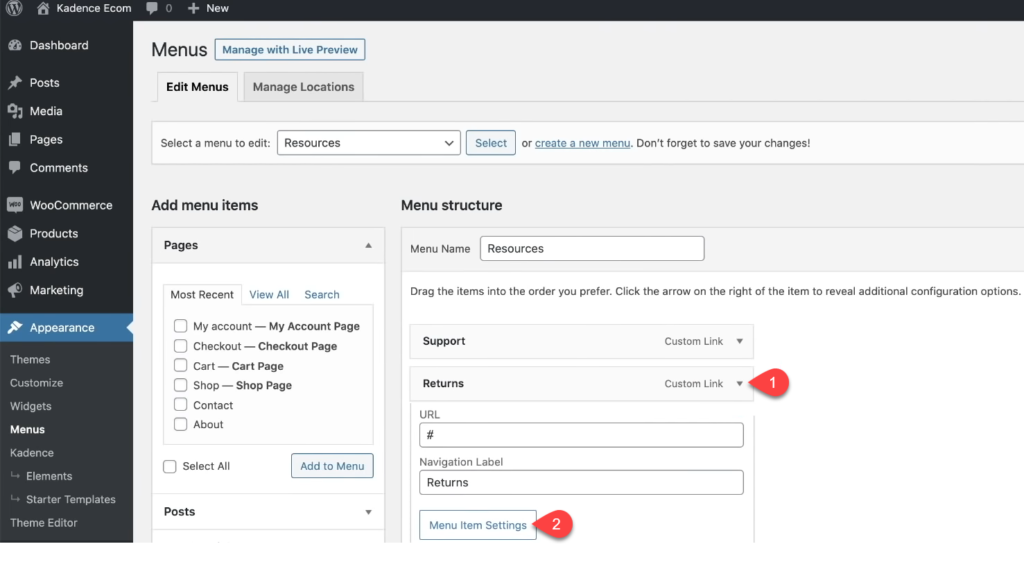
After clicking it, you’ll see this pop-up.
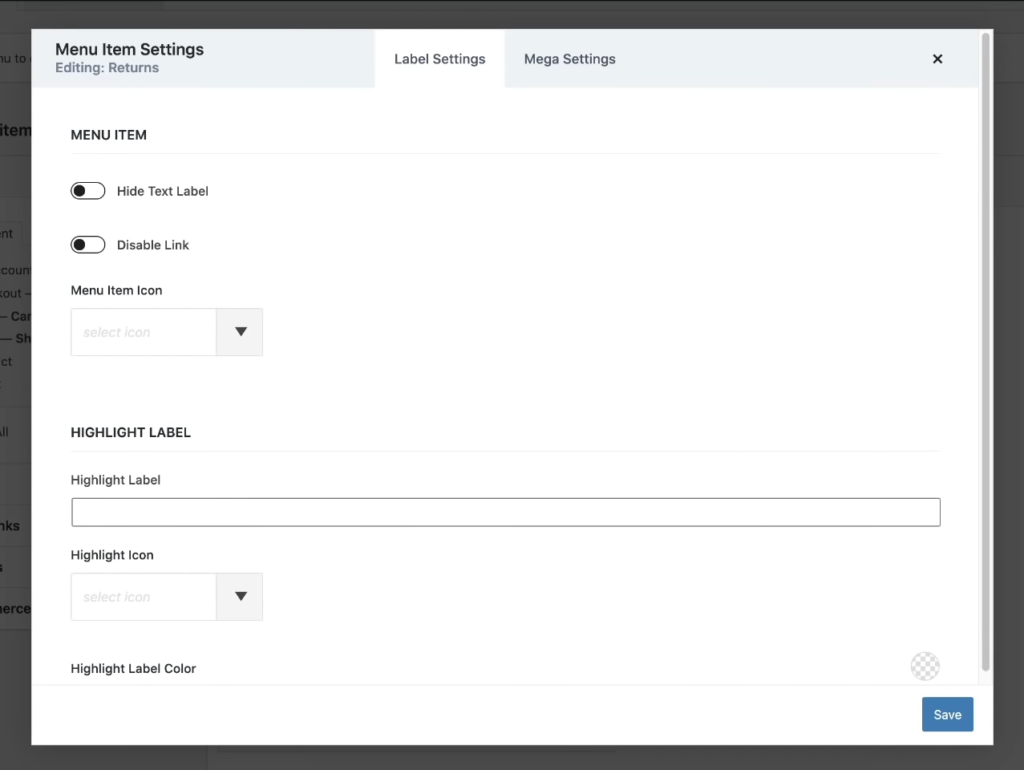
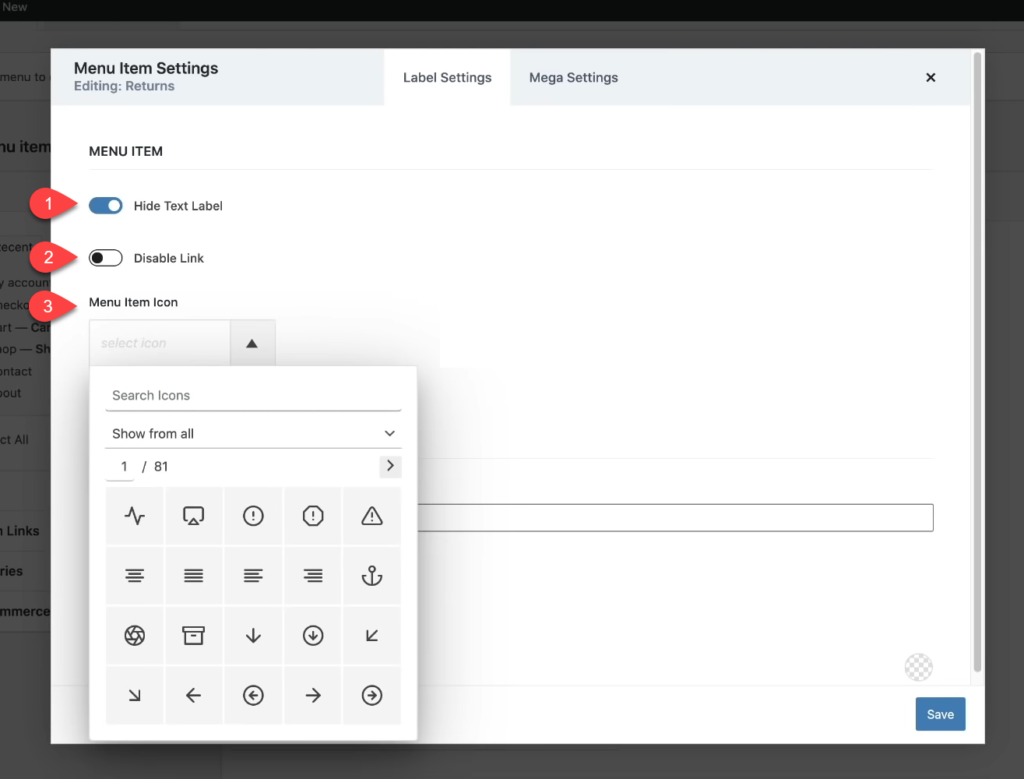
This interface allows you to do three things.
The first is to show the menu items as icons instead of actual names.
Take a look at this website.
It has a menu that has names and ones that are only in icon form.
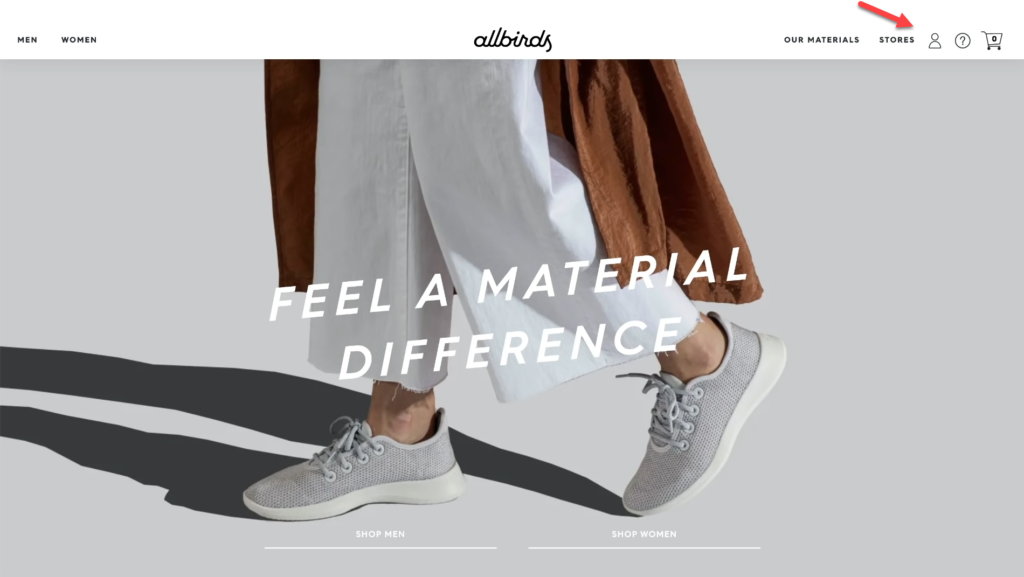
This is pretty common, especially on Facebook and is great for creating modern websites.
So going back to menu settings, from there you can select if you want to hide the text label, disable link, and your menu item icon.
Below these options, you can also highlight a label, and choose an icon and color for it.
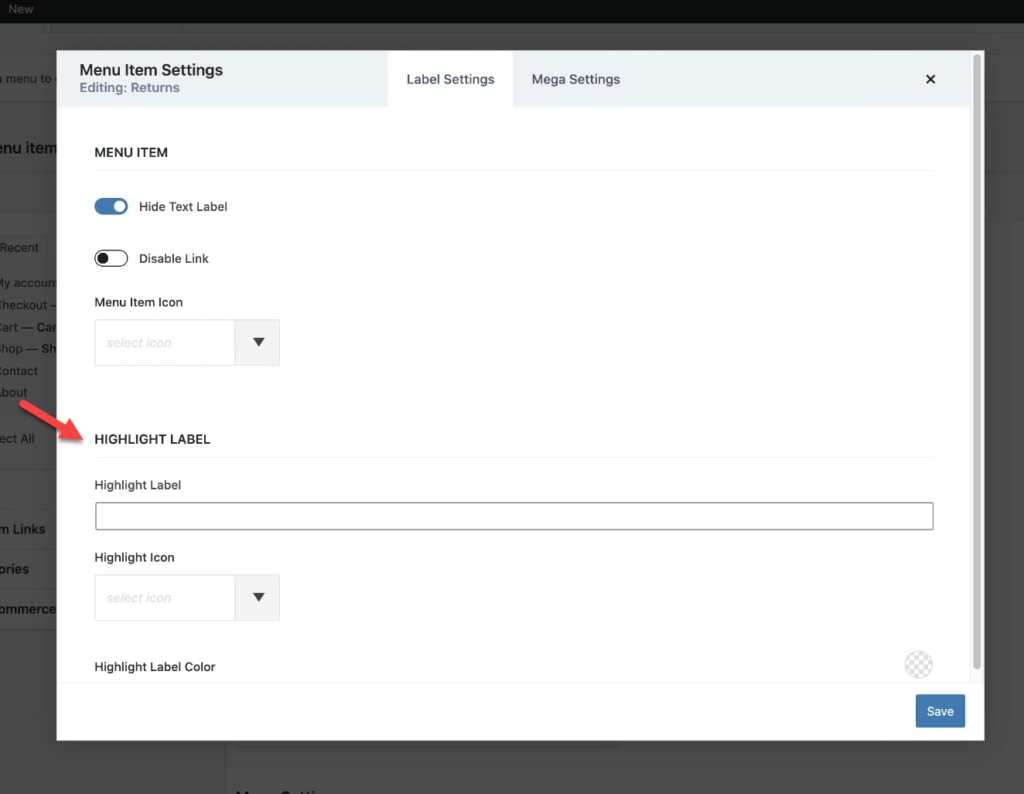
A highlight label is basically a badge placed on the top of a menu item or menu icon.
Next, we have the mega menu.
This is what pops up when you hover over a menu item.
To use it, toggle the Enable Mega Menu Dropdown.
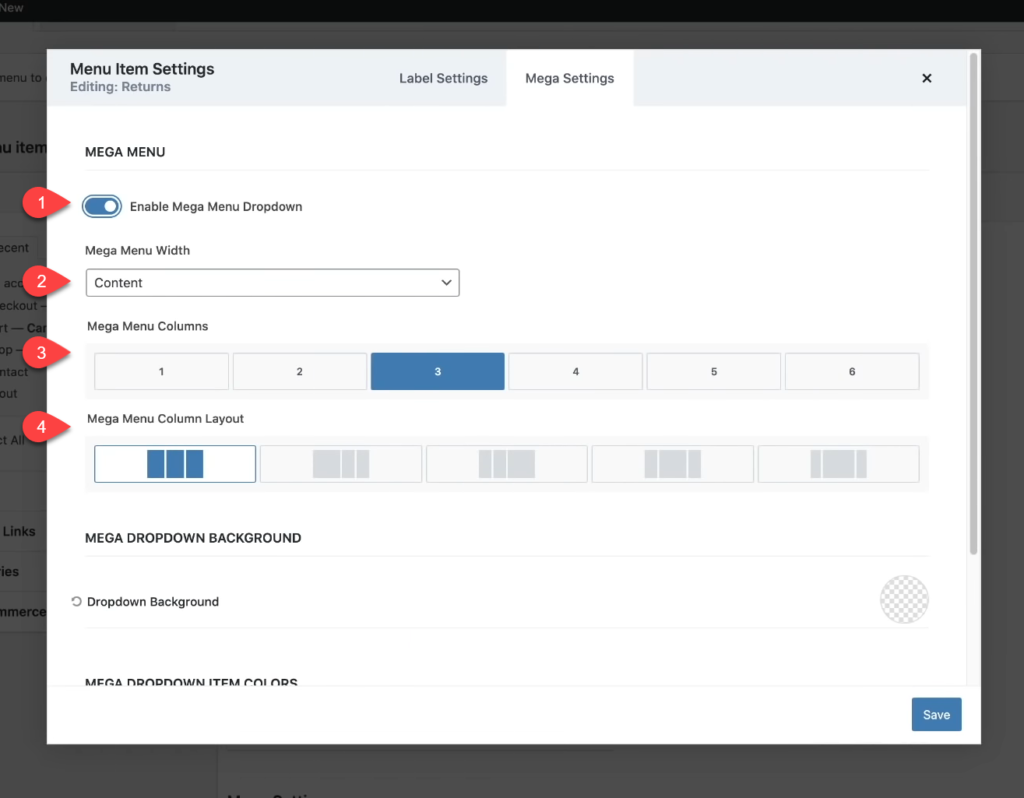
Configurations will appear that includes the width, number of columns, layout, and items colors for your mega menu.
Here is an example of a mega menu on the Evernote website.
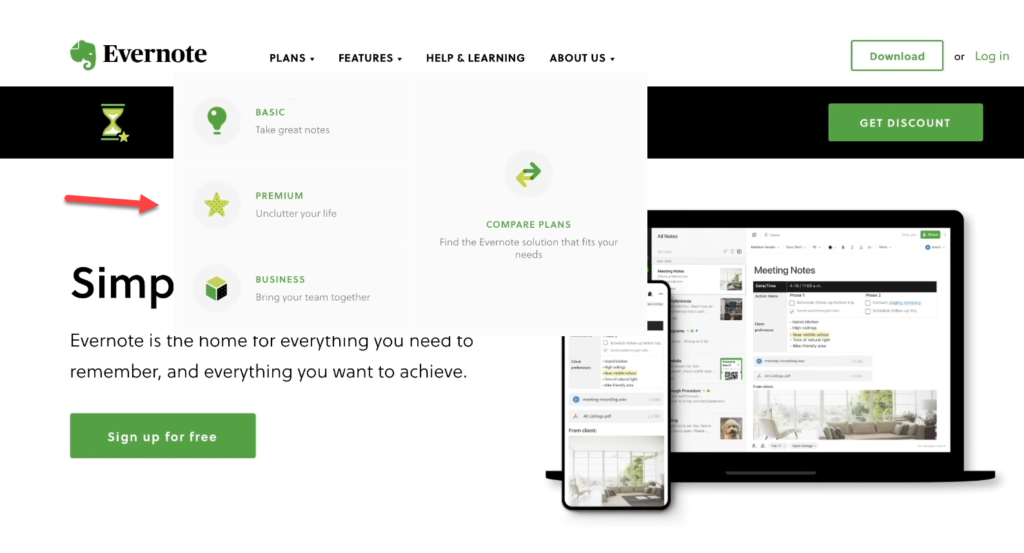
When you hover over Plans, another set of menus appear.
To create a mega menu, go to Elements, click on Add New, and then choose Default.
Here is where you would design you Mega Menu.
You can use the default WordPress block builder or a page builder like Elementor, Beaver Builder, whichever you prefer.
You can design it and add any content you would like.
These days, a lot of themes have the mega menu but they do not have the option to display it as an icon only.
Kadence Pro theme also has a header and footer script feature.
Recall that in Elements, aside from Default and Fixed, there’s also the Code option.
This is where you can place tracking scripts and customs CSFs.
5WooCommerce Enhancements
Here is a website where I put WooCommerce.
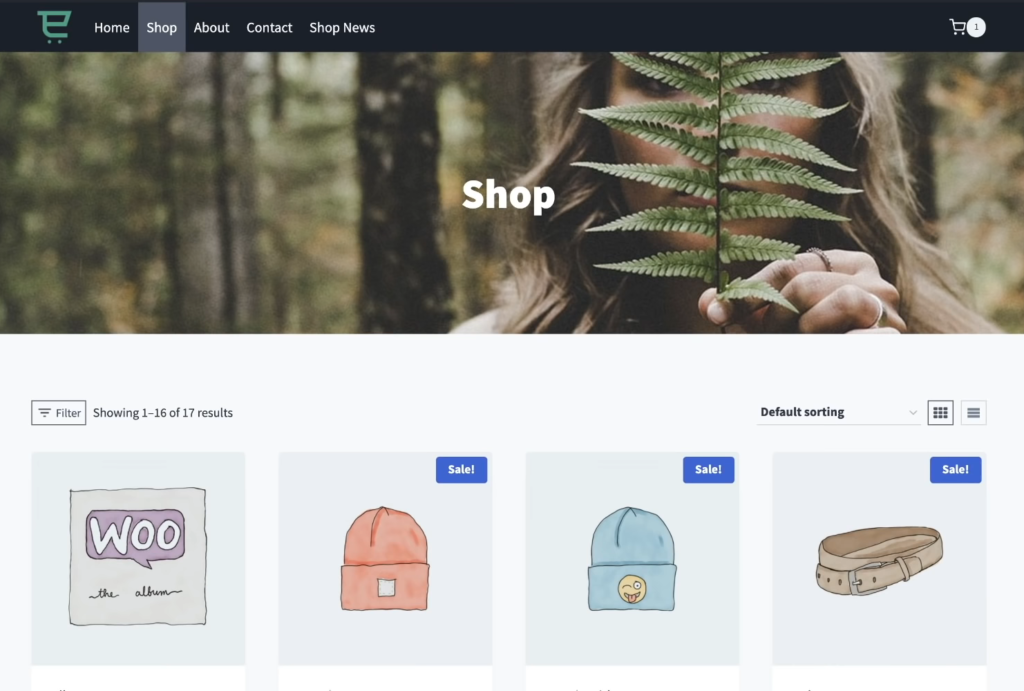
Click on the Filter button.
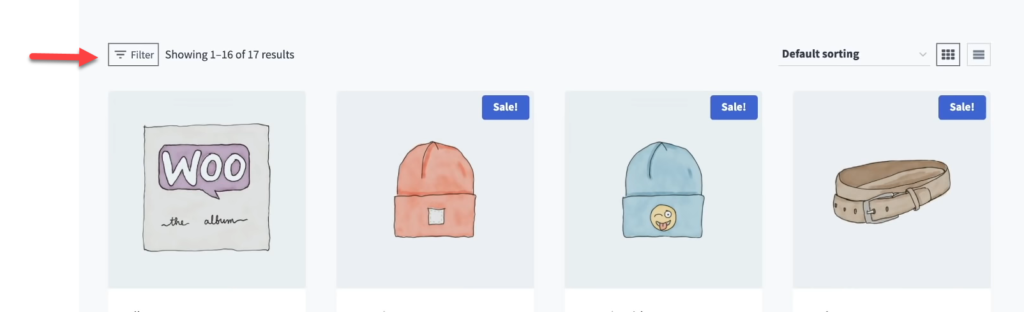
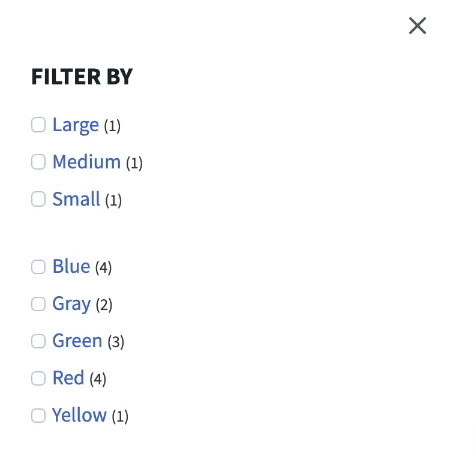
You can customize it and select the ones that you prefer.
You’ll also be able to view and remove the filters.
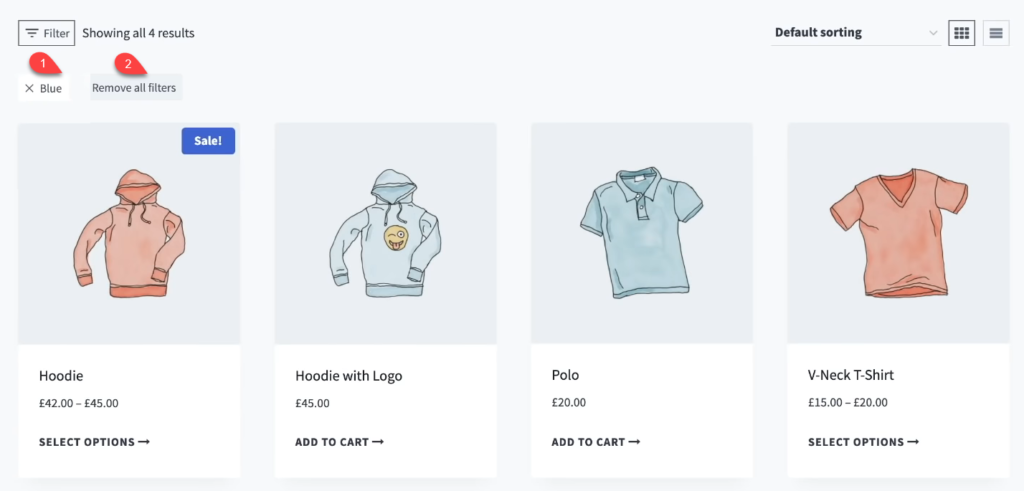
Pop-Up Cart
Next, you have the pop-up cart.
When you click Add To Cart, this pop-up that says Checkout appears.
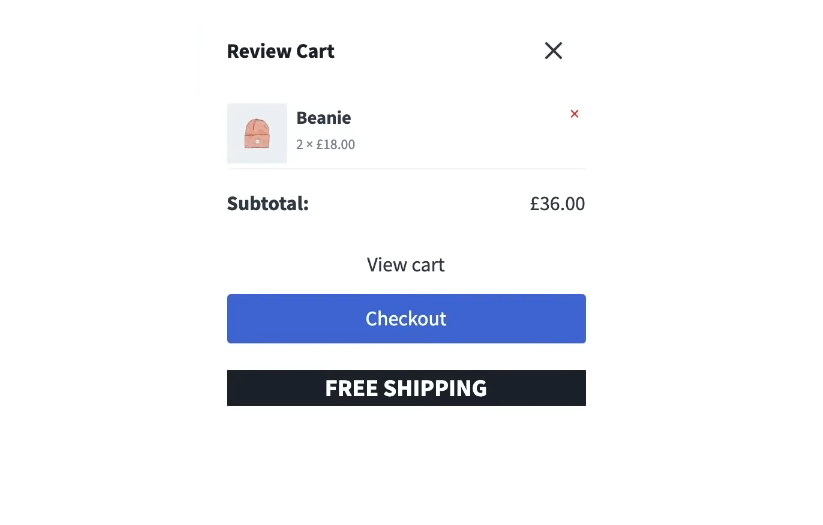
The free shipping text is an Element I created with Kadence Pro as well.
On a side note, the bullet points, guaranteed check out, etc. can be created with the free version of the Kadence theme.
Another enhancement that I find very interesting shows up when the Product Catalog, located in the settings for WooCommerce, is selected.
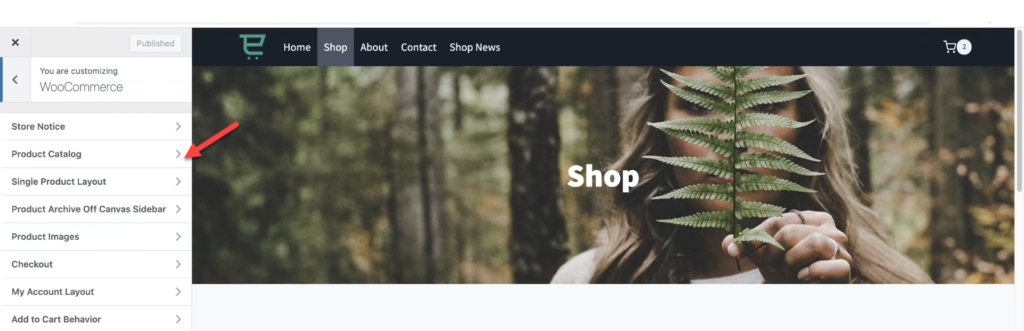
If you scroll down at the bottom, you’ll find the Custom Shop Page.
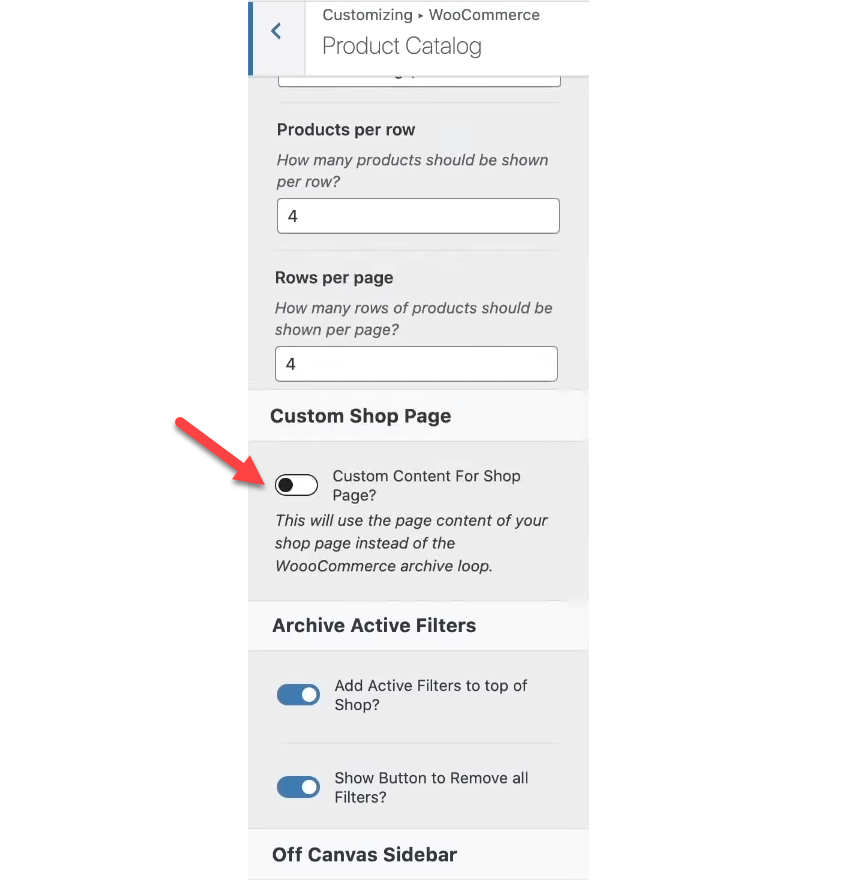
Toggling this will remove all of the content of the shop page.
You can then create one through the default WordPress block builder or any page builder.
Back then, this was another feature only Kadence Pro offered.
What usually happens is that when you create a shop page, WooCommerce automatically takes over.
You can no longer customize or make changes.
That’s why this enhancement is huge.
It will unlock more design possibilities with your shop page and make it more visual.
Kadence Theme versus Other WordPress themes
In this section, I will give a comparison of the Kadence Pro theme with other WP themes.
The themes that I will be talking about are ones that are considered fast and are popular.
I’ll also be sharing the pros and cons of each theme to all of them a fair shake.
Kadence Theme Vs Astra Theme
Right off the bat, Astra theme beats Kadence with the number of starter templates that it has.
It also has tons of page-building tools.
When I first wrote this review, Astra was missing the globally linked color palette, a drag and drop header and footer builder, and the extra layout controls that Kadence had.
Astra has added all of those since.
Kadence Theme Vs GeneratePress
The developers of GeneratePress are super talented.
Their starter templates are ones that I always come back to.
However, I find GeneratePress’s interface to be dated.
When I first wrote this review, GeneratePress didn’t have the globally linked color palette or several of the Elements features Kadence has, so check its current feature list before you compare.
Kadence Theme Vs Neve
Neve has a header builder too, and it’s really good.
It also has this interesting feature where it has a page title builder area.
But again, the standout features that Kadence has, the account item, extra header addons, globally linked color palette, and fixed elements, aren’t offered in this theme.
Kadence Theme Vs OceanWP
OceanWP is one of the most talked-about themes in the market.
If the main features of the Kadence Pro that I’ve talked about in this article don’t affect you in any way then this theme would be perfect for you.
I personally find it super outdated.
The user interface hasn’t kept up with the times.
They do not release regular demos.
The customizer options are kind of messy.
I’ve also done a speed test with this theme and it turns out that it’s three times heavier out of the box.
But all of the things I mentioned here are subject to change.
The developer of this theme might release some updates in the future and who knows what they will add.
Kadence Theme Vs Hello theme
This is the free theme made by the Elementor team, and it’s built to be paired with the Elementor page builder.
I don’t really understand why people recommend this theme.
Choose it is like saying that you’re dependent upon Elementor to provide third-party plugin integrations.
Although they built one for WooCommerce and Learn Dash, they do not have the bandwidth to build them all.
You’re going to need a lot of plugins to provide solutions for your website.
You’re actually better off having a theme that has everything that you need.
It also does not have the features that Kadence Pro has.
Features That Were Coming Soon
I’ve talked extensively about the main feature of this pro theme.
When I first wrote this review, three things were missing. All three have been added since.
More Starter Templates
Starter templates are important because they are the starting points of building a website.
Kadence’s starter templates are beautiful, lightning-quick, and even have dynamically linked global colors.
Back then there were only six of them. Liquid Web’s Kadence Theme page now lists more than 200 starter templates.
Conditional Headers and Footers
The header builder couldn’t make different headers for different parts of your site back then.
Kadence Theme Kit Pro now lets you set conditional headers throughout your site, and you can still replace a header or footer with an Element and its display conditions.
White-label
White label is for website developers who don’t want the name or link of the theme to appear on the website they just created.
They want it to look like a custom solution has been generated for their clients.
Kadence now has a white label option, Kadence White Label, which covers the Kadence Theme and Kadence Blocks.
Who Kadence Pro Theme Is For
This full-packed theme is perfect for a lot of people, particularly eCommerce site owners and website developers.
If you have a site that requires someone to log in, then Kadence Pro is the theme for you.
The powerful header builder can create different headers with the login account item.
It has amazing integration with all the plugins you’ll need for a learning management system.
Website developers should also give this theme a look over.
You can do so much with Elements and Fixed Elements.
Even if you have a theme that you like using, it might lack the innovations you need for your client’s project.
You might end up losing your customer or creating a custom code solution that’s hard to maintain and is going to cost you a lot of money.
The features you need can only be used from Kadence Pro.
It’s a bigger investment than it used to be. The paid plan starts at $350 a year for one site, and you need to keep renewing to get updates.
If you build a lot of sites, the bigger plans bring the price per site down and give you a chest filled with tools for your client projects.
Is the Free Version Right For You?
If you want a brochure website, then you do not need the pro version of the Kadence theme.
The free version has tons of features, like the globally linked colors and fonts.
Also, if you’ve read the features above and you don’t actually need it, then you should stick to the free one.
Whether you go with the free Kadence Theme or upgrade to their paid plan, Kadence is doing things that other themes are not.
I suppose they had the late mover's advantage, being able to see what other themes did wrong and innovating on their weaknesses.
Something as simple as a centralized globally linked color palette makes so much sense, and Kadence does it really well. Same goes for how the theme handles typography.
Kadence Theme FAQs
Is the Kadence theme free?
Yes. The Kadence theme is free on WordPress.org and includes the drag and drop header and footer builder and the global color and font settings. The free Kadence Blocks plugin is there too.
How much does Kadence Pro cost?
Kadence isn't sold as a separate Pro add-on any more. The paid plan is $350 a year for 1 site, going up to $999 a year for 100 sites, and it also includes LearnDash, The Events Calendar and Give. There's no lifetime plan.
Who owns Kadence now, and is it still updated?
Kadence is owned, sold and supported by Liquid Web, and the old kadencewp.com address redirects to Liquid Web's site. The free theme on WordPress.org was updated on November 20, 2026 and the free Kadence Blocks plugin on November 24, 2026.
Is there a money-back guarantee?
Liquid Web's Kadence terms page says you can ask for a refund up to 30 days after you buy if you're not happy, by submitting a support ticket. Check that page before you buy, since it still mentions some older plans.
Can Kadence do conditional headers?
Yes. The paid Kadence Theme Kit Pro lets you set different headers for different parts of your site.
What's the main alternative to Kadence?
Astra is the one I'd compare it to. Both are fast, free themes on WordPress.org, and Astra Pro is $69 a year for up to 3 sites if you want the premium theme features.

I've been teaching people to build and grow their businesses online since 2014. I test the tools myself and tell you what I'd actually use, and why.

